Apple Cloud Solutions & Migration | MacWorks 360
Apple Cloud Solutions & Migration: Your Complete Guide to Managed Apple Accounts
You’re running a creative agency with fifteen MacBooks, a dozen iPads, and everyone’s iPhone syncing… somewhere. One designer quits, taking the client files with them. Another can’t access shared folders from home. Your “IT strategy” is basically hoping nothing breaks before the next client deadline.
Sound familiar? You’re not alone. Thousands of Mac-heavy small businesses are stuck in this exact spot—too big for consumer Apple IDs, too small (or too bright) to hire a whole IT department, and frankly, overwhelmed by the alphabet soup of Apple Business Manager, Managed Apple Accounts, and whatever “zero-touch deployment” means.
Here’s the good news: migrating to a proper Apple cloud solution doesn’t require an enterprise budget or a computer science degree. What it does require is a clear plan, realistic expectations, and an understanding of what you’re actually solving for. This guide walks you through exactly that—no jargon, no drama, just the practical steps to move your Mac/iPad/iPhone fleet from chaos to control.
Key Takeaways
- Managed Apple Accounts (Managed Apple IDs) give you organizational control over user accounts, data ownership, and device security without the complexity of traditional enterprise IT systems.
- Migration is a phased project—assess your current state, pilot with a small group, migrate in waves, validate everything works, then harden security policies.
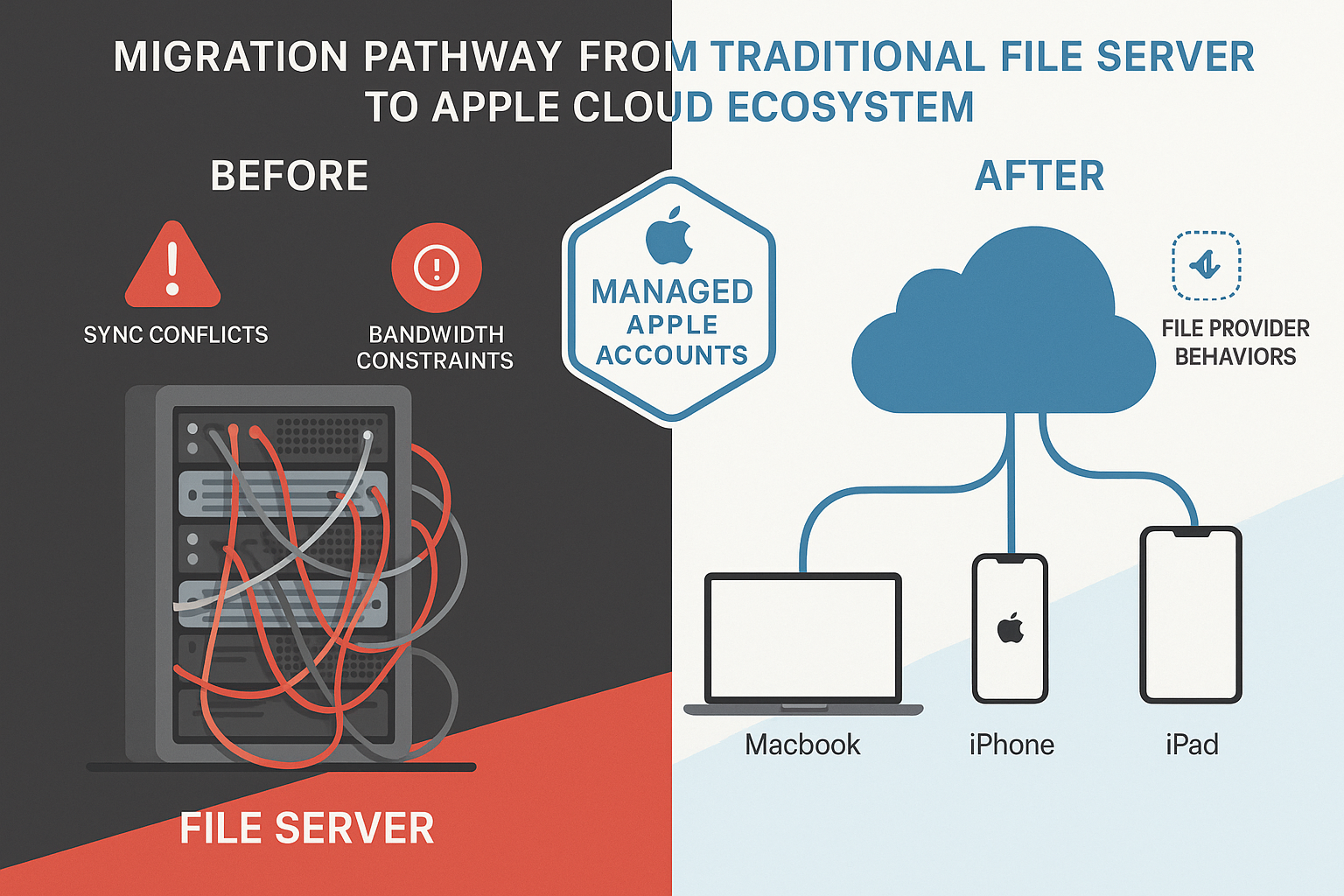
- Identity and governance decisions (who owns accounts, what happens during offboarding, MFA requirements) are more important than the technology itself. Common pitfalls include underestimating bandwidth constraints, ignoring File Provider sync behaviors, and skipping the unglamorous work of permissions mapping.
- Apple’s cloud isn’t a full enterprise suite—set realistic expectations about what it replaces (and what it doesn’t) in your existing workflow.
What “Apple Cloud” Actually Means for a Small Business (Without the Hype)
Let’s cut through the marketing fog. When people say “Apple cloud,” they’re usually talking about three distinct things that often get confused:
iCloud is Apple’s consumer cloud service—the thing that backs up your personal photos, syncs your Safari passwords, and keeps your Notes app working across devices. It’s brilliant for individuals. For businesses? It’s a liability. Personal Apple IDs mean you don’t own the account, you can’t enforce security policies, and when someone leaves, their “work” data leaves with them.
Managed Apple Accounts (Managed Apple IDs) are organization-owned accounts that look and feel like regular Apple IDs to users but give you administrative control. You own the account. You set password policies. You can deprovision access when someone leaves. You decide what gets synced and where. Think of them as the business version of a personal Apple ID—same iCloud features (Drive, Photos, Keychain, etc.), but with governance guardrails.
Apple Business Essentials is Apple’s relatively new all-in-one service combining device management (MDM), cloud storage (up to 2TB per user), and 24/7 Apple support. It’s designed specifically for companies with 1-500 employees who want a simplified, Apple-native solution. The catch? As of December 2025, you cannot migrate devices to or from Apple Business Essentials using Apple Business Manager’s migration tools[1]. If you’re already using another MDM platform (Jamf, Kandji, Mosyle, Intune), switching to Business Essentials means unenrolling and re-enrolling devices—basically starting over.
What Apple Cloud Does Well
Apple’s ecosystem shines in device-first security and user experience. FileVault encryption, Activation Lock, biometric authentication, and hardware-backed encryption keys are all built in. The continuity features—Handoff, Universal Clipboard, AirDrop between managed devices—genuinely improve productivity for creative teams who live across Mac, iPad, and iPhone.
iCloud Drive with File Provider means users get automatic sync without having to think about it. Save a Photoshop file on your MacBook, open it on your iPad Pro an hour later. For small teams, this “it just works” experience is worth its weight in gold.
Automated Device Enrollment (formerly DEP) lets you ship a brand-new MacBook directly from Apple to a remote employee. When they unbox it, it automatically enrolls in your MDM, installs your baseline apps, and applies your security settings. No IT visit required. That’s powerful for distributed teams.
Where It’s Not a Full “Enterprise Suite” (Set Expectations Now)
Apple’s cloud is not a replacement for:
- Granular file permissions and ACLs as you’d get with a Windows file server or dedicated storage platform (Synology, Dropbox Business with advanced controls, etc.)
- Robust collaboration features—iCloud collaboration is improving, but it’s still miles behind Google Workspace or Microsoft 365 for real-time co-editing and commenting
- Compliance and eDiscovery tools—if you’re in a regulated industry (legal, healthcare, finance), iCloud’s audit and retention capabilities are limited.
- Cross-platform identity management—if you’re running a mix of Mac and Windows, or need deep integration with Active Directory or Okta, you’ll need additional tools
The smart play? Use Apple’s cloud for what it does best (device management, sync, continuity) and integrate it with best-of-breed tools for collaboration (Google Workspace, Microsoft 365) and security (endpoint detection, backup, identity management). This isn’t an all-or-nothing decision.
Common Migration Scenarios We See in Mac-Heavy Companies
Every migration starts from somewhere. Here are the four patterns we see most often with creative studios, design agencies, and small Mac-centric businesses:
Scenario 1: Local File Server/NAS → Cloud Storage + Local Cache
You’ve got a Synology or QNAP NAS sitting under someone’s desk (or in a closet that doubles as your “server room”). Everyone connects via SMB or AFP. It’s slow. Remote access is a nightmare involving VPNs that never quite work. Backups are… well, let’s not talk about backups.
Migration path: Move active project files to iCloud Drive (for Apple-native workflows) or a business-class cloud storage provider (Dropbox Business, Google Drive, Microsoft OneDrive) with local caching. Keep the NAS as an archive for completed projects and as a local backup target. Use a tool like ChronoSync or Carbon Copy Cloner to maintain a local mirror of critical cloud data.
Key consideration: Upload bandwidth is your bottleneck. If you’re moving 2TB of video files on a 10 Mbps upload connection, do the math—that’s roughly 18 days of continuous uploading. Plan for incremental migration and off-hours syncing.
Scenario 2: Personal Apple IDs → Managed Apple Accounts
This is the big one. Your team is using their personal iCloud accounts for work. Maybe you’re paying for their storage upgrades. Perhaps they’re just mixing personal and work data in one giant iCloud soup.
Migration path: Create Managed Apple Accounts in Apple Business Manager, assign them to users, then migrate data from personal to managed accounts. This is not automatic—users will need to download files from their personal iCloud Drive and re-upload to their managed account, or use a migration tool.
Key consideration: Users lose access to certain consumer iCloud features (Family Sharing, iCloud+, custom email domains) on Managed Apple IDs. Set expectations early. Also, decide before you start: do users keep dual accounts (personal for personal stuff, managed for work), or are you enforcing managed-only on company devices?
Scenario 3: Mixed Environment—Apple Devices + Microsoft 365 or Google Workspace Identity
You’re already paying for Microsoft 365 or Google Workspace for email and collaboration. Your Macs and iPads are just… doing their own thing with local accounts or personal Apple IDs.
Migration path: Implement Managed Apple Accounts for device management and iCloud services, but federate authentication to your existing identity provider (Azure AD, Google Workspace) using SSO. This gives you centralized identity management and conditional access policies while still leveraging Apple’s device-first features.
Key consideration: Federation setup requires Apple Business Manager and a compatible identity provider. Not every MDM supports this cleanly—verify your MDM’s federation capabilities before committing.
Scenario 4: Backup Strategy Shift—Device + Cloud + Immutable/Offsite
You’re relying on Time Machine for local drives. Or maybe nothing at all (we won’t judge… much). You need a real backup strategy that accounts for device loss, ransomware, and the “oops, I deleted the client folder” scenario.
Migration path: Implement a 3-2-1 backup strategy—three copies of data, on two different media types, with one offsite. Use iCloud for user data sync (not a proper backup), Time Machine or Carbon Copy Cloner for local versioned backups, and a cloud backup service (Backblaze, Arq, CrashPlan) for off-site protection.
Key consideration: iCloud sync is not a backup. If a user deletes a file on one device, it deletes everywhere. You need versioning and immutable backups for proper protection.
Pre-Migration Assessment (The Step Everyone Skips and Later Regrets)
Here’s the truth: most failed migrations fail in the planning phase, not in execution. You can’t migrate what you don’t understand. Block out a week (yes, a week) to do this properly.
Data Inventory—What You Actually Have
Volume and file types: How much data are we talking about? 500GB? 5TB? 50TB? What file types dominate—video files, design assets, code repositories, documents? Large video files have different migration considerations than thousands of small text files.
Permissions and ownership: Who has access to what? Are there shared folders with complex permission structures? Are files owned by individual users or by shared accounts? Map this before you migrate, or you’ll spend months fixing access issues after the fact.
Data classification: Not all data is created equal. Client files, financial records, and employee information have different security and retention requirements than internal memos. Tag and classify now.
Tool: Use a disk analysis tool (DaisyDisk, GrandPerspective, or command-line du) to visualize what’s taking up space. For permissions, document your current structure in a spreadsheet: folder path, current owner, current access list, and desired future state.
App + Workflow Dependencies (The Devil in the Details)
Adobe Creative Cloud and File Provider: Adobe apps have a complicated relationship with cloud storage providers. Photoshop, Premiere, and After Effects perform best with local files. Working directly from iCloud Drive can cause sync conflicts, performance issues, and file corruption. Document which apps your team uses, and test their behavior with your target cloud storage service.
Plugins and extensions: That custom Photoshop plugin or Final Cut Pro workflow extension—does it store settings locally? In a specific folder structure? Will it break if files move?
Collaboration patterns: How does your team actually work? Do designers pass files back and forth via Slack? Email? Shared folders? AirDrop? Understanding current workflows helps you design the future state.
File Provider behavior on macOS: File Provider (the technology behind iCloud Drive, Dropbox, and others on modern macOS) doesn’t always download files immediately. Files can be “in the cloud” and only downloaded on demand. This saves space but can surprise users when they’re offline or on slow connections. Test and document expected behavior.
Bandwidth + ISP Realities (The Constraint Nobody Wants to Talk About)
Upload speed is the killer: Most business internet connections have asymmetric bandwidth—fast download speeds, slow upload speeds. A “100 Mbps” connection might be 100 down / 10 up. Uploading terabytes on a 10 Mbps connection takes weeks.
Measure, don’t assume: Run a real-world bandwidth test during business hours. Use speedtest.net or fast.com. Test multiple times: document peak and off-peak speeds.
Failover and redundancy: What happens if your internet goes down during migration? Do you have a backup connection? Can you pause and resume uploads?
Migration window planning: For large datasets, consider off-hours migration (nights and weekends), or even shipping hard drives to your cloud provider (AWS Snowball, Google Transfer Appliance) if you’re moving multi-terabyte datasets.
Security and Compliance Requirements (The Non-Negotiables)
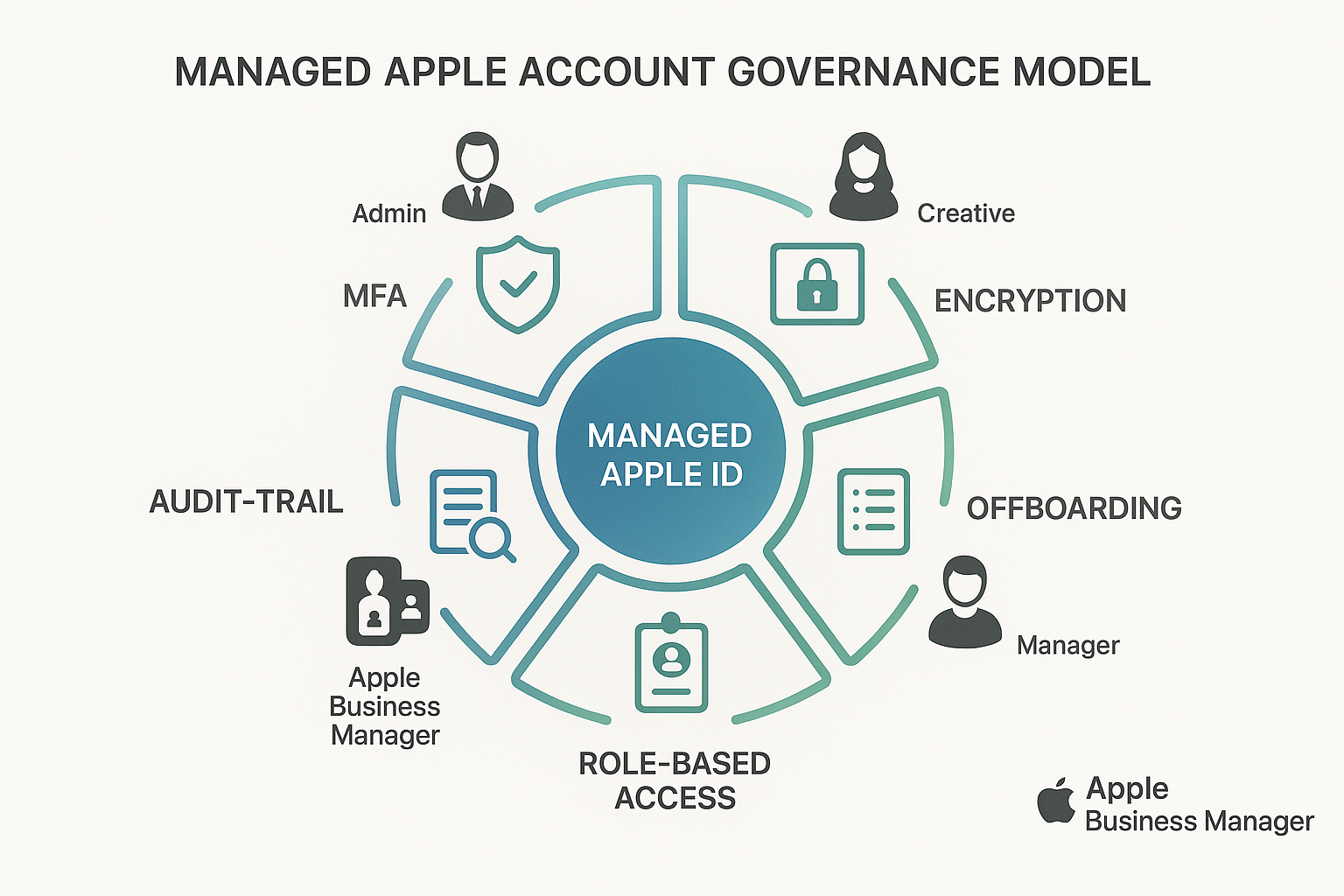
Multi-factor authentication (MFA): Will you require MFA for all Managed Apple Accounts? (You should.) Does your MDM support enforcing this?
Data retention and deletion: How long must you keep client files? What’s your legal or contractual obligation? Can you automatically delete after a specific period?
Data loss prevention (DLP): Do you need to prevent certain file types (client contracts, financial data) from being shared outside the organization? iCloud has limited DLP capabilities—you may need a third-party solution.
Audit trails: Who accessed what, when? Apple Business Manager provides some logging, but for detailed audit trails, you’ll need additional tools or integration with a SIEM (Security Information and Event Management) system.
Compliance frameworks: Are you subject to GDPR, HIPAA, SOC 2, or other regulatory requirements? Document how your migration plan addresses each control.
Identity, Access, and Governance (Make This the Backbone)
This is the unsexy stuff that determines whether your migration is a success or a recurring nightmare. Get identity and governance right, and everything else gets easier.
Domain Ownership + Account Strategy
Verify domain ownership in Apple Business Manager: Before you can create Managed Apple Accounts, you must prove you own your domain (yourcompany.com). This involves adding a TXT record to your DNS. Do this early—DNS changes can take time to propagate.
Account naming convention: Decide now: firstname.lastname@yourcompany.com? first initial + lastname? Keep it consistent. You can’t easily change Managed Apple Account names later.
Account lifecycle: Document the processes for creating accounts (new hire), modifying accounts (role change), and deactivating accounts (termination or offboarding). Who has permission to do each action?
Managed Apple Accounts—What Changes for Users and Admins
For users, a Managed Apple Account feels almost identical to a personal Apple ID. They sign in, their stuff syncs, iCloud Drive works, and Keychain works. The differences they’ll notice:
- Can’t use Family Sharing or iCloud+ features (Hide My Email, Private Relay, custom domains)
- Password resets go through the organization, not Apple’s consumer support
- The organization can remotely wipe data or lock the account
For admins, Managed Apple Accounts give you:
- Ownership: You own the account and all data in it. When an employee leaves, you retain access.
- Password policies: Enforce minimum length, complexity, expiration (though modern best practice is long passphrases + MFA, not forced rotation).
- Provisioning and deprovisioning: Create accounts in bulk and disable them instantly upon termination.
- Audit logs: See sign-in activity, device associations, and password changes.
Critical decision: What happens to a user’s Managed Apple Account data when they leave? Options:
- Transfer to another user (manager inherits their files)
- Export and archive (download everything, store in the company archive)
- Delete after grace period (30-90 days to retrieve anything needed, then purge)
Document this in your employee handbook and offboarding checklist now.
Role-Based Access and “Who Owns the Data” Rules
Principle of least privilege: Users should have access to what they need, nothing more. Define roles (Admin, Manager, Designer, Contractor) and map permissions to roles, not individuals.
Shared spaces vs. personal spaces: iCloud Drive for Managed Apple Accounts includes personal storage (users’ files) and can integrate with shared folders. Define clearly:
- What lives in personal space (user-specific files, drafts)
- What lives in shared space (client projects, templates, company resources)
- Who owns shared spaces (a service account, not an individual user)
Data ownership policy: Make it explicit in your employment agreements and acceptable use policy: work product created on company devices or using company accounts belongs to the company. You’d be surprised how many legal battles start here.
MDM Alignment—Enrollment Model and Baseline Security Settings
Automated Device Enrollment (ADE): For new devices purchased through Apple Business Manager or an authorized reseller, ADE automatically enrolls them in your MDM when first powered on. This is the gold standard—users can’t skip enrollment, and devices are supervised (giving you deeper management control).
User Enrollment vs. Device Enrollment: For personally owned devices (BYOD), use User Enrollment—it creates a separate managed partition for work data without giving you access to personal data. For company-owned devices, use Device Enrollment (full supervision).
Baseline security settings (the non-negotiables):
- FileVault encryption: Enabled on all Macs, keys escrowed to MDM
- Activation Lock: Enabled on all devices to prevent theft/resale
- Passcode requirements: Minimum 18 characters (or 6-digit PIN on iOS), biometric unlock allowed
- Automatic updates: Security updates install automatically (or within 7 days)
- Firewall enabled: On all Macs
- Gatekeeper enforced: Only apps from identified developers or the App Store.
Migration-specific MDM consideration: If you’re migrating devices between MDM services, Apple Business Manager now supports device migration without factory resets for devices running iOS 16, iPadOS 16, or macOS 13 or later[2]. You can set migration deadlines (1-90 days), and the new MDM takes over Activation Lock and FileVault keys automatically[3]. However, this does not work with Apple Business Essentials—devices must be unenrolled and re-enrolled manually[4].
Data Migration Plan (Phased, Testable, Reversible)
Never migrate everything at once. Never. Here’s the playbook that actually works:
Phase 1: Pilot Group + Success Criteria
Select 3-5 pilot users representing different roles and workflows:
- One power user (heavy data, complex workflows)
- One average user (typical daily tasks)
- One remote/distributed user (tests connectivity and sync)
- One “skeptic” (the person most likely to find problems)
- One leader/decision-maker (to experience it firsthand)
Define success criteria before you start:
- All pilot users can access their files within 24 hours of migration
- No data loss (verified by file count and size comparison)
- Sync conflicts fewer than 1% of files
- User-reported issues resolved within 48 hours
- Pilot users report productivity equal to or better than pre-migration
Pilot duration: Minimum 2 weeks, ideally 4. You need time for edge cases to surface.
Phase 2: Folder Structure + Naming Conventions
Design your target folder structure before you migrate. Common patterns:
/Company Shared/
  /Clients/
    /[Client Name]/
      /Projects/
      /Assets/
      /Deliverables/
  /Templates/
  /Resources/
  /Archive/

/Departments/
  /Creative/
  /Operations/
  /Finance/

/Users/
  /[Username]/
Naming conventions matter:
- No special characters in folder or file names (avoid
/ : * ? " < > |) - Use dashes or underscores instead of spaces (or accept spaces but be consistent)
- Date formats: YYYY-MM-DD for sortability
- Version numbers: v01, v02 (not “final,” “final2,” “final_FINAL”)
Enforce conventions with documentation and training, not just hope.
Phase 3: Permissions Mapping + Shared Spaces
Map old permissions to the new structure:
| Old Location | Old Permissions | New Location | New Permissions | Owner |
|---|---|---|---|---|
| /ServerShare/Clients/ACME | Creative team: Read/Write | /Company Shared/Clients/ACME | Creative group: Edit | shared-creative@ |
| /ServerShare/Finance | Finance team: Read/Write, Others: No access | /Departments/Finance | Finance group: Edit, Others: None | shared-finance@ |
Use service accounts or shared accounts to own shared folders, not individual users. If Jane owns the “Clients” folder and leaves, you have a mess.
Test permissions before cutover: Have pilot users verify they can access what they need and can’t access what they shouldn’t.
Phase 4: Cutover Plan—Freeze, Sync, Validate
The cutover is the riskiest moment. Here’s how to minimize risk:
- Announce a freeze window (e.g., Friday 5 PM to Monday 9 AM): No new files, no edits to existing files on the old system.
- Final sync: Copy all data from the old location to the new location. Verify file counts and total size match.
- Delta sync: Run a second sync to catch any changes made during the first sync (there are always some).
- Validation: Spot-check critical files—open them, verify they’re not corrupted.
- Redirect access: Update shortcuts, bookmarks, and documentation to point to the new location.
- Monitor: Watch for sync errors, access issues, and user complaints in the first 48 hours.
- Keep the old system read-only for 2-4 weeks as a safety net. Don’t delete anything yet.
Rollback plan: If something goes catastrophically wrong, how do you revert? Document this before you start.
Device + User Experience Considerations on macOS/iOS/iPadOS
Technology is only half the battle. The other half is humans and their habits.
Finder and File Provider Behaviors—What Users Need to Know
Files can be “in the cloud” or “downloaded”: On macOS, iCloud Drive uses on-demand downloading. A file with a cloud icon next to it isn’t entirely on your Mac—it downloads when you open it. This saves disk space but can surprise users.
How to force download: Right-click a file or folder, select “Download Now.” Or, in iCloud settings, disable “Optimize Mac Storage” to keep everything downloaded (if you have disk space).
Offline access: Files marked “Download Now” or recently accessed are available offline. Truly, cloud-only files are not. If you’re going offline (flight, remote location), download what you need first.
Sync status icons:
- Cloud icon: File is in iCloud, not downloaded
- Checkmark: File is downloaded and synced
- Pause icon: Sync is paused
- Warning icon: Sync error (common causes: file name too long, special characters, permissions issue)
Teach users to check sync status before assuming a file is “missing.”
Storage Optimization and the “Where Did My Disk Space Go?” Problem
macOS storage optimization automatically offloads files to iCloud when disk space is low. This is great for consumer use, but confusing for business users who expect files to be on their Mac.
Best practice: For users working with large files (video editors, photographers), disable storage optimization and provide enough local disk space. For users with lighter needs (managers, coordinators), optimization is fine.
Check storage settings: System Settings > [Your Name] > iCloud > iCloud Drive > Optimize Mac Storage.
Sync Conflict Prevention—Golden Rules for Users
The 10-minute training that saves 100 hours of support:
- Let the files finish syncing before closing your laptop. Check the sync icon in Finder. If it’s still spinning, wait.
- Don’t edit the same file on two devices simultaneously. iCloud isn’t Google Docs—it doesn’t merge changes in real-time. Last save wins, and you might lose work.
- Use “Save As” for significant revisions. Don’t overwrite the original until you’re sure the new version is correct.
- If you see a sync conflict, don’t panic. macOS will create a “conflicted copy” with both versions. Compare them, keep the right one, delete the other.
- Keep file names simple. Avoid special characters, keep names under 255 characters, don’t use emoji (yes, people do this).
Print this, laminate it, and tape it to monitors. Seriously.
Mobile Workflows—Files App, Sharing, Collaboration on iOS/iPadOS
The Files app is powerful but not intuitive. Train users on:
- Adding cloud providers: Files app > Browse > Edit > Add iCloud Drive, Dropbox, etc.
- Offline access on iOS: Long-press a file, select “Download.” Or tap the cloud icon.
- Sharing files: Share button > Copy Link (for iCloud shared links) or Send Copy (for attachments). Understand the difference—links require the recipient to have access; copies are standalone.
- Markup and annotation: Built into Files app—tap a PDF or image, tap the Markup icon, annotate, save. Great for quick approvals.
iPad-specific workflow tips:
- Use Split View to drag files between apps (e.g., drag an image from Files into an email)
- External storage (USB drives) works in the Files app on iPads with USB-C
- Scan documents directly into Files using the built-in scanner (Files app > Browse > … > Scan Documents)
Security Model (What You Enforce, What You Monitor)
Security isn’t a one-time setup—it’s an ongoing practice. Here’s what to enforce and how to monitor it.
MFA and Conditional Access (Where Applicable)
Multi-factor authentication (MFA) is non-negotiable for Managed Apple Accounts. Period. Please enable it in Apple Business Manager settings.
How it works: Users sign in with a password + a second factor (SMS code, authentication app, hardware key). Even if a password is compromised, the account stays secure.
Conditional Access (if using federated identity): With Azure AD or Google Workspace federation, you can enforce policies like:
- Require MFA when signing in from unknown locations
- Block sign-ins from certain countries
- Require compliant devices (enrolled in MDM, encrypted, up-to-date)
User experience tip: Set up MFA during onboarding, not after the fact. It’s easier to establish “how we do things” than to retrofit later.
Encryption Expectations and iCloud Protections
FileVault (macOS) and Data Protection (iOS/iPadOS) encrypt data at rest on devices. Enable and enforce via MDM.
iCloud encryption: Data synced to iCloud is encrypted in transit (TLS) and at rest on Apple’s servers. However, by default, Apple holds the encryption keys (so they can help you recover data if you forget your password). This also means Apple can comply with legal data requests.
Advanced Data Protection for iCloud (available as of late 2022): Enables end-to-end encryption for most iCloud data (Drive, Photos, Notes, etc.), meaning Apple cannot decrypt your data. Only your devices have the keys. This is the highest security option, but it comes with a critical trade-off: if you lose access to all your trusted devices and forget your password, your data is unrecoverable. Apple can’t help you.
Recommendation for businesses: Evaluate Advanced Data Protection carefully. For most small businesses, standard iCloud encryption, strong MFA, and device management are sufficient. If you handle highly sensitive data (legal, healthcare, finance), Advanced Data Protection may be worth the added recovery risk.
Logging, Alerting, and Monitoring Basics
What to monitor:
- Sign-in activity: Failed login attempts, sign-ins from unusual locations, new device associations
- Device posture: Devices falling out of compliance (encryption disabled, OS out of date, MDM unenrolled)
- Risky behavior: Large file downloads/uploads outside business hours, sharing sensitive files externally
Where to find logs:
- Apple Business Manager: Basic account activity logs (account creation, password resets, role changes)
- MDM platform: Device compliance status, app installation, policy enforcement
- Identity provider (if federated): Detailed sign-in logs, conditional access policy hits
Alerting: Set up alerts for critical events—MDM unenrollment, FileVault disabled, multiple failed login attempts. Don’t wait to discover problems during a quarterly review.
SIEM integration (advanced): For larger or regulated environments, integrate logs into a Security Information and Event Management (SIEM) system (e.g., Splunk, Sumo Logic, Microsoft Sentinel) for centralized monitoring and correlation.
Backup and Recovery Runbook (Test Your Restores)
The backup plan you never test is the backup plan that fails when you need it.
Backup strategy (3-2-1 rule):
- Primary data: iCloud Drive (sync, not backup)
- Local backup: Time Machine to external drive or NAS (versioned, recoverable)
- Cloud backup: Backblaze, Arq, CrashPlan (offsite, immutable, protected from ransomware)
Recovery runbook—document these procedures:
- Restore a single deleted file: Check Time Machine first (fastest), then cloud backup
- Restore an entire user account: reinstall macOS, sign in with a Managed Apple Account, sync data from iCloud, and restore local-only files from backup.
- Recover from ransomware: Wipe device, reinstall OS, restore from immutable cloud backup (not iCloud, which may sync encrypted files)
- Recover from a lost/stolen device: Remote wipe via MDM, user signs in on a new device, and data syncs from iCloud.
Recovery Point Objective (RPO): How much data can you afford to lose? (e.g., 24 hours = daily backups)
Recovery Time Objective (RTO): How quickly must you restore? (e.g., 4 hours = need fast local backups, not just cloud)
Test restores quarterly. Pick a random file, delete it, restore it. Time the process. Fix what’s broken.
Post-Migration Hardening + Adoption
Migration isn’t done when the files are moved. It’s done when users are productive, secure, and the old system is safely decommissioned.
Cleanup—Decommission Legacy Shares Safely
Don’t delete the old system immediately. Keep it read-only for 30-90 days. Inevitably, someone will discover a critical file that didn’t migrate.
Decommissioning checklist:
- All users confirmed they can access their files in the new location
- No active workflows still pointing to old shares
- Spot-check: verify critical files migrated correctly (open them, check integrity)
- Archive old system to offline storage (external drive, tape, cold cloud storage)
- Document archive location and retention period
- Schedule the final deletion date, communicate to the team
- After deletion, verify that backups of old data are intact
Legal and compliance hold: If you’re subject to litigation or regulatory investigation, consult legal before deleting anything.
Training—The 10-Minute “How to Not Break Sync” Guide
Onboarding training for new users (and refresher for existing):
Module 1: How iCloud Drive works (3 minutes)
- Files sync across your devices automatically
- Cloud icon = not downloaded, checkmark = downloaded
- How to force download for offline access
Module 2: Avoiding sync conflicts (4 minutes)
- Don’t edit the same file on two devices at once
- Let the files finish syncing before closing your laptop
- What a “conflicted copy” is and how to resolve it
Module 3: Folder structure and permissions (3 minutes)
- Where to save client files vs. personal files
- Shared folders vs. your personal folder
- Who to ask if you need access to something
Delivery method: Live demo for new hires, recorded video for reference, one-page cheat sheet printed and posted.
Ongoing Operations—Onboarding, Offboarding, Quarterly Reviews
New hire onboarding checklist:
- Create a Managed Apple Account in Apple Business Manager
- Assign to appropriate MDM group (role-based policies)
- Enroll device in MDM (ADE for new devices, manual for existing)
- Provision access to shared folders based on role
- Deliver training (10-minute sync guide)
- Verify MFA is enabled and working
- Add to team communication channels (Slack, email lists)
Offboarding checklist:
- Disable Managed Apple Account (immediate, before exit interview)
- Remote wipe company data from device (if company-owned, complete wipe; if BYOD, managed partition only)
- Transfer or archive the user’s files per policy
- Remove from shared folders and groups
- Collect company-owned devices
- Revoke app licenses and subscriptions
- Document completion and file with HR
Quarterly security and operations review:
- Review MDM compliance reports (any devices out of compliance?)
- Audit user access (anyone with access they no longer need?)
- Check storage usage trends (approaching limits?)
- Review backup logs (any failed backups?)
- Test restore procedure (pick a random file, restore it)
- Update documentation (any process changes?)
Cost + Risk Framing for Decision-Makers
Let’s talk money and risk—the two things that actually get budget approved.
What Costs Drop vs. What Costs Rise
Costs that drop:
- Physical server maintenance: No more NAS hardware to replace every 5 years, no more failed drives
- On-site storage: Reduced need for ample local storage on every device (if using cloud storage well)
- VPN complexity: Cloud access is simpler than VPN for remote users
- IT firefighting: Proactive management reduces emergency support calls
Costs that rise:
- Cloud storage subscriptions: iCloud storage (50GB free per Managed Apple Account, $0.99-$9.99/user/month for 50GB-2TB), or third-party storage (Dropbox, Google, Microsoft)
- MDM licensing: $2-$8 per device per month, depending on platform and features
- Bandwidth: Potentially higher internet costs if you need faster upload speeds
- Training and change management: Time investment in training users and documenting processes
Break-even analysis: For a 15-person team, typical costs:
- Old way: $3,000 NAS (amortized over 5 years = $600/year) + $500/year maintenance + uncounted IT time for support and troubleshooting
- New way: $5/user/month MDM ($900/year) + $3/user/month cloud storage ($540/year) + $100/month bandwidth upgrade ($1,200/year) = $2,640/year in hard costs
But: Factor in reduced downtime (fewer lost billable hours), faster remote access (more productivity), and decreased risk of data loss (hard to quantify but very real).
Hidden Costs (The Stuff Nobody Tells You)
Bandwidth upgrades: If your current internet upload speed is <10 Mbps, you’ll likely need an upgrade. Budget: $50- $200/month, depending on your market.
Change management time: Expect 10-20 hours of admin time for planning, 5-10 hours per user for migration and training, and 20-40 hours of support time in the first month post-migration. For a 15-person team, that’s 150-250 hours. If you’re doing this yourself, that’s 4-6 weeks of part-time work. If you’re hiring help, budget accordingly.
App compatibility issues: Which plugin or workflow breaks with cloud storage? You’ll spend time (and maybe money) fixing or replacing it.
Storage overages: Users will fill whatever storage you give them. Plan for 20-30% above current usage to account for growth and inefficiencies.
Risk Register—Top 5 Risks + Mitigations
| Risk | Impact | Likelihood | Mitigation |
|---|---|---|---|
| Data loss during migration | High | Medium | Pilot first, verify file counts, keep the old system read-only for 90 days, and maintain backups. |
| Sync conflicts corrupt files | Medium | Medium | User training, clear file-editing protocols, versioned backups |
| Bandwidth is insufficient for the workload | Medium | High | Measure before migrating, upgrade if needed, schedule large uploads off-hours |
| User adoption failure | High | Medium | Involve users early, train thoroughly, provide ongoing support, and leadership buy-in. |
| Vendor lock-in (Apple ecosystem) | Medium | Low | Maintain data portability (standard file formats), document export procedures, and test restores to non-Apple platforms |
Residual risk: Even with mitigations, some risk remains. Document it, accept it, and have a Plan B.
Final Checklist + “Ready to Migrate?” Scorecard
Use this as your go/no-go decision framework.
Pre-Migration Readiness Checklist
Planning & Assessment:
- Data inventory complete (volume, types, owners, permissions documented)
- Bandwidth measured and sufficient (or upgrade planned)
- App compatibility tested (critical apps work with target cloud storage)
- Security and compliance requirements documented
- Stakeholder buy-in secured (leadership, finance, key users)
Identity & Governance:
- Domain verified in Apple Business Manager
- Managed Apple Account naming convention defined
- Account lifecycle procedures documented (create, modify, deactivate)
- Data ownership policy documented and communicated
- The offboarding procedure includes a data transfer/archive step
Infrastructure:
- MDM platform selected and configured
- Baseline security policies defined (FileVault, passcode, updates, etc.)
- Automated Device Enrollment configured (if applicable)
- Cloud storage provider selected and accounts provisioned
- Backup strategy implemented and tested
Migration Plan:
- Pilot group selected (3-5 users, diverse roles)
- Success criteria are defined and measurable
- Target folder structure designed
- Permissions mapping documented
- Cutover plan written (freeze window, sync, validate, rollback)
- Rollback plan documented and tested
Training & Communication:
- User training materials created (10-minute sync guide, folder structure, support contacts)
- Migration timeline communicated to all users.
- Support plan for first 30 days post-migration (who answers questions, response time SLA)
“Ready to Migrate?” Scorecard
Rate each area 1-5 (1 = not ready, 5 = fully prepared):
| Area | Score | Notes |
|---|---|---|
| Data understanding | ___/5 | Do we know what we have and where it is? |
| Technical readiness | ___/5 | Is infrastructure configured and tested? |
| User readiness | ___/5 | Are users trained and supportive? |
| Governance clarity | ___/5 | Are policies documented and communicated? |
| Risk mitigation | ___/5 | Have we identified and planned for the top risks? |
| Support capacity | ___/5 | Can we handle the support load post-migration? |
| Total | ___/30 |
Scoring guide:
- 25-30: Green light. You’re ready. Start with a pilot.
- 20-24: Yellow light. Address gaps before proceeding.
- Below 20: Red light. Not ready. Revisit planning.
When to Bring in an Apple-Focused Consultant
You should consider outside help if:
- Your team lacks macOS/iOS/iPadOS expertise (you’re primarily a Windows shop with some Macs)
- You’re migrating more than 50 devices or 10TB of data
- You’re in a regulated industry (healthcare, finance, legal) with compliance requirements
- You’ve attempted migration before, and it failed
- You don’t have 100+ hours to dedicate to planning and execution
- You need it done on a tight timeline (less than 8 weeks)
What a good consultant brings:
- Experience: They’ve done this 50 times. You’re doing it once. They know the pitfalls.
- Efficiency: They can complete in 4 weeks what would take you 12 weeks (because they’re not also running your business).
- Best practices: They bring proven playbooks, not trial-and-error.
- Vendor relationships: They know which MDM platforms work well, which storage providers have good support, and which pitfalls to avoid.
- Ongoing support: Post-migration, they can provide training, monitoring, and optimization.
What to look for in a consultant:
- Apple-specific expertise (not a generalist IT firm that “also does Macs”)
- References from similar-sized businesses in your industry
- Clear scope of work and fixed-price or not-to-exceed pricing
- Knowledge transfer (they should teach you, not create dependency)
- Post-migration support options
MacWorks 360 specializes in precisely this: Apple cloud migration, Managed Apple Account setup, MDM deployment, and ongoing support for creative agencies and Mac-centric small businesses. With over 20 years of Mac IT expertise, we’ve guided dozens of teams through this exact transition—no jargon, no drama, just practical solutions with educational value. If you’re ready to move forward but want a trusted partner to ensure it’s done right, we’re here.
Conclusion
Migrating to Apple cloud solutions and Managed Apple Accounts isn’t a weekend project, but it’s not rocket science either. It’s a methodical, phased process that—when done thoughtfully—gives you organizational control, better security, and peace of mind without the complexity of traditional enterprise IT.
The key principles:
- Assess before you act. Understand your data, workflows, and constraints before you touch anything.
- Identity and governance first. Technology is easy; deciding who owns what and what happens when people leave is hard. Solve the hard part first.
- Pilot, validate, then scale. Never migrate everyone at once. Test with a small group, learn, adjust, then roll out.
- Train and support your users. The best technology fails if people don’t understand how to use it.
- Monitor and iterate. Migration isn’t a one-time event—it’s the start of an ongoing operational practice.
Your next steps:
- Week 1: Complete the data inventory and bandwidth assessment. You can’t plan without this.
- Week 2: Document your identity and governance decisions. Who owns accounts? What happens during offboarding? Write it down.
- Week 3: Select your pilot group and define success criteria. Make it measurable.
- Week 4: Configure your MDM and create test Managed Apple Accounts. Get hands-on with the technology.
- Week 5-6: Run your pilot. Gather feedback. Fix what’s broken.
- Week 7+: Roll out in phases. Support your users. Monitor closely.
If you’re a creative agency, design studio, or small business running on Macs, iPads, and iPhones, you don’t need an enterprise IT team to get this right. You need a clear plan, realistic expectations, and a partner who speaks your language.
MacWorks 360 has been solving exactly these challenges for Mac-centric businesses for over 20 years. We architect customized infrastructure plans, deploy with minimal disruption, and maintain systems proactively so you can focus on your work, not your IT. Whether you need a complete migration plan, hands-on implementation, or just a second set of eyes on your strategy, we’re here to help.
Ready to move forward? Start with our free migration readiness assessment—a 30-minute conversation to evaluate where you are, where you want to be, and the practical steps to get there. No prescriptive solutions, no sales pressure, just honest guidance from people who’ve been doing this for two decades.
References
[1] Apple Business Manager User Guide, “Migrate devices between MDM solutions,” Apple Inc., 2025. https://support.apple.com/guide/apple-business-manager/migrate-devices-between-mdm-solutions-axmf500c0851/web
[2] Apple Business Manager, “Device migration requirements,” Apple Inc., 2025. Devices must run iOS 16, iPadOS 16, or macOS 13 or later to support migration without a factory reset.
[3] Apple Business Manager User Guide, “Migration deadlines and enforcement,” Apple Inc., 2025. Migration deadlines can be set between 1 and 90 days, with automated enforcement locking devices if users fail to complete enrollment.
[4] Apple Business Essentials documentation, “Migration limitations,” Apple Inc., 2025. Migration to and from the Apple Business Essentials device management service is not currently supported.