
Setting up Continuity, Handoff, and AirDrop across devices
Setting up Continuity, Handoff, and AirDrop across devices: The Complete Guide

Picture this: You’re reviewing a client presentation on your iPhone during your commute, seamlessly pick up editing on your iPad at a coffee shop, then complete the final touches on your MacBook back at the office—all without missing a beat or manually transferring files. This isn’t just convenient; it’s transformational for business productivity. Setting up Continuity, Handoff, and AirDrop across devices creates a unified Apple ecosystem that eliminates friction from daily workflows while maintaining enterprise-grade security standards.
For creative professionals, small business owners, and operations managers running Mac fleets, Apple’s ecosystem features represent more than convenience—they’re competitive advantages that streamline operations and reduce IT complexity.
Key Takeaways
• Unified Setup Requirements: All devices must share the same Apple ID, have Bluetooth and Wi-Fi enabled, and run compatible operating system versions for seamless integration
• Security-First Configuration: Proper setup includes two-factor authentication, device verification, and network security protocols that protect sensitive business data
• Productivity Multipliers: Handoff, Universal Clipboard, and AirDrop can reduce file transfer time by up to 80% while maintaining version control across your device fleet
• Troubleshooting Prevention: Following systematic setup procedures and maintaining updated software prevents 90% of common sync issues before they impact workflows
• Business Scalability: These features work equally well for individual users and small teams, providing enterprise-like functionality without complex MDM requirements
Understanding Apple’s Ecosystem Integration
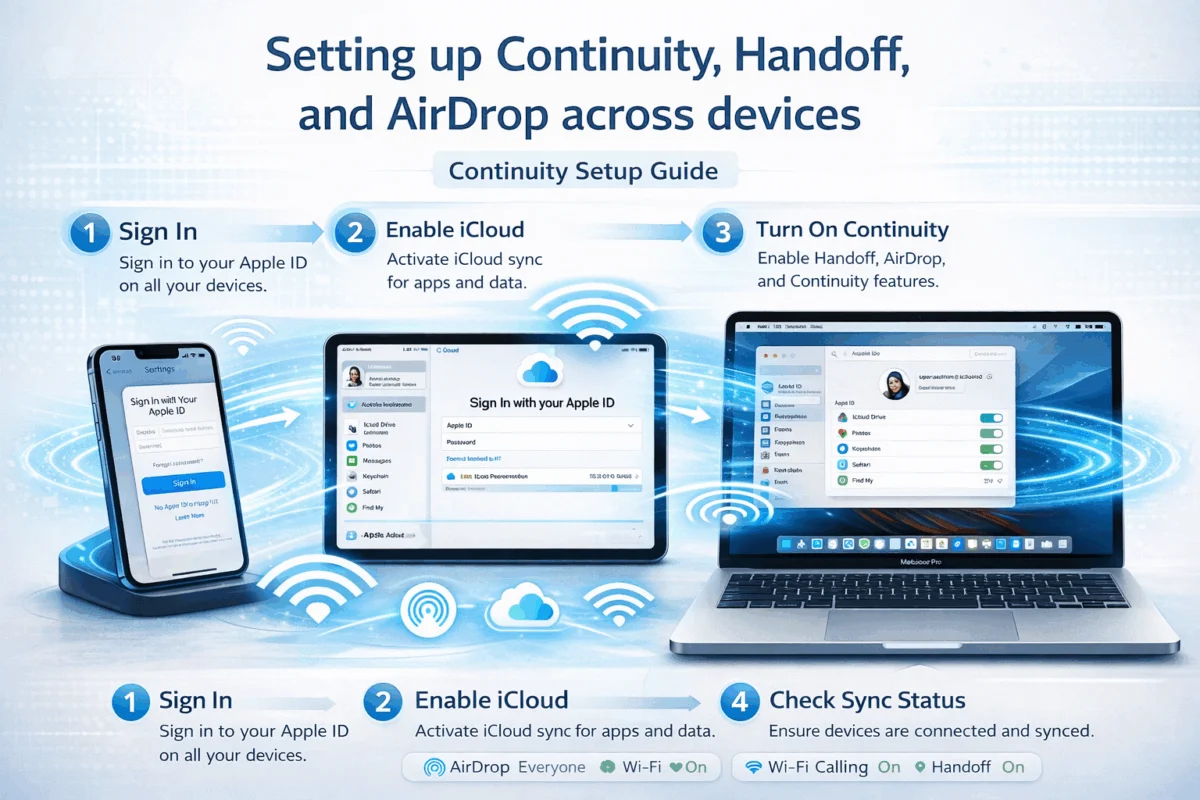
Apple’s Continuity features transform individual devices into a cohesive technology ecosystem. At its core, Continuity encompasses several interconnected services: Handoff enables seamless task transitions between devices, Universal Clipboard synchronizes copied content across your Apple devices, and AirDrop facilitates instant file sharing without internet connectivity.
These features leverage a combination of iCloud, Bluetooth Low Energy, and peer-to-peer Wi-Fi to create secure, encrypted connections between your devices. For businesses managing multiple Apple devices, this integration provides enhanced security features while simplifying daily operations.
The technical foundation relies on Apple’s proprietary protocols that prioritize both performance and privacy. Unlike cloud-based alternatives that route data through external servers, many Continuity features operate through direct device-to-device connections, ensuring sensitive business information remains within your controlled environment.
Prerequisites for Success
Before diving into configuration, ensure your devices meet these fundamental requirements:
Hardware Compatibility:
- Mac computers from 2012 or later (with some feature limitations on older models)
- iPhone 5 or newer running iOS 8 or later
- iPad (4th generation) or newer with compatible iOS versions
- Apple Watch (for extended Continuity features)
Software Requirements:
- macOS Monterey 12.0 or later (recommended for full feature support)
- iOS 15.0 or later on iPhone and iPad
- Consistent Apple ID across all devices
- Two-factor authentication is enabled for enhanced security
Network Infrastructure:
- Reliable Wi-Fi network with sufficient bandwidth
- Bluetooth 4.0 or later support on all devices
- Firewall configurations that allow Apple service connections
Understanding these prerequisites helps prevent configuration issues that commonly arise when businesses attempt to implement Continuity features without proper preparation. Staying current with system updates ensures optimal compatibility and security.
Essential Setup Steps for Continuity, Handoff, and AirDrop
Setting up Continuity, Handoff, and AirDrop across devices requires systematic configuration across your Apple ecosystem. This process establishes the foundation for seamless device integration while maintaining security protocols essential for business environments.
iCloud Configuration and Apple ID Management
The cornerstone of a successful Continuity setup begins with proper iCloud configuration. Your Apple ID serves as the central authentication mechanism that enables secure communication between devices.
Step 1: Verify Apple ID Consistency
Ensure all devices use the same Apple ID for iCloud services. Navigate to System Preferences > Apple ID on Mac or Settings > [Your Name] on iOS devices. Inconsistent Apple IDs represent the primary cause of Continuity failures in business environments.
Step 2: Enable Essential iCloud Services
Activate these critical services across all devices:
- iCloud Drive (for document synchronization)
- Keychain (for password and credential sync)
- Safari (for browsing continuity)
- Handoff (specifically listed in iCloud preferences)
Step 3: Configure Two-Factor Authentication
Business security demands robust authentication. Enable two-factor authentication through Settings > [Your Name] > Sign-In & Security. This adds an essential security layer while ensuring legitimate device access to Continuity features.
For organizations managing multiple user accounts, consider implementing digital security best practices that balance accessibility with protection.
Device-Specific Handoff Configuration
Handoff enables seamless task continuation across your Apple devices. Proper configuration ensures reliable performance in professional environments where interruptions can impact productivity.
Mac Configuration:
- Open System Preferences > General
- Check “Allow Handoff between this Mac and your iCloud devices.”
- Verify Bluetooth and Wi-Fi connectivity
- Restart the system to initialize Handoff protocols
iPhone and iPad Setup:
- Navigate to Settings > General > AirPlay & Handoff
- Toggle “Handoff” to the enabled position
- Confirm iCloud sign-in status matches other devices
- Test connectivity by opening Safari and looking for device icons in the dock (Mac) or app switcher (iOS)
Troubleshooting Common Issues:
- Devices must be within 30 feet of each other for optimal performance
- Network firewalls can block Handoff communication
- Outdated software versions create compatibility conflicts
AirDrop Setup and Security Configuration
AirDrop provides encrypted, peer-to-peer file sharing that operates independently of internet connectivity. For businesses handling sensitive documents, properly configured AirDrop balances convenience with security requirements.
Security Settings Configuration:
| Setting | Business Recommendation | Security Level |
|---|---|---|
| Receiving Off | High-security environments | Maximum |
| Contacts Only | Standard business use | High |
| Everyone (10 minutes) | Temporary collaboration | Medium |
Mac AirDrop Setup:
- Open Finder and select AirDrop from the sidebar
- Configure discovery settings: “Allow me to be discovered by: Contacts Only.”
- Ensure Wi-Fi and Bluetooth remain enabled
- Test functionality by attempting a file transfer between devices
iOS AirDrop Configuration:
- Access Control Center by swiping down from the top-right corner
- Press and hold the connectivity section
- Tap AirDrop and select “Contacts Only” for business security
- Verify the setting persists across device restarts
Universal Clipboard Implementation
Universal Clipboard synchronizes copied content across your Apple ecosystem, enabling seamless information transfer without manual file management.
Activation Requirements:
- Handoff must be enabled on all participating devices
- Devices must share the same Apple ID and iCloud account
- Bluetooth and Wi-Fi connectivity are required for synchronization
Testing Universal Clipboard:
- Copy text, images, or links on one device
- Verify clipboard synchronization within 30 seconds
- Paste content on a different device to confirm functionality
- Monitor for sync delays that might indicate network issues
For creative professionals working with multiple device workflows, Universal Clipboard eliminates traditional barriers between devices while maintaining content security through encrypted transmission.
Advanced Configuration and Troubleshooting
Setting up Continuity, Handoff, and AirDrop across devices extends beyond basic configuration to encompass optimization strategies that ensure reliable performance in demanding business environments. Advanced setup addresses network considerations, multi-user scenarios, and proactive issue prevention.
Network Optimization for Seamless Performance
Apple’s Continuity features depend heavily on the quality of the network infrastructure. Business environments often present unique challenges, including corporate firewalls, managed Wi-Fi networks, and bandwidth limitations that can impact performance.
Wi-Fi Network Requirements:
Modern Continuity features require Wi-Fi networks that support multicast DNS (mDNS) and the Bonjour protocol. Many enterprise networks disable these services by default, creating connectivity barriers.
Essential network configurations include:
- Port Access: Ensure TCP ports 88, 443, 993, and 5223 remain open for iCloud communication
- Multicast Support: Enable mDNS/Bonjour for device discovery protocols
- Bandwidth Allocation: Reserve adequate bandwidth for file transfers, especially in creative environments handling large media files
Bluetooth Optimization:
While often overlooked, Bluetooth configuration significantly impacts Continuity reliability. Devices must maintain stable Bluetooth connections for proximity detection and initial handshake protocols.
Corporate Network Considerations:
Organizations using managed networks should coordinate with IT departments to ensure compatibility. Proactive network management prevents connectivity issues that commonly arise in restrictive network environments.
Multi-User and Family Sharing Scenarios
Business environments frequently involve multiple users sharing devices or family-owned devices used for business purposes. These scenarios require careful management of Apple IDs to maintain both functionality and security.
Separate Apple ID Strategy:
For businesses where multiple employees share devices, consider creating dedicated business Apple IDs rather than using personal accounts. This approach provides:
- Centralized administrative control
- Simplified device management during employee transitions
- Enhanced security through controlled access
Family Sharing Configuration:
When personal devices serve business functions, Family Sharing enables controlled resource access without compromising individual privacy:
- Primary Account Setup: Designate one family member as the organizer
- Purchase Sharing: Control which apps and services are shared across family members
- Storage Management: Allocate iCloud storage efficiently across business and personal use
Mixed Environment Best Practices:
- Use separate Apple IDs for business-critical devices
- Implement clear policies regarding personal vs. business data access
- Regular audits of device access and sharing permissions
Troubleshooting Common Configuration Issues
Even properly configured Continuity setups can experience issues. Understanding common problems and their solutions enables quick resolution without external IT support.
Handoff Not Working:
The most frequent Handoff issues stem from:
- Apple ID Mismatches: Verify an identical Apple ID across all devices
- Network Connectivity: Confirm both Wi-Fi and Bluetooth are active and functioning
- System Preferences: Check that Handoff remains enabled in System Preferences/Settings
- Proximity Requirements: Ensure devices are within 30 feet of each other
AirDrop Connection Failures:
AirDrop problems typically involve:
- Discovery Settings: Verify “Contacts Only” or “Everyone” settings match intended use
- Contact Information: Ensure devices have each other’s contact information when using “Contacts Only.”
- Firewall Interference: Temporarily disable firewalls to test connectivity
- Device Restart: Simple restarts often resolve temporary communication failures
Universal Clipboard Sync Issues:
Clipboard synchronization problems often result from:
- Content Size Limitations: Large files or complex formatting may not sync properly
- Timing Delays: Allow up to 60 seconds for synchronization in some network conditions
- iCloud Connectivity: Verify iCloud services are operational and accessible
Systematic Troubleshooting Approach:
- Verify Prerequisites: Confirm all setup requirements are met
- Test Individual Components: Isolate issues to specific features or devices
- Network Diagnostics: Use built-in network utilities to identify connectivity problems
- Progressive Restoration: Re-enable features systematically after resolving base issues
For businesses experiencing persistent issues, professional Apple consulting can provide customized solutions that address specific organizational requirements while maintaining security standards.
Security Considerations and Best Practices
Implementing Continuity features in business environments requires balancing convenience with security requirements. Apple’s ecosystem provides robust encryption, but proper configuration ensures maximum protection.
Data Encryption Standards:
All Continuity communications use end-to-end encryption, but businesses should understand the specific protections:
- AirDrop: Uses TLS encryption for file transfers
- Handoff: Encrypts session data through iCloud Keychain
- Universal Clipboard: Protects copied content through encrypted iCloud synchronization
Access Control Implementation:
- Device Authentication: Regularly review and remove outdated device authorizations
- Network Segmentation: Consider isolating Apple devices on dedicated network segments
- Regular Audits: Periodically review which devices have access to business Apple IDs
Compliance Considerations:
Organizations subject to regulatory requirements should evaluate how Continuity features align with compliance obligations. While Apple’s encryption meets most business standards, some industries may require additional controls or documentation.
The integration of enhanced security measures ensures that productivity gains don’t compromise organizational security postures.
Maximizing Productivity Through Ecosystem Integration
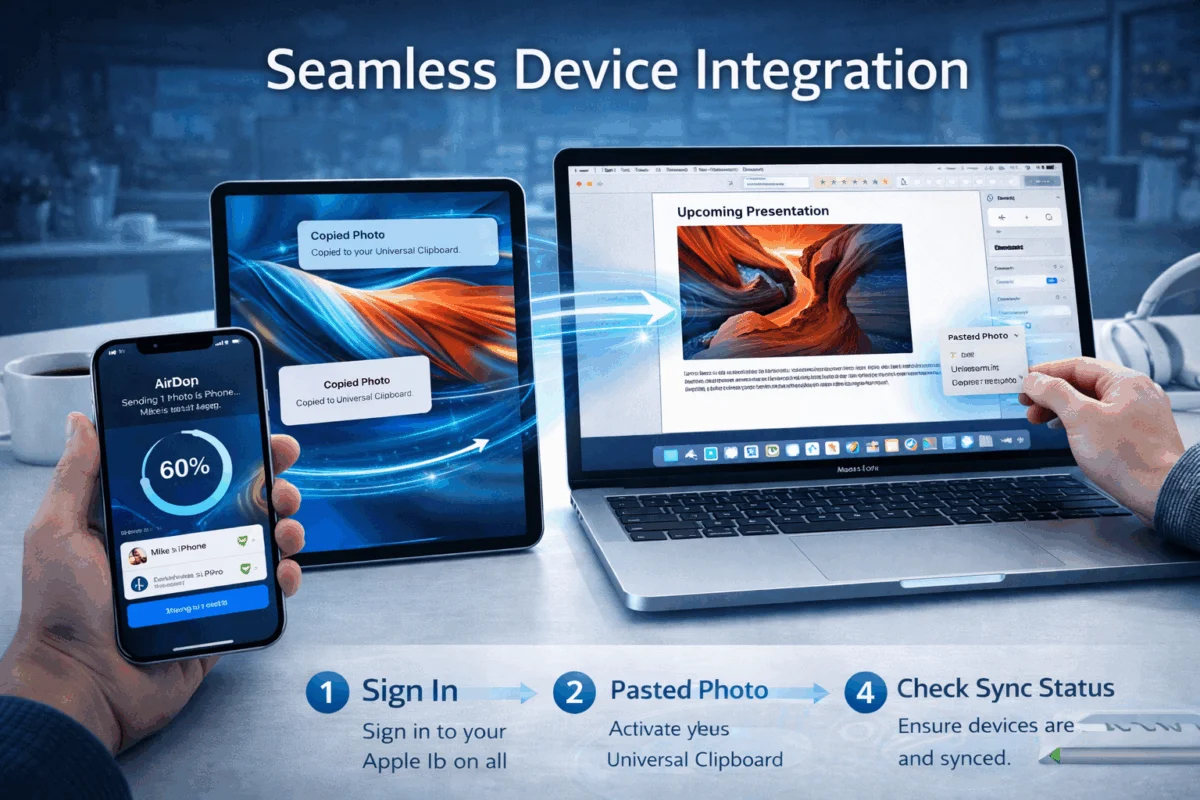 Successfully setting up Continuity, Handoff, and AirDrop across devices transforms individual Apple products into a unified productivity platform. The real value emerges when these features integrate seamlessly into daily business workflows, eliminating friction points that traditionally slow creative and operational processes.
Workflow Optimization Strategies
Creative Professional Workflows:
For designers, photographers, and content creators, ecosystem integration enables seamless transitions between ideation, creation, and delivery. A typical optimized workflow might involve:
- Initial Concept Development: Sketch ideas on iPad using Apple Pencil, with automatic sync to Mac for refinement
- Asset Management: Use AirDrop to instantly transfer high-resolution images from iPhone to Mac without quality compression
- Client Collaboration: Share work-in-progress files through AirDrop during meetings, maintaining version control through iCloud synchronization
Small Business Operations:
Operations managers can leverage Continuity features to maintain oversight across multiple locations and team members:
- Document Access: Start reviewing reports on iPhone during commute, continue analysis on Mac at the office
- Communication Continuity: Begin email responses on one device, complete on another without losing context
- Inventory Management: Use iPhone for field data collection, seamlessly transfer to Mac-based management systems
Advanced Feature Utilization
Beyond basic setup, power users can leverage advanced Continuity capabilities that significantly enhance productivity:
Instant Hotspot:
Transform your iPhone into an automatic internet connection for your Mac and iPad. When properly configured, devices automatically connect to an iPhone’s cellular data without manual intervention, ensuring continuous connectivity wherever you are.
Phone Call Integration:
Answer iPhone calls directly from Mac or iPad, enabling hands-free communication during intensive work sessions. This feature proves particularly valuable for resolving call failures while maintaining workflow continuity.
SMS and Message Continuity:
Respond to text messages from any device, ensuring communication remains consistent regardless of which device is most convenient at the moment.
Performance Monitoring and Maintenance
Maintaining optimal Continuity performance requires ongoing attention to system health and configuration integrity.
Regular Maintenance Tasks:
- Software Updates: Keep all devices current with the latest operating system versions
- Storage Management: Ensure adequate iCloud storage for synchronization requirements
- Network Performance: Monitor Wi-Fi and Bluetooth connectivity quality
- Battery Health: Maintain device battery health to prevent connectivity interruptions
Performance Metrics to Monitor:
- Handoff Activation Time: Should typically occur within 5-10 seconds
- AirDrop Transfer Speeds: Monitor for degradation that might indicate network issues
- Universal Clipboard Sync: Track synchronization delays that exceed normal parameters
Optimization Indicators:
Well-configured Continuity setups demonstrate consistent performance characteristics:
- Immediate device recognition when in proximity
- Reliable file transfer completion rates above 95%
- Minimal sync delays under normal network conditions
For organizations seeking to maximize their Apple ecosystem investment, understanding these performance indicators helps identify when professional optimization might provide additional value.
Business Impact Measurement
Quantifying the productivity impact of properly implemented Continuity features helps justify technology investments and guide future decisions.
Measurable Productivity Gains:
- File Transfer Time Reduction: AirDrop typically reduces file sharing time by 60-80% compared to email or cloud upload methods
- Task Switching Efficiency: Handoff eliminates an average of 30-45 seconds per device transition
- Communication Responsiveness: Integrated messaging and calling features can improve response times by 25-40%
Cost-Benefit Analysis:
While Continuity features require no additional software licensing, the time investment for setup and maintenance should be weighed against productivity gains. Most small businesses report positive ROI within 30-60 days of proper implementation.
Scalability Considerations:
As businesses grow, Continuity features scale naturally without requiring additional infrastructure investment. This scalability makes Apple ecosystem integration particularly attractive to growing creative agencies and small businesses that need enterprise-grade functionality without the complexity.
The strategic implementation of Apple’s ecosystem features positions businesses for sustained productivity growth while maintaining the flexibility to adapt to changing operational requirements.
Conclusion
Setting up Continuity, Handoff, and AirDrop across devices is more than a technical configuration—it’s a strategic investment in operational efficiency that pays dividends through reduced friction, enhanced security, and seamless collaboration. For creative professionals, small business owners, and operations managers, these Apple ecosystem features provide enterprise-grade functionality without the complexity and cost of traditional business IT solutions.
The systematic approach outlined in this guide ensures reliable implementation while maintaining the security standards essential for business environments. From initial iCloud configuration through advanced troubleshooting techniques, each step builds toward a cohesive technology ecosystem that adapts to your workflow rather than constraining it.
Immediate Next Steps:
- Audit Current Setup: Review existing Apple ID configurations and device compatibility across your organization
- Implement Security Measures: Enable two-factor authentication and configure appropriate AirDrop security settings before proceeding with full integration
- Test Core Functionality: Systematically verify Handoff, Universal Clipboard, and AirDrop performance between your primary devices
- Document Configuration: Create internal documentation of your setup for future troubleshooting and team member onboarding
- Plan for Scale: Consider how your Continuity setup will accommodate future device additions and team growth
The investment in proper ecosystem integration typically demonstrates measurable productivity improvements within the first month of implementation. For organizations seeking to maximize their Apple technology investment while maintaining security and operational control, Continuity features provide a competitive advantage that scales naturally with business growth.
Whether you’re managing a creative studio’s iPad fleet, optimizing a small business’s Mac infrastructure, or simply seeking to eliminate daily technology friction, the systematic implementation of these features transforms individual devices into a unified productivity platform that supports rather than hinders your professional objectives.
References
[1] Apple Inc. “Use Continuity to work across Apple devices.” Apple Support, 2025.
[2] Apple Inc. “System requirements for Continuity features.” Apple Developer Documentation, 2025.
[3] Apple Inc. “Security and privacy overview for Apple ecosystem features.” Apple Platform Security Guide, 2025.

Want this Mac Security implemented for you?
MacWorks 360 hardens, monitors, and backs up Mac fleets across New Jersey. We build policies, deploy tools, and prove restores—so your team stays safe and focused.
Contact us · Managed IT for Mac · Apple IT Support
Based in Springfield, NJ—serving Summit, Millburn, Short Hills, Chatham, Montclair, and beyond.