Set up Duo Mobile for WordPress two-factor authentication
A calm, step-by-step guide for adding a second layer of security to your WordPress account. Allow about five minutes and keep both your phone and computer nearby.
Difficulty: BeginnerTime: About 5 minutesLast verified: August 24, 2026
Important: Keep this page open on a computer while completing the steps on your phone.
Before you begin
Have these three things ready
Device 1Your computerKeep WordPress open here so the QR code stays visible.Device 2Your phoneYou will install Duo Mobile and scan the code with it.AccountYour WordPress loginHave your usual username and password available.
Never share or photograph your WordPress enrollment QR code, setup key, or six-digit login code.They are security credentials. MacWorks 360 will never ask you to read or send them by email, text, or phone.
Step by step
Follow the screens in this order
The exact labels can vary by WordPress configuration, security plugin, phone model, and app version.
Every WordPress site can be different.WordPress does not include one universal 2FA setup screen. Website owners commonly add 2FA through security or authentication plugins such as Wordfence, Sucuri Security, Solid Security, WP 2FA, or Two-Factor. Your menu names, enrollment page, available recovery methods, and button labels depend on the plugin and policies selected by your site administrator. If the screens below do not match your site, stop and ask your administrator for the correct enrollment location—do not change security-plugin settings by trial and error.
On your phone
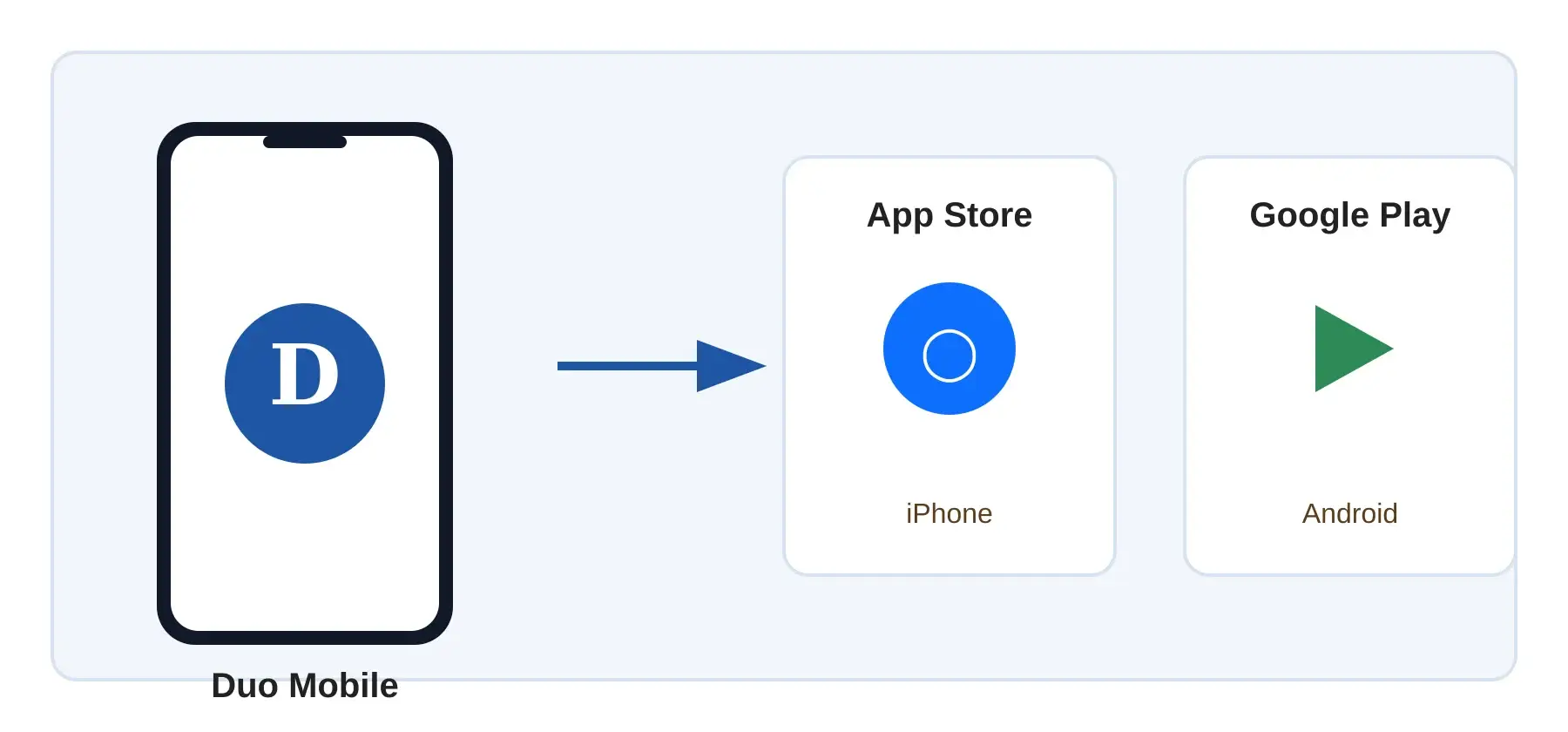
Install the genuine Duo Mobile app
Scan the code that matches your phone, or tap the link beneath it. Both go directly to Duo Mobile’s official store listing.
Confirm the app is named Duo Mobile and the publisher is Duo Security LLC.
Tap Get or Install, then open the app.
You do not need to create a paid Duo account to use it as an authenticator.
Illustration only. Verify the app name and publisher before installing.
On your computer
Find your site’s 2FA enrollment screen
Sign in to the WordPress website you need to protect. First, look for an enrollment prompt immediately after login. If none appears, check the locations your administrator provided.
Common user locations
Users → Profile or Users → Your Profile
A separate Login Security menu
A Two-Factor Authentication or 2FA Configuration section
Your front-end account page on membership or ecommerce sites
Examples—not universal directions
Wordfence: Wordfence → Login Security; eligible non-admins may see a separate Login Security menu.
Solid Security: the user’s Profile page after 2FA is enabled by the administrator.
WP 2FA: the login-flow wizard or the user Profile page.
Two-Factor: Users → Your Profile.
Other plugins: a security-plugin menu or a login-time prompt.
Stop when your site displays a private enrollment QR code or manual setup key. Leave that screen open.
Do not scan either App Store/Google Play QR code here.Those codes only install the app. In the next step, scan the different, private QR code generated specifically for your WordPress account.
On your phone
Add the WordPress account to Duo Mobile
In Duo Mobile, tap Set up account on first launch, or tap Add/+ if another account is already listed.
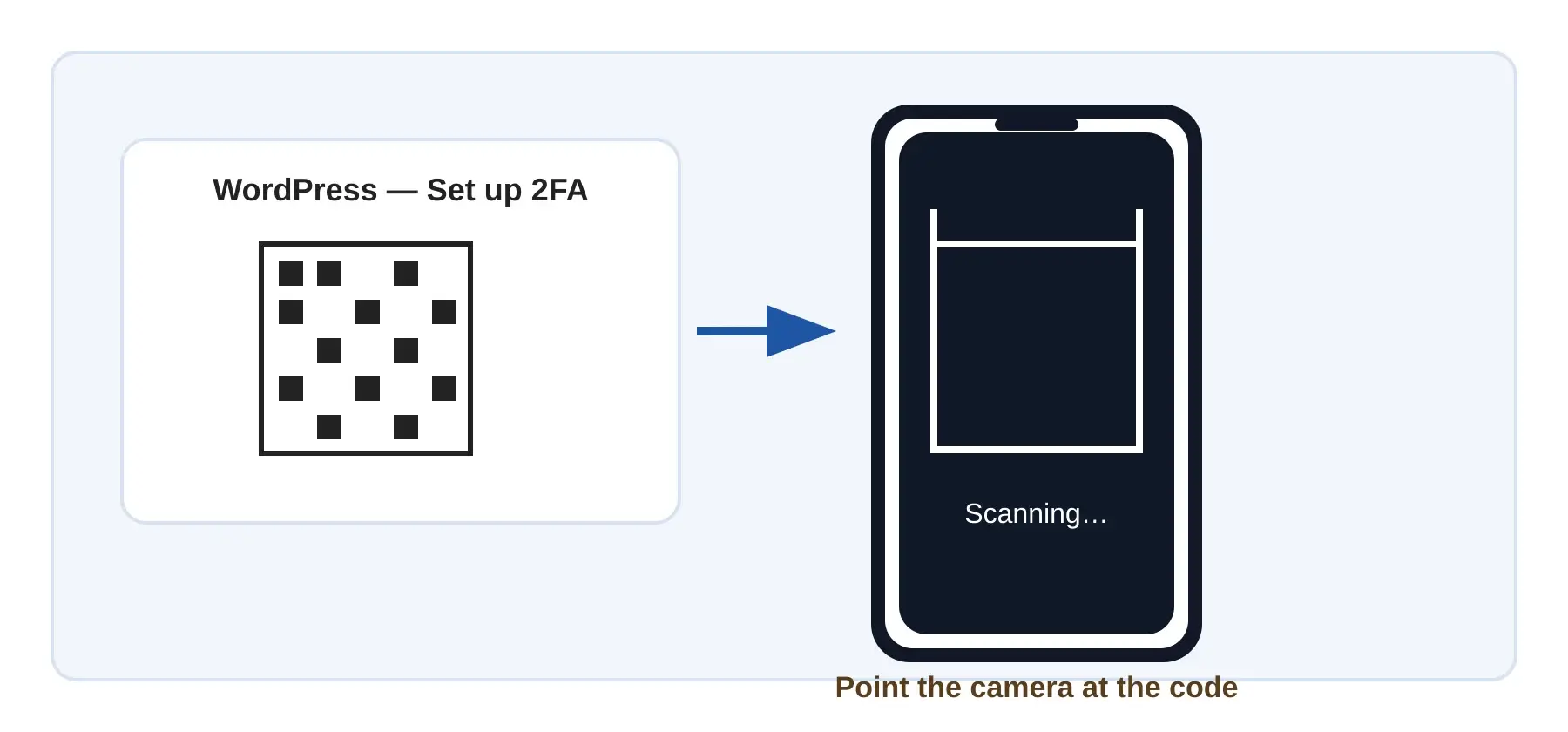
Tap Use a QR code and allow camera access if asked.
Point the phone at the QR code on your computer until Duo recognizes it.
If asked, name the account something recognizable, such as MacWorks 360 WordPress, then tap Save.
Keep the entire QR code inside the camera frame. It usually scans automatically.
Can’t scan?Increase the computer screen brightness, move the phone slightly farther away, and check camera permission. If the WordPress wizard provides a text setup key, Duo Mobile can also add an account with that key—treat it as confidential.
Phone, then computer
Confirm the current six-digit code
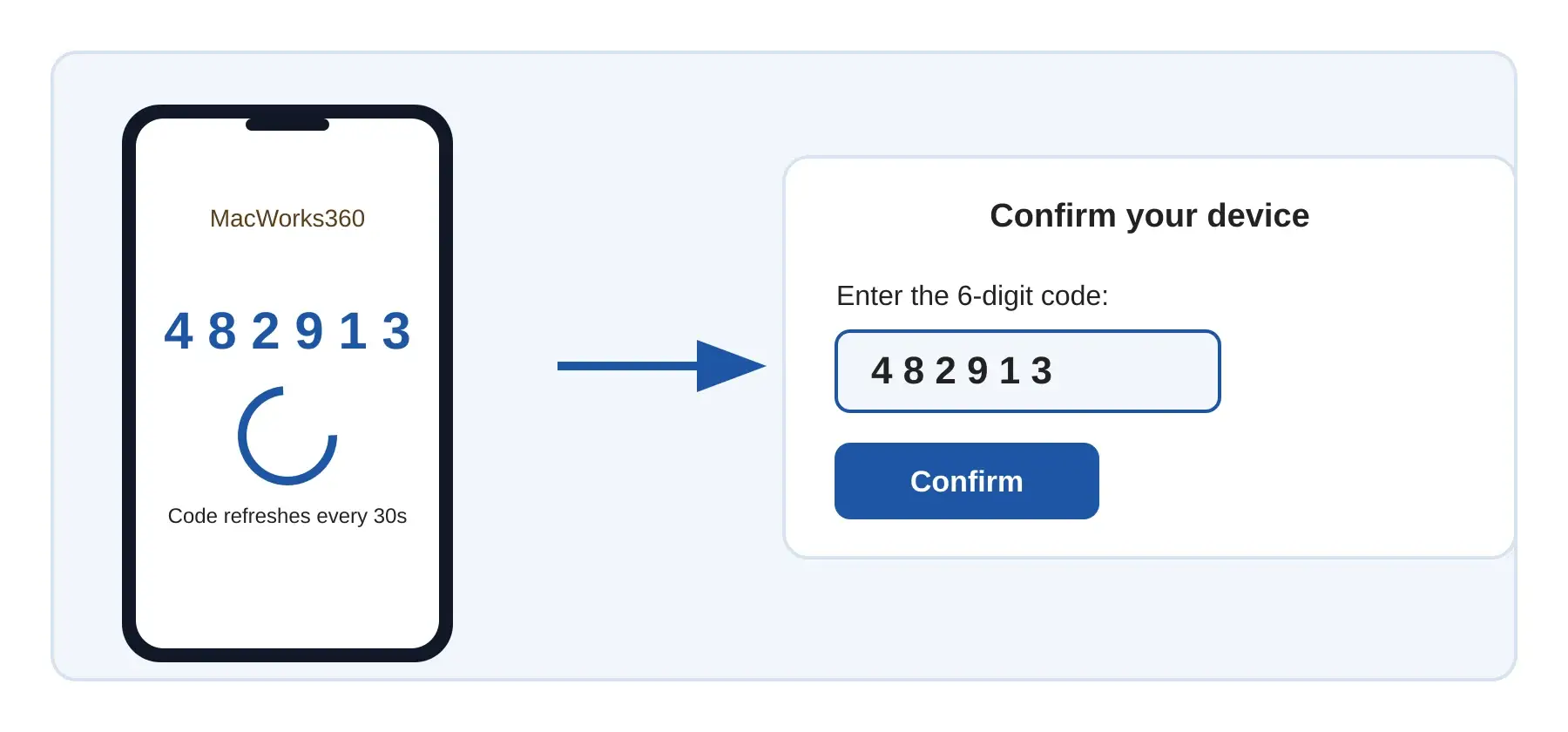
Duo Mobile will show a six-digit passcode for the WordPress account. Tap the account if the code is hidden.
Enter that code in your WordPress site’s verification field without spaces.
Click the button labeled Verify, Activate, Setup, Validate & Save, or similar.
If your plugin offers backup codes or another recovery method, save them securely in a password manager—not on the same phone.
Codes refresh about every 30 seconds. If a code is nearly expired, wait for the next one.
“Invalid code” message?Set your phone’s date and time to update automatically, wait for a fresh code, and try once more. Also confirm you are reading the code from the correct account in Duo Mobile.
Recovery options vary by plugin.Some plugins provide one-time backup codes, email recovery, or administrator resets; others provide only an administrator reset. Confirm the recovery process before signing out.
On your computer
Test one complete login
Sign out of WordPress.
Sign back in with your username and password.
When prompted, open Duo Mobile and enter the current six-digit code.
After the WordPress dashboard opens, setup is complete.
You’re protected.From now on, use your password first and the current Duo Mobile code second.
If something goes wrong
Use the recovery method provided by your site
Lost phone or no app access
Use a saved backup code or approved secondary method if your site provided one. Otherwise, stop at the 2FA prompt and contact the site administrator. The administrator should verify your identity before resetting 2FA.
The enrollment screen is missing
Ask the administrator whether 2FA is enabled for your role and which plugin supplies it. The controls may be in your Profile, a Login Security menu, a security-plugin page, a front-end account area, or the next-login flow.
Setting up from one phone
The easiest method uses a computer for WordPress and a phone for Duo. If WordPress is open on the same phone, use the confidential manual setup key if your plugin offers one, or temporarily open WordPress on a trusted computer.
Replacing your phone
Do not erase or trade in the old phone until Duo Mobile works on the new one. Enable Duo Restore when appropriate, retain any site-issued recovery codes, and verify the website’s re-enrollment procedure.
Administrator rollout checklist
Identify the exact plugin providing 2FA and document its user-enrollment and recovery locations.
Enroll and test your own administrator account before enforcing 2FA for anyone else.
Test the complete enrollment, login, lost-device, and administrator-reset flow with a non-owner test account.
Check role eligibility, grace-period settings, custom login-page compatibility, and whether non-admin users can access the enrollment UI.
Confirm whether the plugin provides backup codes, email recovery, administrator resets, or another approved recovery method.
Communicate the exact enrollment link or menu path to users before enforcement begins.
Document how staff will verify identity before resetting a user’s 2FA enrollment.
Keep at least two protected administrator accounts accessible so one administrator can recover another.
Need a hand? We’re here to help.
MacWorks 360 provides clear, patient technology support for businesses and professionals.