
Mac & Microsoft 365 Integration: The Complete Guide for Mac-First Businesses

When your creative team lives in Final Cut and Figma but your finance person swears by Excel, and everyone needs to collaborate in real time—that’s when Mac Microsoft 365 integration stops being a “nice to have” and becomes the backbone of your business. Yet for many small business owners and creative-agency leaders, making Microsoft’s cloud suite work seamlessly on a fleet of Macs feels like forcing a square peg into a round hole.
Here’s the reality: Microsoft 365 was designed for the enterprise Windows world, but millions of Mac users rely on it every day. The gap isn’t whether it can work—it’s knowing how to make it work reliably, securely, and without the constant “Why won’t Outlook sync?” Slack messages at 4 p.m. on a Friday.
This guide walks you through what Mac Microsoft 365 integration actually means (spoiler: it’s far more than installing apps), the common failure points that derail Mac-first teams, and a practical playbook to get it right—whether you’re onboarding your fifth employee or your fiftieth.
Key Takeaways
- Mac Microsoft 365 integration spans five pillars: identity/single sign-on, email/calendar (Outlook), file collaboration (OneDrive/SharePoint), meetings (Teams), and security/compliance policies.
- Common pain points—Outlook memory bloat, OneDrive sync conflicts, Keychain credential loops, and Teams calendar handoff issues—stem from predictable configuration gaps, not fundamental incompatibility.
- Security baselines (MFA, Conditional Access, device compliance) are non-negotiable in 2025; macOS can meet enterprise standards when properly enrolled and monitored.
- Microsoft AutoUpdate (MAU) is your update lifeline; standardizing on direct Microsoft CDN installs (not App Store versions) prevents version drift and broken integrations.
- When to get help: If you’re managing more than 10 Macs, juggling compliance requirements, or losing hours to “it works on her Mac but not mine” mysteries, a boutique Apple IT partner can architect a stable, scalable foundation.
Why Mac + Microsoft 365 Integration Matters for Modern Small Businesses

A decade ago, choosing Mac meant accepting you’d live outside the Microsoft ecosystem. Today, over 100 million people use Office on Mac[1], and Microsoft 365 has become the de facto collaboration platform for businesses of every size. Creative studios need SharePoint libraries for client assets. Photographers rely on OneDrive’s automatic versioning to protect irreplaceable shoots. Small business owners want the “it just works” elegance of macOS and the universal compatibility of Microsoft’s cloud.
But integration isn’t automatic. Macs don’t join Active Directory domains the way Windows PCs do. macOS handles credentials, certificates, and app updates differently. And when something breaks—an Outlook profile corrupts, OneDrive stops syncing, or a user can’t join a Teams meeting—generic IT advice written for Windows often leads Mac admins down dead ends.
The stakes are higher in 2025. Remote and hybrid work mean your team’s Macs, iPhones, and iPads are the front line of your security posture. A misconfigured device can bypass Conditional Access policies. An out-of-date Office app can miss critical security patches. And every hour spent troubleshooting sync issues is an hour not spent on billable client work.
This is where proactive Mac IT support becomes a competitive advantage. You’re not just “making Microsoft work on Macs”—you’re building a reliable, secure, standardized technology foundation that scales as you grow.
What “Integration” Actually Means (Identity, Email/Calendar, Files, Meetings, Security)
When IT professionals talk about Mac Microsoft 365 integration, they’re describing five interconnected layers:
1. Identity & Access (Microsoft Entra ID, formerly Azure AD)
Every user needs a cloud identity to sign into Microsoft 365 services. On Windows, this often happens invisibly via domain join. On Mac, users explicitly authenticate with their work email and password—then (ideally) single sign-on (SSO) kicks in, so they don’t re-enter credentials for every app.
What can go wrong: Keychain storing stale tokens, users signing in with personal Microsoft accounts by mistake, or Conditional Access blocking “unmanaged” Macs.
2. Email, Calendar & Contacts (Outlook for Mac)
Outlook is the gateway to Exchange Online mailboxes, shared calendars, and global address lists. It’s also the app Mac users love to hate—because when it’s misconfigured, it can consume up to 47GB of RAM during search operations[2], requiring force-quits and profile rebuilds.
What can go wrong: Sync loops, duplicate calendars, the “Microsoft Outlook Web Content” process running out of control, or calendar invites that don’t appear in Teams.
3. File Storage & Collaboration (OneDrive + SharePoint)
OneDrive is personal cloud storage; SharePoint is team libraries and document management. Both sync to your Mac’s filesystem via the OneDrive app, enabling offline access and integration with Finder.
What can go wrong: Path-length limits (yes, even on Mac), permission inheritance mysteries, or the dreaded “OneDrive is processing changes” spinner that never stops.
4. Meetings, Chat & Calling (Microsoft Teams)
Teams is your hub for video meetings, persistent chat, and increasingly, phone calls. On Mac, it integrates with Calendar.app and Outlook’s calendar—which sounds great until you realize meeting invites can appear in one but not the other.
What can go wrong: Camera/mic permissions not granted in macOS System Preferences, meeting add-ins missing from Outlook, or the “Join” button grayed out.
5. Security & Compliance (Conditional Access, Intune, Defender)
This is the layer small businesses often skip—until a security incident forces the conversation. Microsoft 365 may require devices to be encrypted, up to date, and enrolled in mobile device management (MDM) before granting access to email or files.
What can go wrong: Macs flagged as “non-compliant” and locked out, or—worse—no policies enforced, leaving sensitive data unprotected.
Quick Prerequisites Checklist (Licenses, Accounts, Device Basics, Network/DNS Realities)
Before diving into configuration, confirm these foundations are in place:
Licensing & Accounts
- Each user has a Microsoft 365 Business Standard or Business Premium license (minimum for full integration; Basic lacks desktop apps).
- User accounts created in the Microsoft 365 admin center or synced from an on-premises directory.
- Licenses assigned and activated (check at admin.microsoft.com).
Mac Device Readiness
- macOS Ventura (13.x) or later (Microsoft supports current + two prior major versions).
- Minimum 8GB RAM (16GB strongly recommended for Outlook power users).
- 50 GB+ of free storage for OneDrive sync and Office app caching.
- FileVault disk encryption enabled (required for compliance policies).
Network & DNS
- Reliable internet connection (OneDrive and Teams are bandwidth-hungry).
- No proxy/firewall blocking Microsoft 365 endpoints (see Microsoft’s published IP ranges[3]).
- DNS is correctly configured—especially if using custom domains; MX, SPF, DKIM, and DMARC records must point to Exchange Online.
Apple ID vs. Managed Apple ID
- Decide whether users sign in to Macs with personal Apple IDs or Managed Apple IDs (if you’re using Apple Business Manager for zero-touch deployment).
- Understand that iCloud and Microsoft 365 are separate identity systems—users will have credentials for both.
Pro Tip: Document each user’s Microsoft 365 email, Apple ID, and Mac serial number in a simple spreadsheet. When troubleshooting, knowing which account is signed in to which account saves hours.
Microsoft 365 on Mac: The Core Apps and What Each One “Owns”
Let’s demystify the app landscape.
Outlook (Mail, Calendar, Contacts)
What it does: Connects to your Exchange Online mailbox, syncs email/calendar/contacts, and integrates with Teams for meeting scheduling.
Key detail: Outlook for Mac is a native macOS app (not a web wrapper), rebuilt in recent years for better performance—but it still lags behind the Windows version in features like advanced rules and Quick Steps.
Gotcha: The “New Outlook for Mac” (introduced in 2023) and “classic” Outlook coexist. If users toggle between them, profile corruption can occur. Standardize on one.
OneDrive + SharePoint (Files, Collaboration)
What they do:
- OneDrive = personal storage (1TB per user with Business licenses).
- SharePoint = team sites, document libraries, and intranet pages.
Both sync via the OneDrive sync client (a single app that handles both).
Key detail: The sync client uses macOS’s Files On-Demand feature, showing cloud files in Finder without downloading them until opened—saving disk space.
Gotcha: If a SharePoint library path exceeds ~400 characters (including nested folders and long filenames), sync fails silently. Encourage flat folder structures.[4]
Microsoft Teams (Chat, Meetings, Calling)
What it does: Persistent chat channels, 1:1 messaging, video/audio meetings, screen sharing, and (with Phone System license) VOIP calling.
Key detail: Teams on Mac supports background blur, Together Mode, and live captions—features that improve hybrid meeting equity.[5]
Gotcha: Teams caches a lot of data. If performance degrades, clearing the cache (~/Library/Application Support/Microsoft/Teams) often fixes it—but users lose their locally stored chat history.
Office Apps (Word, Excel, PowerPoint) and Shared Authoring
What they do: Create and edit documents, spreadsheets, and presentations—with real-time co-authoring when files are stored in OneDrive/SharePoint.
Key detail: AutoSave (the toggle in the title bar) only works for files in OneDrive/SharePoint. Local files still require manual saves.
Gotcha: If two users edit a local file simultaneously (e.g., via a network share), you’ll end up with conflicting copies. Store files in SharePoint to avoid this.
Identity & Access on Macs (Microsoft Entra ID, SSO, MFA)
This is where many Mac-first businesses hit their first wall. Let’s break it down.
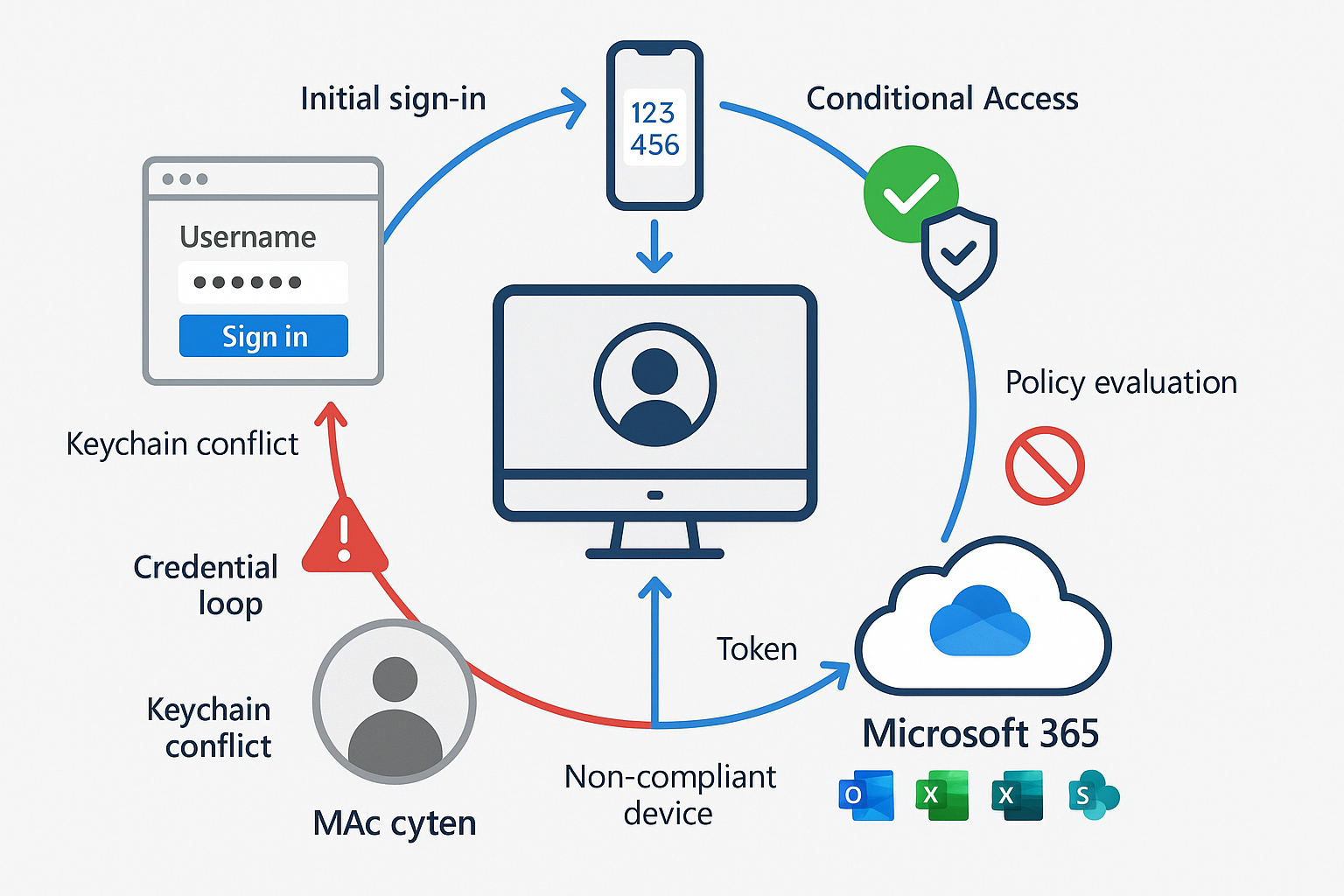
The Login Flow: Where Users Sign In and Why It Breaks
- User opens Outlook (or Word, Teams, etc.).
- App prompts: “Sign in with your work or school account.”
- User enters
jane@yourcompany.com. - The browser window opens (Microsoft’s OAuth flow), and the user enters a password.
- MFA challenge (if enabled): Approve via Authenticator app or enter code.
- Microsoft issues an access token and a refresh token, stored in macOS Keychain.
- App uses a token to access Exchange, OneDrive, etc. Token auto-refreshes silently.
Why it breaks:
- Keychain corruption: If macOS Keychain contains duplicate or expired tokens, apps loop back to the sign-in screen.
- Conditional Access block: If the Mac doesn’t meet compliance policies (encryption, OS version), Microsoft denies the token.
- Multiple accounts/tenants: User accidentally signs in with personal Microsoft account, creating profile conflicts.
- Network interference: Corporate proxies or VPNs block OAuth endpoints.
Fix: Use Keychain Access.app to search for “Microsoft” entries and delete stale ones. Re-authenticate. For persistent issues, reset the Office activation: defaults delete com.microsoft.office.licensing.helper in Terminal.
Conditional Access and What “Compliant Device” Means on macOS
Conditional Access (CA) is Microsoft’s “if-this-then-that” security engine. Example policy:
“If the user is signing in from a Mac, require MFA, and the device must be compliant.”
What makes a Mac “compliant”?
- Enrolled in Microsoft Intune (or Jamf Pro with Conditional Access integration).
- Meets compliance policy rules: FileVault on, OS up to date, password complexity, no jailbreak (not applicable to Mac, but checked).
- Device registered in Microsoft Entra ID (happens automatically when enrolled in Intune).
Practical example:
You enable a CA policy requiring compliant devices for Exchange Online. A user’s Mac isn’t enrolled in Intune. Outlook stops syncing, showing “Access Denied.” User calls you in a panic. You enroll the Mac in Intune, the compliance check passes, and access is restored.
Best practice for 2025: Enable Security Defaults in Microsoft Entra admin center (free, one-click MFA for all users) or configure custom CA policies for granular control (e.g., require compliance only for executives, allow unmanaged devices for contractors with limited access).[6]
Device Management Options (What’s Realistic for Mac-First Orgs)
You have three paths:
1. No MDM (Manual Management)
Who it’s for: Solo practitioners, tiny teams (1-5 Macs), low compliance requirements.
How it works: Users install Office apps from microsoft.com, sign in manually, and update via Microsoft AutoUpdate.
Pros: Zero cost, zero complexity.
Cons: No enforcement of encryption, OS updates, or security policies. No remote wipe if the device is lost. No Conditional Access compliance.
2. Microsoft Intune for macOS
Who it’s for: Microsoft 365-centric businesses, 10-100+ Macs, need compliance + Conditional Access.
How it works: Enroll Macs via the Company Portal app or Apple Business Manager (ABM) automated enrollment: push configuration profiles (Wi-Fi, VPN, certificates), compliance policies, and app deployments.
Pros: Native Microsoft integration, included with Business Premium licenses, enforces CA policies.
Cons: Intune’s Mac feature set lags behind its Windows counterpart. No zero-touch deployment without ABM. Limited app catalog (no Jamf-style Self Service).
Practical policy examples:
- Disk encryption: Require FileVault, escrow recovery key to Intune.
- Password: Minimum 12 characters, alphanumeric + symbol.
- OS updates: Require macOS Ventura 13.6 or later (blocks Macs on old, vulnerable versions).
- App control: Block installation of apps from unidentified developers.
3. Jamf Pro + Intune/Entra Integration
Who it’s for: Creative agencies, Mac-first SMBs, 20-500+ Macs, need Apple-native management and Microsoft compliance.
How it works: Jamf Pro (best-in-class Mac MDM) manages devices; Jamf Connect syncs Mac login to Entra ID; Conditional Access integration reports compliance status to Microsoft.
Pros: Full Mac feature parity, zero-touch deployment via ABM, Self Service app catalog, advanced scripting, and local Mac admin account management.
Cons: Additional license cost (~$5-10/device/month). Requires expertise to configure integration.
When to choose Jamf: If your team is 80%+ Mac, you’re deploying 10+ devices per year, or you need features like automated software patching, inventory tracking, or remote support tools that Intune doesn’t offer on macOS.
Updates & Reliability (The Unsexy Stuff That Prevents Most Pain)
Nothing derails Mac Microsoft 365 integration faster than version drift. Here’s how to stay ahead.
Microsoft AutoUpdate (MAU) and Update Governance
Microsoft AutoUpdate is the background service that keeps Office apps up to date. It runs silently, checking for updates daily (by default).
Key settings (configured via preference file or MDM):
- Update channel: “Current” (monthly feature updates) vs. “Monthly Enterprise” (slower, more testing time).
- Automatic download: Yes (recommended) or manual.
- Automatic install: Tricky—auto-install can interrupt users mid-workday. Better: auto-download, then prompt user to install at next quit.
How to check MAU status:
Open any Office app → Help menu → Check for Updates. You’ll see the current version, channel, and last check time.
Governance tip: Standardize on the Monthly Enterprise Channel for businesses. It’s stable, predictable, and avoids the “bleeding edge” bugs that sometimes hit Current Channel.[7]
App Store vs. Microsoft CDN Installs: What to Standardize On
You can install Office apps in two ways:
| Method | Pros | Cons |
|---|---|---|
| Mac App Store | Familiar to Mac users, auto-updates via OS | Slower updates, can’t control channel, licensing quirks |
| Microsoft CDN (direct) | Full control, MAU manages updates, volume licensing support | Users must download from microsoft.com or MDM |
Recommendation: Use Microsoft CDN installs (download from microsoft.com or deploy via Intune/Jamf). App Store versions lag behind, and you lose granular update controls for MAU.
Deployment shortcut: Microsoft offers a suite installer PKG (all apps in one package) for MDM deployment. Download from the Office CDN and push via Jamf or Intune.
Common Integration Failures and How to Diagnose Them
Let’s troubleshoot the top five pain points.
1. Outlook Sync/Auth Loops
Symptom: Outlook repeatedly prompts for a password, or shows “Connecting to server…” indefinitely.
Root causes:
- Stale Keychain tokens.
- Conditional Access is blocking the device.
- Corrupted Outlook profile.
Diagnostic steps:
- Check Keychain: Open Keychain Access → search “Microsoft” → delete all entries → restart Outlook, re-authenticate.
- Check compliance: In the Company Portal app (if using Intune), verify the device shows “Compliant.”
- Rebuild profile: Outlook → Preferences → Accounts → remove account → re-add.
- Check MAU: Ensure Outlook is up-to-date (Help → Check for Updates).
Prevention: Enable MFA (reduces password-based attacks that trigger lockouts) and monitor Entra ID sign-in logs for “Conditional Access failures.”
2. OneDrive/SharePoint Path and Permission Weirdness
Symptom: Specific folders won’t sync, or files show “red X” in Finder.
Root causes:
- Path length exceeds 400 characters.
- Filenames contain unsupported characters (
#,%,&,*,:,<,>,?,/,,{,},|). - The user lacks permissions to the SharePoint library.
- OneDrive sync client paused or corrupted.
Diagnostic steps:
- Check OneDrive status: Click OneDrive menu bar icon → “View sync problems.”
- Shorten paths: Rename deeply nested folders or move files higher in the hierarchy.
- Verify permissions: Open SharePoint library in browser → check user’s permission level (Contribute or higher required for sync).
- Reset OneDrive: Quit OneDrive → hold Option key → click OneDrive icon in Applications → “Reset OneDrive” → re-authenticate.
Prevention: Educate users on file-naming best practices. Use SharePoint’s “Sync” button (not manual folder selection) to avoid path issues.
3. Teams Meeting Add-In / Calendar Handoff Issues
Symptom: Outlook meeting invites don’t show the “Join Teams Meeting” link, or clicking “Join” in Teams does nothing.
Root causes:
- The Teams add-in is not installed in Outlook.
- Calendar permissions are misconfigured.
- User signed in to Teams with a different account than the one in Outlook.
Diagnostic steps:
- Check add-in: Outlook → Preferences → Add-ins → verify “Microsoft Teams Meeting” is listed and enabled.
- Reinstall add-in: If missing, quit Outlook → open Teams → Teams menu → Preferences → enable “Register Teams as the chat app for Office” → restart Outlook.
- Verify account: Outlook → Preferences → Accounts → Teams → Preferences → Account → ensure same email in both.
- Calendar permissions: If using delegated calendars, ensure the delegate has “Editor” permissions in Exchange.
Prevention: Deploy the Office suite (Outlook + Teams) together via MDM to ensure add-ins install automatically.
4. Keychain/Credential Conflicts Across Multiple Accounts/Tenants
Symptom: User has a personal Microsoft account (user@outlook.com) and work account (user@company.com) apps sign into the wrong one, or mix data.
Root causes:
- macOS Keychain stores credentials for both; apps auto-select the wrong one.
- The user accidentally signed in to Office with their personal account first.
Diagnostic steps:
- Sign out everywhere: Each Office app → Account menu → Sign Out.
- Clear Keychain: Delete all Microsoft entries.
- Sign in to work account FIRST: Open Outlook → sign in with
user@company.com→ complete MFA → then open other apps (they’ll inherit the session). - Use separate browsers: If the user needs to access a personal Microsoft account, use Safari for work, Chrome for personal (keeps cookies separate).
Prevention: During onboarding, instruct users to sign into Office apps with their work email before adding personal accounts.
5. “It Works on One Mac but Not the Other” Root Causes
Symptom: Identical Macs, same OS version, same Office version—one works perfectly, the other doesn’t.
Root causes:
- Different macOS privacy settings: Teams has camera/mic access on Mac A, not Mac B.
- Different networks: Mac A on office Wi-Fi (safe listed IPs), Mac B on home Wi-Fi (blocked by CA policy).
- Different enrollment status: Mac A enrolled in Intune (compliant), Mac B not (blocked).
- Different Office install methods: Mac A installed from the Microsoft CDN, Mac B installed from the App Store (version mismatch).
Diagnostic steps:
- Compare System Preferences → Security & Privacy → Privacy: Ensure Office apps have the same permissions on both Macs.
- Compare Intune enrollment: Company Portal → Device Details.
- Compare Office versions: Help → About [App] → note build number.
- Compare network:
nslookup outlook.office365.comOn both Macs, ensure the DNS resolution is exact.
Prevention: Build a standard Mac image or deployment script (via Addigy or Intune) that configures privacy settings, enrolls in MDM, and installs Office from CDN—ensuring every Mac starts identically.
Best-Practice Playbook (Short, Scannable)
Standard Build for Macs Using M365
OS: macOS Ventura or later, fully updated
Encryption: FileVault enabled, recovery key escrowed to MDM
Office apps: Installed via Microsoft CDN (suite installer), Monthly Enterprise Channel
OneDrive: Sync client installed, Files On-Demand enabled, auto-start at login
Teams: Installed, camera/mic permissions granted in System Preferences
MDM: Enrolled in Intune or Jamf, compliance policy applied
MFA: Enabled for all users via Security Defaults or CA policy
Browser: Safari or Edge (both support SSO with Entra ID via macOS Keychain)
Recommended Security Baseline
| Control | Setting |
|---|---|
| Multi-Factor Authentication | Required for all users (Security Defaults or CA policy)[8] |
| Conditional Access | Require a compliant device for Exchange/SharePoint/Teams |
| Disk Encryption | FileVault required, key escrowed to MDM |
| OS Updates | Require macOS current version or N-1 (e.g., Sonoma or Ventura) |
| Defender for Endpoint | Deploy to Macs for real-time malware protection (Business Premium includes) |
| Safe Links/Attachments | Enable in Defender portal to scan email links and files before opening[9] |
| Data Loss Prevention | Block sharing of files containing credit cards/SSNs outside the organization |
Minimum Monitoring Checklist (Sign-In Risk, Device Compliance, Update Drift)
Weekly:
- Review Entra ID sign-in logs for failed MFA attempts or blocked sign-ins (potential compromised accounts).
- Check the Intune compliance dashboard for non-compliant Macs (missing updates, encryption off).
Monthly:
- Audit Office app versions across fleet (Intune → Apps → Discovered Apps or Jamf inventory).
- Review OneDrive sync health (Admin center → Reports → OneDrive usage → Sync status).
- Test restore from OneDrive (pick a random user, ask them to fix a deleted file—ensures versioning works).
Quarterly:
- Tabletop exercise: Simulate lost/stolen Mac—practice remote wipe via Intune/Jamf.
- Access review: Remove licenses for departed employees, audit guest users in SharePoint.
Tools:
- Microsoft 365 admin center (admin.microsoft.com): License usage, service health.
- Entra ID (entra.microsoft.com): Sign-in logs, Conditional Access.
- Intune (intune.microsoft.com): Compliance, app deployment.
- Defender portal (security.microsoft.com): Threat alerts, Safe Links reports.
FAQ (Answer the Questions Owners and Ops Managers Actually Ask)
Do I really need to pay for Intune, or can I use the free Microsoft 365 features?
Short answer: If you have 10+ Macs or any compliance requirements (client contracts, cyber insurance), you need MDM—either Intune (included with Business Premium) or Jamf.
Why: Free Microsoft 365 (Business Basic/Standard) gives you apps and cloud storage, but no device management. You can’t enforce encryption, push Wi-Fi configurations, or verify devices are compliant with Conditional Access. Intune is included in Business Premium ($22/user/month as of 2025)—worth it for the security features alone (Defender, DLP, CA).
Can I use Apple’s built-in Mail/Calendar/Contacts instead of Outlook?
Yes, with caveats. Apple Mail supports Exchange via the “Add Account” wizard and syncs mail/calendar,/contacts. Pros: Lighter weight, native macOS feel, integrates with Siri and Spotlight.[10] Cons: No access to advanced Outlook features (shared mailboxes, delegate calendars, Teams meeting add-in, focused inbox). Recommendation: Power users and admins should use Outlook; individual contributors who only need an introductory email can use Apple Mail.
What’s the deal with Outlook eating all my RAM?
The “Microsoft Outlook Web Content” process (which handles search indexing and web views) has a known memory leak in specific versions, sometimes consuming 47GB+ of RAM.[2] Immediate fix: Force-quit Outlook, relaunch. Long-term fix: Keep Outlook updated via MAU (Microsoft regularly patches these issues), reduce mailbox size (archive old mail to the Online Archive), or consider Mailbird (a third-party client with OAuth 2.0 support for Microsoft 365, a lighter resource footprint, and cross-platform licensing).[11]
How do I handle onboarding/offboarding without a full-time IT person?
Onboarding checklist:
- Create a user in the Microsoft 365 admin center and assign a license.
- Enroll Mac in MDM (Intune/Jamf)—compliance policies auto-apply.
- User signs in to the Mac with a local account (or a Managed Apple ID via Addigy ID).
- User opens Outlook, signs in with work email → MFA setup → Office apps activate automatically.
- OneDrive syncs, Teams installs meeting add-in—user is productive in ~30 minutes.
Offboarding checklist:
- Revoke license in the admin center (blocks sign-in to Microsoft 365).
- Wipe the Mac remotely via MDM (or retrieve the device and wipe it locally).
- Transfer OneDrive files to manager (Admin center → Active users → [User] → OneDrive → “Create link to files”).
- Remove from Entra ID groups and distribution lists.
Tool to simplify: Use Power Automate (included with Business Premium) to create an approval workflow: manager submits offboarding request → automated flow revokes license, sends IT a checklist.[12]
What if we have a few Windows users mixed in?
Good news: Microsoft 365 is designed for this. Windows users install Office from the same admin center, sign in with duplicate Entra ID accounts, and access the same SharePoint/Teams. Key difference: Windows PCs can join Entra ID directly (like a domain join), making SSO smoother. Macs require explicit sign-in to each app (unless you use Jamf Connect to sync Mac login to Entra ID). Practical tip: Use SharePoint as the single source of truth for shared files—it’s equally accessible from Mac and Windows, avoiding the “I can’t open your Pages file” problem.
Is Microsoft 365 secure enough for client data (NDA, HIPAA, etc.)?
Yes, if configured correctly. Microsoft 365 offers encryption at rest and in transit, geo-redundant backups, and compliance certifications (SOC 2, HIPAA, GDPR).[13] But out-of-the-box settings are not compliant. You must:
- Enable MFA (blocks 99.9% of account compromises).
- Configure Data Loss Prevention (DLP) to block the sharing of files containing SSNs/credit card numbers.
- Use Sensitivity Labels to classify documents (Public, Internal, Confidential).
- Enable Audit Logging (proves who accessed what, when—required for HIPAA).
- Encrypt devices (FileVault on Mac, BitLocker on Windows).
For HIPAA, you also need a Business Associate Agreement (BAA) with Microsoft (available for Enterprise E3+ or via a Cloud Solution Provider). Bottom line: Microsoft 365 can be compliant, but it’s not automatic—this is where a consultant like MacWorks 360 adds value, architecting a secure, auditable configuration.
Conclusion + CTA (When to DIY vs When to Bring In an Apple-Focused M365 Integrator)
Mac Microsoft 365 integration isn’t magic—it’s methodical. When you understand the five layers (identity, email, files, meetings, security), standardize your build, and monitor the right metrics, you create a foundation that scales from five employees to fifty without constant firefighting.
You can DIY if:
You have fewer than 10 Macs
Compliance requirements are minimal (no HIPAA, no client NDAs demanding audits)
You’re comfortable with Terminal, Keychain Access, and reading Microsoft docs
Downtime for troubleshooting doesn’t cost you billable hours
Bring in an expert when:
You’re managing 10+ Macs and losing hours to “why won’t this sync?” mysteries
You need to prove compliance (encryption, MFA, audit logs) for clients or insurance
You’re onboarding multiple employees per quarter and want zero-touch deployment
You have a mixed Mac/Windows environment and need seamless interoperability
You want proactive monitoring—catching issues before users notice them
Ready to Make Mac + Microsoft 365 Just Work?
At MacWorks 360, we’ve spent over 20 years architecting reliable, secure Apple ecosystems for creative studios, photographers, and small businesses who refuse to compromise on the Mac experience. We don’t just “install Office”—we design customized Mac infrastructure that integrates seamlessly with Microsoft 365, enforces security without friction, and scales as you grow.
What we do differently:
Mac-native expertise: We speak macOS, Jamf, and Microsoft Entra ID fluently—no generic Windows advice.
Proactive protection: 24/7/365 monitoring catches compliance drift, update failures, and security risks before they disrupt your day.
Educational approach: We don’t just fix issues—we show you why they happened and how to prevent them, empowering your team.
Boutique, not cookie-cutter: Every business is different. We craft unique infrastructure plans, not prescriptive one-size-fits-all solutions.
Next steps:
Schedule a free 30-minute Mac + M365 assessment: We’ll review your current setup, identify gaps, and outline a roadmap—no obligation.
Email us your most challenging integration question: We love solving the “it works on her Mac but not mine” puzzles.
Download our Mac Microsoft 365 Integration Checklist: A printable PDF covering prerequisites, security baseline, and troubleshooting steps.
Contact MacWorks 360 today and experience the peace of mind that comes from technology that supports your work—never slows it down.
References
[1] Microsoft Corporation. (2024). Office for Mac deployment and update strategies. Microsoft Learn.
[2] User reports and community forums. (2025). Outlook for Mac memory consumption issues. Microsoft Tech Community.
[3] Microsoft Corporation. (2025). Microsoft 365 URLs and IP address ranges. Microsoft Learn.
[4] Microsoft Corporation. (2024). OneDrive sync restrictions and limitations. Microsoft Support.
[5] Microsoft Corporation. (2025). Microsoft Teams features for Mac. Microsoft Learn.
[6] Microsoft Corporation. (2025). Security Defaults and Conditional Access best practices. Microsoft Entra documentation.
[7] Microsoft Corporation. (2025). Update channels for Microsoft 365 Apps. Microsoft Learn.
[8] Microsoft Corporation. (2025). Enable Multi-Factor Authentication in Microsoft Entra. Microsoft Security documentation.
[9] Microsoft Corporation. (2025). Safe Links and Safe Attachments in Microsoft Defender for Office 365. Microsoft Security documentation.
[10] Apple Inc. (2025). Mail, Contacts, and Calendar integration with Exchange. Apple Support.
[11] Mailbird. (2025). Microsoft 365 integration and cross-platform licensing. Mailbird product documentation.
[12] Microsoft Corporation. (2025). Automate workflows with Power Automate. Microsoft Learn.
[13] Microsoft Corporation. (2025). Microsoft 365 compliance and certifications. Microsoft Trust Center.