Network Infrastructure for Mac, iPad, and iPhone: The SMB Guide to Apple-Friendly Networks That Actually Work
You’ve probably been there: a designer can’t AirPrint to the studio printer, which is ten feet away. An iPhone drops Wi-Fi every time someone walks between conference rooms. Your new iPad deployment worked flawlessly in testing, then fell apart the moment twenty people tried to join a Zoom call.
Here’s the uncomfortable truth—most small-business networks weren’t designed with Apple devices in mind. They were cobbled together from consumer gear, guided by advice written for Windows-heavy enterprises, or built by well-meaning IT folks who’ve never had to explain why AirPlay suddenly stopped working after “a simple security upgrade.”
If you’re running a creative studio, production agency, or any Mac-heavy workplace, your network isn’t just infrastructure—it’s the invisible foundation on which your team’s productivity rests. And when that foundation cracks, everything wobbles.
This guide walks you through building network infrastructure for Mac, iPad, and iPhone environments that balances security, simplicity, and the Apple-specific realities nobody warns you about until it’s too late.
Key Takeaways
- Apple devices rely on Bonjour/mDNS for AirPrint, AirPlay, and device discovery—network segmentation can break these features if not configured thoughtfully.
- Apple recommends three or fewer SSIDs; more create management overhead that steals airtime from actual data.
- A modern Wi-Fi (6/6E/7) + wired PoE foundation scales better and costs less in the long term than piling on consumer mesh systems.
- VLAN segmentation protects your business without complexity—if you configure multicast routing correctly
- Certificate-based 802.1X Wi-Fi delivered via MDM eliminates the “what’s the password?” problem and strengthens security.
Introduction: What “Apple-Friendly Network Infrastructure” Means (and Why Most SMB Networks Fail Here)
Walk into most small businesses, and you’ll find a familiar setup: the ISP’s modem/router combo doing double duty, a few consumer-grade access points scattered around, and a tangle of devices connecting however they can. It works—until it doesn’t.
Apple-friendly network infrastructure isn’t about buying the most expensive gear or hiring a full-time network engineer. It’s about understanding three realities:
- Apple devices expect zero-configuration networking. They want to discover printers, Apple TVs, and each other automatically via Bonjour (Apple’s implementation of multicast DNS). Traditional network security—VLANs, firewalls, segmentation—can silently kill this “magic.”
- Wi-Fi isn’t optional; it’s primary. Unlike Windows environments, where desktops stay wired, your MacBook-wielding team roams. Your iPads never touch Ethernet. If your wireless is unreliable, so is your business.
- Security and usability aren’t opposites. You can have guest isolation, device segmentation, and strong encryption without making your team manually reconnect every morning or breaking AirPrint.
Most SMB networks fail here because they either swing too permissive (one flat network, no segmentation, hope for the best) or too restrictive (aggressive VLANs that break every Apple service, forcing IT to poke holes until security is Swiss cheese slowly).
The goal? A network that’s secure by design, simple to manage, and invisible when it’s working—exactly what a boutique operation needs.
Requirements Checklist (Before Buying Gear)
Before you compare access point spec sheets or debate UniFi versus Meraki, answer these questions. Skipping this step is how you end up with a $3,000 network that can’t handle your actual workload.
Users & Devices
- How many people work on-site daily? Peak capacity during all-hands or client visits?
- How many devices per person? (Mac + iPhone + iPad = 3 endpoints minimum)
- Any heavy wireless users? (Video editors transferring 4K files, designers pulling assets from NAS, Zoom rooms streaming all day)
Floorplan & Physical Reality
- Square footage and layout (open studio vs. segmented offices vs. multi-floor)
- Construction materials (drywall is friendly; brick, concrete, metal studs kill signal)
- Where can you run Ethernet? (Exposed ceilings make life easy; drop ceilings are fine; drywall-only means planning)
- Power availability at AP locations (or budget for PoE injectors/switches)
ISP & Internet Realities
- Current download/upload speeds and reliability
- Is a second ISP available for failover? (Even LTE backup beats dead-in-the-water)
- Do you have a static IP, or will dynamic DNS suffice?
SaaS & Cloud Reliance
- What percentage of your work lives in the cloud? (Google Workspace, Adobe CC, Figma, Frame.io, etc.)
- Any on-premise servers or NAS that need reliable local access?
- Backup strategy—cloud, local, or hybrid?
Printers, Apple TVs, IoT Devices
- Network printers that need AirPrint
- Apple TVs or AirPlay-enabled displays for presentations
- Smart office devices (door locks, thermostats, security cameras)
VoIP & Video Calls
- Hosted VoIP system or softphones?
- Frequency of simultaneous Zoom/Teams/Meet calls
- Any dedicated conference-room systems?
Pro Tip: If you’re supporting 15+ people, plan for 50+ simultaneous device connections. If you’re in a creative field, double your bandwidth assumptions—4K ProRes files don’t compress well, even over gigabit Wi-Fi.
Reference Architecture (Simple but Scalable)
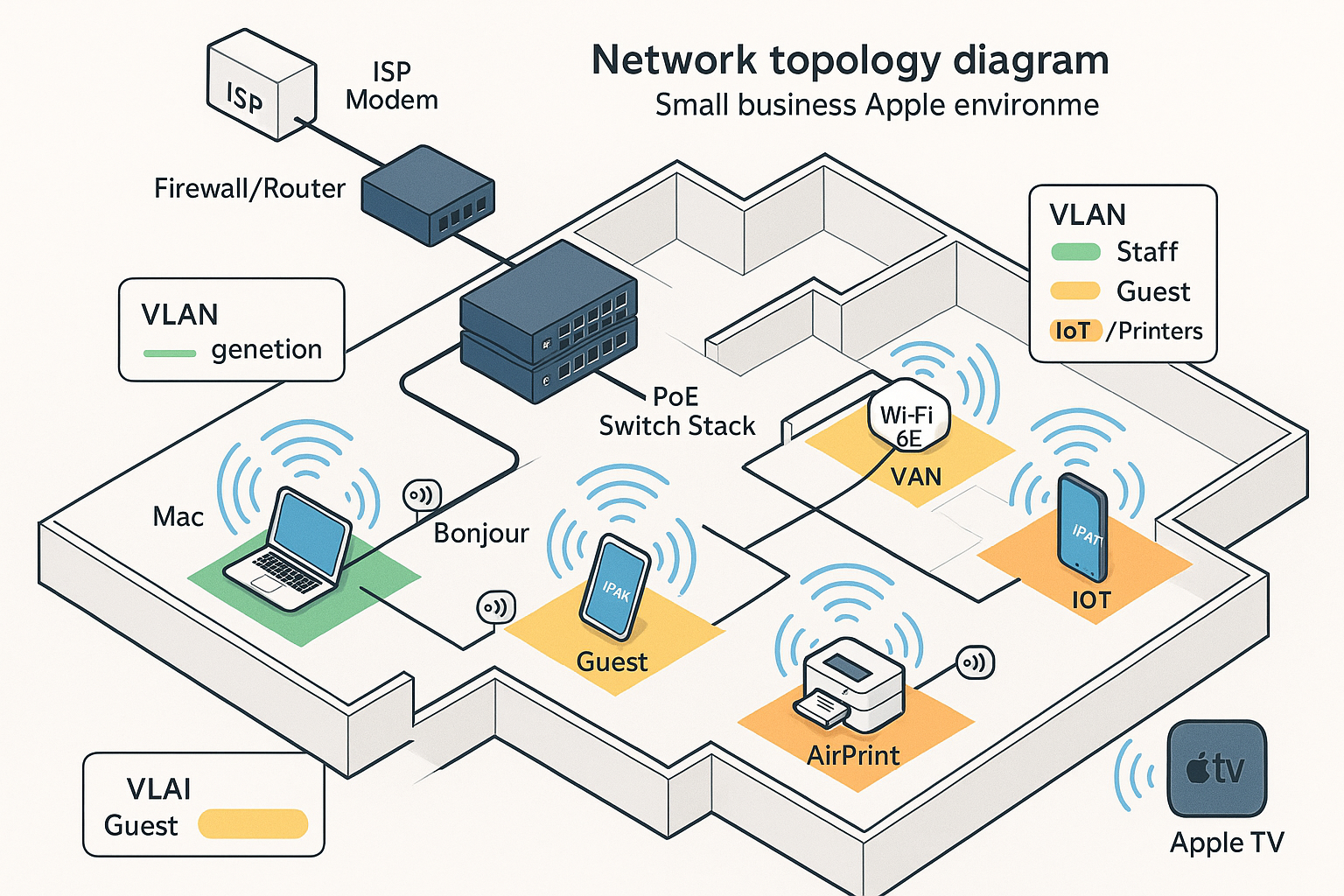
Here’s the backbone every reliable network infrastructure for Mac, iPad, and iPhone environments:
ISP/Modem → Firewall/Router → Core Switch → Access Points → Devices
Let’s break it down:
1. ISP Handoff & Modem
Your internet service provider delivers a connection—fiber ONT, cable modem, or business Ethernet handoff. Ideally, you put their gateway in bridge mode (modem-only) and let your own firewall handle routing. Why? ISP combo units are built for cost, not performance or control.
2. Firewall/Router (the Brain)
This device routes traffic, enforces security rules, and (optionally) handles VPN, failover, and traffic shaping.
Minimum viable: A quality small-business firewall/router (Ubiquiti Dream Machine, Firewalla, pfSense box).
Best practice: Use a separate firewall appliance with dual-WAN support, VLAN-aware routing, and real logging.
3. Managed Switch (the Backbone)
Connects everything wired—access points, desktop Macs, NAS, printers, VoIP phones. Must support:
- PoE (Power over Ethernet) to power access points without separate power bricks
- VLANs for network segmentation
- Sufficient uplink speed (1GbE minimum; 2.5/10GbE if you’re moving big files)
Minimum viable: 8-port PoE+ managed switch.
Best practice: 24- or 48-port with 10GbE uplinks and redundant power.
4. Access Points (the User Experience)
Not consumer routers in AP mode—actual business-class access points designed for density, roaming, and centralized management.
Minimum viable: Two Wi-Fi 6 APs (one per 1,500 sq ft or per defined zone).
Best practice: Wi-Fi 6E or 7 APs with controller-based management, one AP per 1,000–1,500 sq ft, with 20–30% overlap for seamless roaming.
5. Management/Controller (Optional but Recommended)
Unified dashboard to configure, monitor, and troubleshoot all APs and switches from one pane of glass. Can be cloud-hosted (UniFi Cloud, Meraki) or self-hosted (UniFi controller on-premise).
Key Principle: Wired is the foundation; wireless is the interface. If your switching and backhaul are weak, no amount of expensive APs will save you.
Wired Foundation (The Part Everyone Underestimates)
Wireless gets the glory. Wired infrastructure does the work.
Why Wired Matters in a “Wireless World”
Every access point, every network printer, every Mac mini server needs an Ethernet backhaul. If that Cat5e cable is struggling at 100 Mbps, your gigabit Wi-Fi is a lie. If your switch can’t deliver PoE reliably, your AP reboots mid-meeting.
Switching Basics
- Managed vs. Unmanaged: Managed switches let you create VLANs, monitor traffic, and prioritize packets. Unmanaged switches are just “dumb hubs” in modern clothing. Always choose managed.
- PoE Standards:
- PoE (802.3af): 15.4W per port—fine for basic APs
- PoE+ (802.3at): 30W per port—needed for Wi-Fi 6/6E APs, VoIP phones, cameras
- PoE++ (802.3bt): 60–100W—overkill unless you’re powering PTZ cameras or exotic gear
- Port Count: Add 30% headroom. If you need 16 ports today, buy 24.
Uplinks (Switch-to-Switch or Switch-to-Router)
If you’re daisy-chaining switches or connecting your core switch to the router, use the fastest ports available:
- 1GbE: Minimum for small offices
- 2.5GbE: Ideal for Wi-Fi 6E environments
- 10GbE (SFP+): Future-proof for NAS, video workstations, and high-density wireless
Structured Cabling
Run Cat6 or Cat6a to every AP location and key workstation. Yes, it’s more expensive than Cat5e—but it supports 10GbE and reduces crosstalk. Label every cable. Use a patch panel. Future-you will be grateful.
UPS (Uninterruptible Power Supply)
Your network gear should survive brief power blips and give you 10–15 minutes to shut down during outages gracefully. A $200 UPS protecting a $2,000 network is the easiest insurance you’ll ever buy.
Real-World Scenario: A design agency in Brooklyn upgraded to Wi-Fi 6E APs but kept their old 100Mbps switch. Wireless speed tests maxed out at 95Mbps. The APs weren’t the problem—the decade-old backbone was. Swapping to a PoE+ gigabit switch unlocked full performance for under $400.
Wi-Fi Design for Apple-Heavy Offices
Apple devices live on Wi-Fi. If your wireless is flaky, your team’s productivity craters.
Coverage vs. Capacity
- Coverage = “Can I get a signal here?”
- Capacity = “Can 30 people use that signal simultaneously without crawling speeds?”
Consumer mesh systems optimize for coverage (fewer dead zones). Business APs optimize for capacity—handling dozens of devices per AP without choking.
Access Point Placement
Apple’s guidance: one AP per classroom or defined area. For SMBs, that translates to:
- 1 AP per 1,000–1,500 sq ft in open offices
- 1 AP per conference room if it seats 8+ people or hosts regular video calls
- Ceiling-mounted, centrally located in each zone (not shoved in a corner)
Reduce transmit power to medium or low—counterintuitive, but it prevents APs from “shouting over” each other and forces devices to connect to the nearest, strongest AP (better roaming).
Channel Planning
- 5 GHz band: Use channels 36, 40, 44, 48 (low), 149, 153, 157, 161 (high). Avoid DFS channels unless you’re confident (radar detection can cause random disconnects).
- 6 GHz band (Wi-Fi 6E/7): Wide-open spectrum, no legacy device interference—if your Macs/iPads support it, prioritize this band.
- 2.4 GHz band: Disable it if possible (crowded, slow, legacy). If you must keep it, use only channels 1, 6, or 11.
Roaming (802.11k/r/v)
Modern Apple devices roam beautifully—if your APs cooperate. Enable:
- 802.11k (neighbor reports—tells devices about nearby APs)
- 802.11r (fast roaming—pre-authenticates to next AP)
- 802.11v (BSS transition management—nudges sticky clients to better APs)
Guest SSID Strategy
Run one dedicated guest SSID on a separate VLAN with:
- Client isolation (guests can’t see each other)
- Bandwidth limits (optional—prevents one person streaming 4K from killing everyone)
- Firewall rules are blocking internal resources
Do not give guests access to your primary staff network. Ever.
Minimum Recommended Wi-Fi Settings
| Setting | Recommendation | Why |
|---|---|---|
| SSID count | 2–3 max (Staff, Guest, IoT) | More SSIDs = more beacon overhead = less airtime for data |
| Security | WPA3 or WPA2/WPA3 mixed | WPA2-only is acceptable if legacy devices require it; WPA3 is stronger |
| Band steering | Prefer 5/6 GHz | Keeps capable devices off crowded 2.4 GHz |
| Minimum data rate | 12–24 Mbps | Kicks off ancient/distant devices that slow everyone down |
| Channel width | 40 MHz (5 GHz), 80–160 MHz (6 GHz) | Balance speed and interference |
Data Point: Apple recommends three or fewer SSIDs to minimize management frame overhead. Every additional SSID broadcasts beacons, stealing airtime from actual data. A network with six SSIDs can lose 10–15% effective throughput before a single device connects.
Segmentation That Doesn’t Break Apple Workflows
VLANs (Virtual Local Area Networks) let you divide one physical network into isolated segments—guests can’t reach your file server, IoT devices can’t snoop on workstations. It’s smart security.
But naive VLAN segmentation will break AirPrint, AirPlay, and device discovery because those services rely on multicast traffic that doesn’t cross VLAN boundaries by default.
VLAN Strategy by Role
| VLAN | Purpose | Devices | Firewall Rules |
|---|---|---|---|
| 10 – Staff | Trusted employees | Macs, iPhones, iPads (company-managed) | Full internal access, internet access |
| 20 – Guest | Visitors, contractors | Personal devices | Internet-only, isolated from internal resources |
| 30 – IoT/Printers | Network printers, Apple TVs, smart devices | AirPrint printers, AirPlay receivers | Limited—only necessary protocols (IPP, AirPlay, mDNS) |
| 99 – Management | Network gear admin | Switch/AP/firewall interfaces | Admin access only, locked down |
How to Keep AirPrint/AirPlay Working Across VLANs
The problem: AirPrint and AirPlay use mDNS (multicast DNS) to discover devices. By default, multicast traffic stays within one VLAN.
Solution: mDNS Reflector/Repeater
Most business routers and APs include an mDNS reflector feature (also called Bonjour gateway or multicast relay). Enable it and specify which VLANs can discover each other.
Example configuration (UniFi):
- Enable mDNS on the router
- Allow mDNS between VLAN 10 (Staff) and VLAN 30 (Printers/IoT)
- Block mDNS from VLAN 20 (Guest)
Now, your Mac on the Staff VLAN can discover and print to printers on the IoT VLAN—but guests can’t.
Security Note: Only reflect mDNS between trusted VLANs. Allowing it to Guest opens a side channel for reconnaissance.
Bonjour / mDNS: The Apple “Magic” That Can Also Become Chaos
Bonjour is Apple’s brand name for zero-configuration networking—the tech that lets your iPhone find your AirPods, your Mac discover a nearby printer, and your Apple TV appear in AirPlay menus without manual setup.
Under the hood, it’s mDNS (multicast DNS) and DNS-SD (DNS Service Discovery)—protocols that broadcast “I’m here, and I offer this service” announcements across the local network.
What It Is
- Devices send multicast packets to the address
224.0.0.251(IPv4) orff02::fb(IPv6) - Other devices listen and build a map of available services (printers, file shares, AirPlay receivers)
- No central server, no configuration—works (when the network allows it)
What Breaks It
- VLAN segmentation without mDNS reflection (most common)
- Aggressive multicast filtering on switches or APs
- Firewall rules blocking UDP port 5353
- Too many SSIDs are creating excessive broadcast traffic
- Roaming between APs if the mDNS cache isn’t synced
How to Control It
- Enable mDNS reflection on your router/firewall between trusted VLANs (Staff ↔ IoT/Printers)
- Limit SSID count to reduce beacon/broadcast overhead
- Use Bonjour Sleep Proxy (if supported) to let sleeping devices still appear available
- Monitor mDNS traffic—excessive announcements can indicate misconfigured devices or chatty IoT gear
When to Restrict It
- Guest networks: No reason for a visitor’s laptop to discover your internal printers
- High-security environments: Bonjour can leak device names, services, and topology—if that’s sensitive, disable it and use managed print queues instead
Practical Example: A video production studio segmented its network but forgot to enable mDNS reflection. Editors on VLAN 10 couldn’t AirPlay to the conference room Apple TV on VLAN 30. Five minutes of config later—enabling Bonjour forwarding between those two VLANs—and everything worked. No firewall holes, no security compromise.
Security Baseline (SMB Practical, Not Fantasy)
Enterprise-grade security is overkill for most small businesses—but “no security” is negligent. Here’s the middle ground.
Wi-Fi Security
- WPA3 (or WPA2/WPA3 mixed mode): WPA3 is stronger (protects against offline dictionary attacks), but some older Apple devices need WPA2. Mixed mode is pragmatic.
- Avoid WPA2-only if possible—it’s still common, but WPA3 is the direction Apple (and the industry) is moving.
- Never use WEP or open networks for anything beyond a captive-portal guest flow.
802.1X / RADIUS (Certificate-Based Wi-Fi)
Instead of a shared Wi-Fi password, 802.1X authentication uses per-device certificates or user credentials, which are verified by a RADIUS server.
Benefits:
- No “what’s the Wi-Fi password?” (MDM delivers certificates silently)
- Revoke access by removing a certificate—no need to change the password and update 50 devices
- Stronger encryption (per-session keys)
Tradeoff: Requires a RADIUS server (cloud-hosted like JumpCloud, or on-premise like FreeRADIUS) and MDM to distribute certificates.
When it’s worth it: Teams of 10+ with frequent onboarding/offboarding, or anywhere compliance matters.
Firewall Rules
- Default deny outbound from Guest VLAN to internal subnets
- Allow only necessary protocols from IoT VLAN (e.g., IPP for printers, AirPlay ports for Apple TVs)
- Block inter-VLAN traffic unless explicitly needed
- Rate-limit or block common attack vectors (SSH brute-force, RDP from the internet)
DNS Filtering
Point your DHCP clients to a filtering DNS resolver (Cloudflare for Teams, Quad9, NextDNS) to block malware, phishing, and ad trackers at the network level. It’s low-effort, high-return protection.
MFA for Admin Portals
Your router, switch, and AP admin interfaces should require multi-factor authentication. If they don’t support it natively, put them behind a VPN that does.
Patching & Firmware Updates
Set a quarterly calendar reminder to update:
- Firewall/router firmware
- Switch firmware
- AP firmware
- Any on-premise servers or NAS
Subscribe to vendor security bulletins. Most SMB breaches exploit known, patched vulnerabilities.
Least Privilege
Create separate admin accounts for network management—don’t use the default admin/admin. Disable unused services (Telnet, HTTP admin—use SSH and HTTPS only).
Logging & Monitoring
Enable syslog forwarding to a central collector (even a free tool like Graylog or Splunk Free). You don’t need 24/7 SOC monitoring, but you do need logs when something breaks or an incident occurs.
Real-World Win: A creative agency enabled WPA3 and 802.1X via Jamf Pro. New hires’ Macs auto-connected to Wi-Fi during setup—no IT ticket, no shared password. When a contractor’s laptop was stolen, they revoked the certificate remotely. Zero network risk.
Apple Management Tie-In (So Wi-Fi “Just Works”)
Network infrastructure for Mac, iPad, and iPhone deployments shines when paired with Mobile Device Management (MDM).
MDM-Delivered Wi-Fi Profiles
Instead of manually entering the SSID and password on every device, MDM pushes a configuration profile that includes:
- Network name (SSID)
- Security type (WPA2/WPA3)
- Password (or certificate for 802.1X)
- Auto-join settings
- Proxy configuration (if needed)
User experience: Device enrolls in MDM → Wi-Fi profile installs silently → user opens laptop, already connected. No questions asked.
Certificate-Based Wi-Fi (802.1X)
MDM solutions (Jamf Pro, Mosyle, Kandji, Intune) can:
- Request a certificate from your internal CA or a trusted third party
- Embed that certificate in a Wi-Fi profile
- Push the profile to enrolled devices
- Device authenticates to RADIUS using the certificate (no password)
Why it matters: Onboarding is instant. Offboarding is instant (revoke cert, device can’t connect). No shared passwords to rotate.
Device Posture & Conditional Access
Advanced MDM + network combinations (Jamf Pro + Cisco ISE, or Kandji + JumpCloud) can enforce:
- “Only devices with OS version X.Y or newer may connect.”
- “Only devices with FileVault enabled and up-to-date malware definitions.”
- “Only company-owned devices on Staff VLAN; BYOD goes to Guest.”
This is Zero Trust Network Access (ZTNA) in practice—assume nothing, verify everything.
Apple Push Notification Service (APNs) Certificates
MDM relies on APNs to communicate with devices. You’ll need:
- APNs certificate (renewed annually via Apple)
- SSL certificate for MDM server communication
- Configuration profile signing certificate (optional but recommended)
Most MDM vendors handle renewals automatically or send reminders. Missing a renewal = devices stop checking in.
Pro Tip: Use Managed Apple IDs (via Apple Business Manager) to separate work and personal data. Employees keep their personal Apple ID for iCloud Photos and App Store purchases; the Managed Apple ID controls work apps, email, and corporate resources.
Resilience & Performance
A network that works 99% of the time still fails your team when a client deadline hits during that 1%.
Dual WAN / Failover
If your primary ISP goes down, a secondary WAN connection (cable, fiber, LTE/5G) keeps you online.
Options:
- Active/passive failover: Primary does all traffic; secondary kicks in if primary fails
- Load balancing: Split traffic across both connections (requires a compatible firewall)
- LTE/5G backup: Cheaper than a second wired ISP; slower, but better than dead
Cost: $50–150/month for a second connection. Worth it if downtime costs you thousands.
QoS (Quality of Service) / SQM (Smart Queue Management)
Prioritize latency-sensitive traffic (Zoom, VoIP) over bulk transfers (Dropbox sync, software updates).
Modern firewalls use Smart Queue Management (fq_codel, CAKE) to prevent bufferbloat—the phenomenon in which a single large download causes everyone’s video calls to stutter.
Configuration:
- Set upload/download limits to 90–95% of your actual ISP speed
- Prioritize VoIP/video (DSCP EF, high priority)
- Deprioritize bulk traffic (DSCP CS1, low priority)
Monitoring & Alerting
Set up uptime monitoring (Uptime Robot, Pingdom, or built-in tools) to alert you when:
- Internet connection drops
- An AP goes offline
- Switch CPU/memory spikes
- Unusual traffic patterns (potential breach or misconfigured device)
Free tools: PRTG (free up to 100 sensors), LibreNMS, UniFi’s built-in monitoring.
Spare AP Strategy
Keep one spare access point on the shelf, pre-configured. When an AP fails (and they do—power surges, firmware bugs, physical damage), you swap it in 10 minutes instead of waiting 2 days for shipping.
Change Control
Never make network changes on Friday afternoon or right before a big deadline. Test firmware updates on one AP first. Document every change (even a simple “increased AP power on Office-2 to improve coverage in the northwest corner”).
Real-World Save: A design firm’s primary fiber ISP had an outage during a client pitch. Their LTE failover kicked in automatically—bandwidth dropped from 500 Mbps to 50 Mbps, but the Zoom presentation continued without a hitch. The $80/month backup line saved a $50,000 contract.
Troubleshooting Playbook (Quick Wins)
When things break, here’s your first-response checklist.
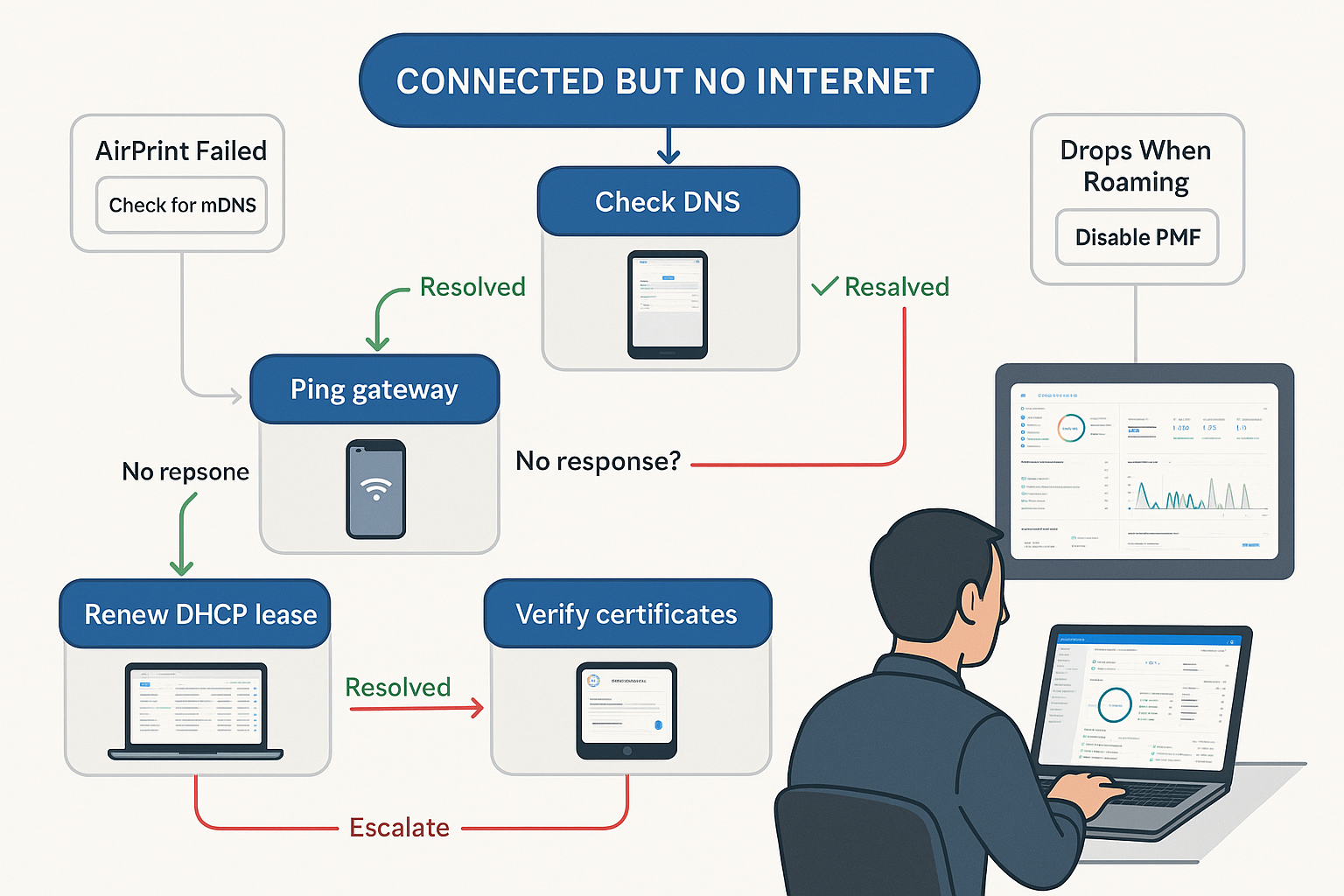
“Connected but No Internet”
Symptoms: The device shows Wi-Fi connected and full bars, but websites won’t load.
Diagnosis:
- Check DNS: Open Terminal (Mac) or Settings → Wi-Fi → DNS (iPhone/iPad). Try pinging
8.8.8.8(Google DNS). If that works butgoogle.comdoesn’t, DNS is broken. - Check gateway: Ping your router’s IP (usually
192.168.1.1or10.0.0.1). No response = routing problem. - Check DHCP: Verify the device got a valid IP address (not, which means DHCP failed).
Fixes:
- Renew DHCP lease (Mac: System Settings → Network → Wi-Fi → Details → Renew Lease)
- Change DNS to
8.8.8.8and1.1.1.1manually - Restart the router (yes, really—DHCP pools can get exhausted or buggy)
Captive Portal Surprises
Symptoms: Device connects to guest Wi-Fi, but the login page either doesn’t appear or appears, then vanishes.
Diagnosis:
- Apple devices detect captive portals by fetching
https://captive.apple.com/hotspot-detect.html - If DNS or a firewall blocks this, the portal won’t trigger
Fixes:
- Manually navigate to
https://captive.apple.comin Safari - Disable VPN/DNS profiles temporarily
- Forget the network and reconnect
- Check firewall—ensure HTTP (port 80) isn’t blocked for initial portal detection.
Roaming Drops (Wi-Fi Disconnects When Moving)
Symptoms: Walking from the office to the conference room causes Wi-Fi to drop for 5–10 seconds.
Diagnosis:
- Sticky client problem: Device clings to a weak AP instead of switching to a stronger one
- Overlapping channels: Two APs on the same channel interfere
- Missing 802.11r/k/v: Fast roaming not enabled
Fixes:
- Enable 802.11r (fast roaming) and 802.11k/v on all APs
- Reduce AP transmit power to medium/low (forces devices to roam sooner)
- Check channel plan—ensure APs use non-overlapping channels
- Update device OS (older iOS/macOS versions roam poorly)
AirPrint / AirPlay Not Working
Symptoms: Printer or Apple TV visible at times, invisible at others. Or visible, but “connection failed.”
Diagnosis:
- VLAN segmentation blocking mDNS
- Firewall rules blocking UDP 5353 or AirPlay ports (TCP 7000, UDP 6001-6011)
- AP isolation enabled (client isolation on the identical SSID)
Fixes:
- Enable mDNS reflector on router (allow between Staff and IoT VLANs)
- Disable client isolation on the SSID (or move the printer to the same VLAN as the users)
- Check firewall—allow UDP 5353 and AirPlay ports between necessary VLANs
- Restart printer/Apple TV (mDNS cache can get stale)
DNS Problems (Slow Page Loads, Intermittent Failures)
Symptoms: Websites load slowly or time out randomly. Apps say “no internet,” but ping works.
Diagnosis:
- ISP DNS is slow or unreliable
- DNS cache poisoning or stale records
- Firewall blocking DNS queries
Fixes:
- Change DNS to public resolvers:
1.1.1.1,8.8.8.8,9.9.9.9 - Flush DNS cache (Mac:
sudo dscacheutil -flushcache) - Check router—ensure DNS forwarding is enabled and pointing to reliable upstream servers
- Test with
digornslookupto isolate the problem
Troubleshooting Mantra: Change one variable at a time. Document what you tried. Reboot is not a solution—it’s a temporary mask.
Conclusion: A 10-Point Implementation Checklist + “When to Bring in a Pro”
You’ve absorbed a lot. Here’s your actionable roadmap to build or upgrade network infrastructure for Mac, iPad, and iPhone environments that balance security, performance, and simplicity.
10-Point Implementation Checklist
- Audit current state: count devices, map the floor plan, test current speeds, and identify pain points.
- Design VLAN strategy: Staff, Guest, IoT/Printers, Management—four VLANs cover 90% of SMBs.
- Choose gear: Managed PoE+ switch, business-class Wi-Fi 6/6E APs, firewall with VLAN routing and mDNS reflection.
- Run structured cabling: Cat6/6a to every AP location and key workstations. Label everything.
- Configure Wi-Fi: 2–3 SSIDs max, WPA3 or WPA2/WPA3 mixed, enable 802.11r/k/v, set minimum data rates.
- Enable mDNS reflection: allow Bonjour between the Staff and IoT VLANs; block it from the Guest VLAN.
- Set firewall rules: default to deny between VLANs; allow only necessary protocols (e.g., IPP, AirPlay).
- Integrate MDM: Push Wi-Fi profiles, consider 802.1X with certificates for teams of 10+.
- Add resilience: Dual WAN or LTE backup, UPS for network gear, spare AP on shelf.
- Monitor & document: Set up uptime alerts, keep a change log, and schedule quarterly firmware updates.
When to Bring in a Pro
You can DIY this—many small businesses do. But call in a Mac IT consulting specialist (like MacWorks 360) if:
- You’re scaling fast (10 → 30 people in six months)—growth exposes design flaws quickly
- You need compliance (HIPAA, SOC 2, client NDAs)—security mistakes are costly
- Downtime is expensive (production studio, agency with SLAs)—you need it right the first time
- You lack time or confidence—a botched network rollout costs more than hiring expertise upfront
A boutique Apple IT consultant brings 20+ years of pattern recognition—they’ve seen your exact scenario a dozen times and know the shortcuts, the gotchas, and the future-proof choices. They’ll design it, deploy it, document it, and train your team—so you get peace of mind and your people get back to doing their best work.
Next step? Pick one item from the checklist above and start this week. Audit your device count. Test your current Wi-Fi coverage with a free tool like NetSpot. Map your VLANs on paper. Progress beats perfection.
Your network is the foundation on which everything else rests. Build it right, and it becomes invisible—exactly how infrastructure should be.
FAQ
Do I need VLANs?
Short answer: If you have more than 10 devices or any guest access, yes.
Why: VLANs isolate traffic—guests can’t reach your file server, IoT devices can’t snoop on workstations, and a compromised printer can’t pivot to your accounting Mac. Without segmentation, every device trusts every other device. That’s fine for a home network; it’s risky for a business.
Minimum viable: Two VLANs (Staff + Guest). Best practice: Four (Staff, Guest, IoT/Printers, Management).
Why does AirPrint fail after segmentation?
AirPrint relies on mDNS (multicast DNS), and multicast traffic doesn’t cross VLAN boundaries by default.
When you put printers on VLAN 30 and users on VLAN 10, their multicast “I’m a printer!” announcements never reach the users.
Fix: Enable mDNS reflection (also called Bonjour gateway or multicast relay) on your router/firewall. Configure it to forward mDNS between VLAN 10 and VLAN 30. Now users can discover printers across VLANs without compromising security.
Is Wi-Fi 7 worth it yet?
In 2025: If you’re buying new APs and your budget allows, yes—Wi-Fi 7 is future-proof and offers real benefits even if most devices don’t support it yet.
Why:
- Multi-Link Operation (MLO): Devices can use 5 GHz and 6 GHz simultaneously for lower latency and higher throughput
- 320 MHz channels (6 GHz band): Double the width of Wi-Fi 6E
- Better interference handling in dense environments
But Wi-Fi 6E is still excellent and often cheaper. If your Macs/iPads are 2021 or newer (Wi-Fi 6E capable), that’s the sweet spot for price/performance.
Skip Wi-Fi 7 if: Your devices are pre-2020 (Wi-Fi 5 only) or budget is tight—Wi-Fi 6 is a massive upgrade from 5, and you’ll see diminishing returns.
How many SSIDs are too many?
Apple’s guidance: Three or fewer.
Every SSID constantly broadcasts beacon frames—management overhead that steals airtime from actual data. A network with six SSIDs can lose 10–15% effective throughput before a single device connects.
Recommended setup:
- Staff (primary, WPA3, VLAN 10)
- Guest (isolated, captive portal optional, VLAN 20)
- IoT (printers, Apple TVs, smart devices, VLAN 30)—optional; you can combine with Staff if you trust the devices
Avoid: Separate SSIDs for “5 GHz only,” “fast,” “secure,” etc. Modern APs handle band steering and client optimization automatically.
What’s the simplest secure guest network?
Minimum viable:
- Separate SSID (e.g., “Studio Guest”)
- WPA2/WPA3 with a simple password (or open with captive portal)
- Dedicated VLAN (e.g., VLAN 20)
- Firewall rules: Allow internet, block all internal subnets
- Client isolation enabled (guests can’t see each other’s devices)
Optional upgrades:
- Bandwidth limit (e.g., 10 Mbps per client) to prevent one person from hogging the connection
- Captive portal with terms of service (free tools: pfSense, UniFi Guest Portal)
- Time-limited access (password expires daily or weekly)
Total setup time: 15 minutes if your firewall supports VLAN routing. No need for enterprise guest-management systems unless you’re running a coworking space.
References
[1] Apple Inc. (2024). Wi-Fi Networks and Apple Devices: Deployment Best Practices. Apple Education Deployment Guide.
[2] IEEE Standards Association. (2021). 802.1X-2020 – IEEE Standard for Local and Metropolitan Area Networks—Port-Based Network Access Control.
[3] Ubiquiti Inc. (2025). UniFi Wi-Fi 7 Access Point Technical Specifications. UniFi Product Documentation.
[4] Wi-Fi Alliance. (2023). Wi-Fi 6E and Wi-Fi 7: Technical Comparison and Deployment Considerations.
[5] Apple Inc. (2025). Apple Push Notification Service (APNs) Certificate Management. Apple Developer Documentation.
[6] Jamf Software. (2025). 802.1X Network Authentication with Jamf Pro: Implementation Guide.
[7] National Institute of Standards and Technology. (2023). Zero Trust Architecture (NIST SP 800-207).