
Apple Refreshes iPhone, iPad Air, and MacBook Lineups

Apple kicked off March 2026 with a flurry of product updates, refreshing its budget iPhone, mid-range iPad, and entire MacBook lineup. The announcements bring real upgrades across the board, with […]
Create Reminders to Return Calls Directly in the Phone App

Apple introduced a neat new feature in the Phone app in iOS 26 and iPadOS 26 (but not macOS 26): callback reminders. Whenever you miss a call and think, “I’d […]
Make the Most of Visual Intelligence on the iPhone
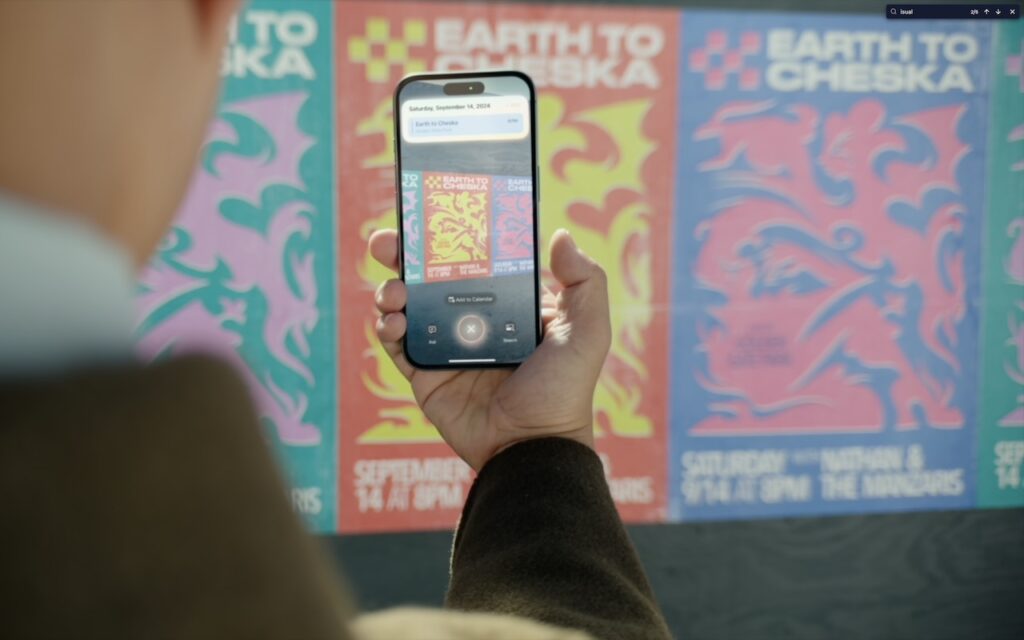
The “visual intelligence” aspect of Apple Intelligence leverages the artificial intelligence capabilities of your iPhone to make what you see through the iPhone’s camera or on its screen interactive and […]
How to Customize the iPhone and iPad Home Screen with Liquid Glass
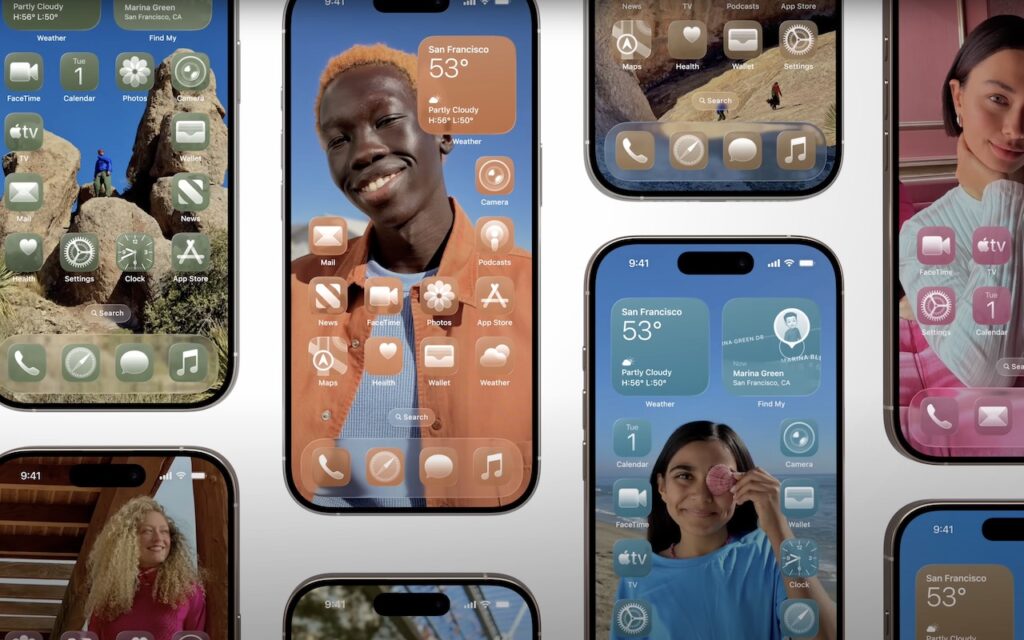
When describing its new Liquid Glass design language, Apple spoke only generally about how users could change the look of icons and widgets on their iPhone and iPad home screens […]
Mail on the iPhone Can Categorize Your Messages in iOS 18.2

Apple slipped a significant new feature into Mail in iOS 18.2 that has nothing to do with Apple Intelligence: Categories. Like Gmail and other email apps, Mail can now automatically […]
Five Quick Tips to Ease iPhone and iPad Text Editing and Amaze Your Friends
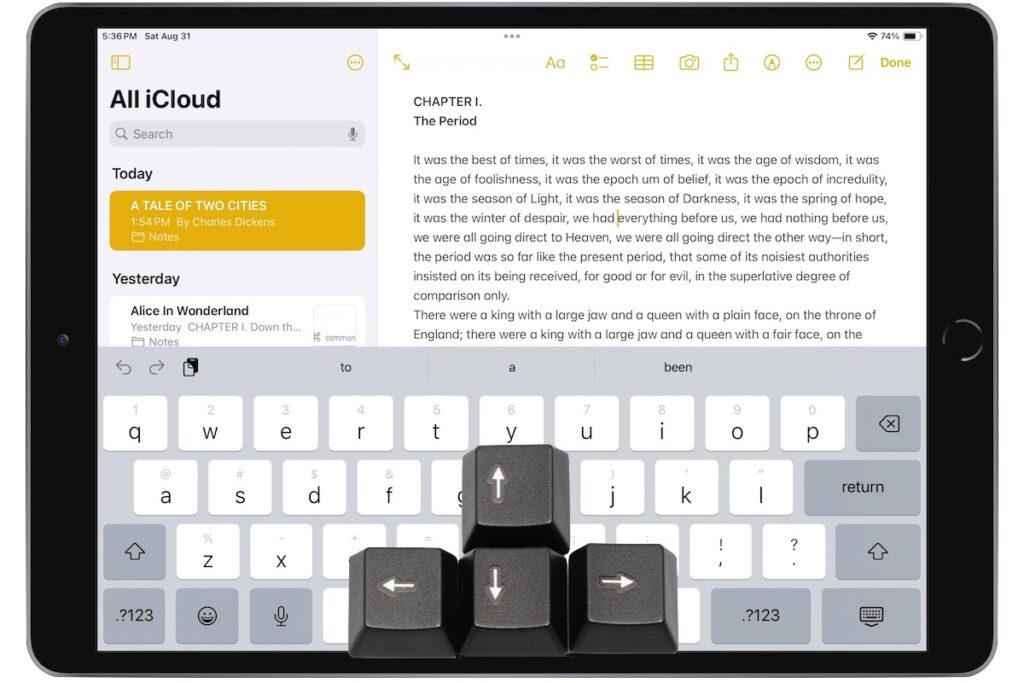
A friend recently expressed astonishment when she saw us using trackpad mode while editing text on an iPhone. (It works on the iPad, too!) So, even if you already know […]
Quickly Catalog Books or Other Named Items on Shelves

If you have trouble finding particular items across multiple shelves of books, labeled boxes, or anything else that’s clearly identified with a text name, take carefully composed photos that capture […]
Display an Album of Photos on Your iPhone or iPad Lock Screen

A popular feature of iOS 16 was the Photo Shuffle option for customizing the iPhone Lock Screen. It used machine learning to select photos in four categories—People, Pets, Nature, and […]
For the Best Mac Webcam, Use Your iPhone

The near-ubiquity of videoconferencing is a lasting effect of the pandemic. The ease of gathering a group virtually usually more than makes up for the downsides. Despite that, many people […]
How to Avoid Head-Tracked Spatial Audio for FaceTime Audio Calls

If you listen to a FaceTime Audio call using AirPods and hear the other person’s voice moving annoyingly from side to side as you turn your head, the problem is […]