Why macOS wrecks maxed-out USB-C SSDs: The Hidden Threat to Your Creative Workflow
Picture this: You’re racing to meet a critical client deadline when your trusted external SSD—the one holding months of project files—suddenly becomes unresponsive. The spinning beach ball of doom appears, and panic sets in. Why macOS wrecks maxed-out USB-C SSDs isn’t just a technical curiosity—it’s a workflow-destroying reality that creative professionals and small business owners face daily, often without warning.
Key Takeaways
• macOS background processes can overwhelm USB-C SSDs with excessive write operations, dramatically reducing their lifespan
• Thermal management issues in USB-C enclosures compound the problem, especially during intensive creative workflows
• File system conflicts between macOS and specific SSD controllers create performance bottlenecks and data integrity risks
• Proactive monitoring and proper configuration can prevent most SSD failures before they impact your business
• Professional Mac IT support provides essential safeguards that protect your investment and ensure business continuity
Understanding Why macOS Wrecks Maxed-Out USB-C SSDs
The relationship between macOS and external USB-C SSDs has become increasingly complex as Apple’s operating system has evolved. While these drives offer incredible speed and portability for creative professionals, they’re vulnerable to specific behaviors that macOS exhibits when managing external storage.
The Perfect Storm: macOS Background Processes
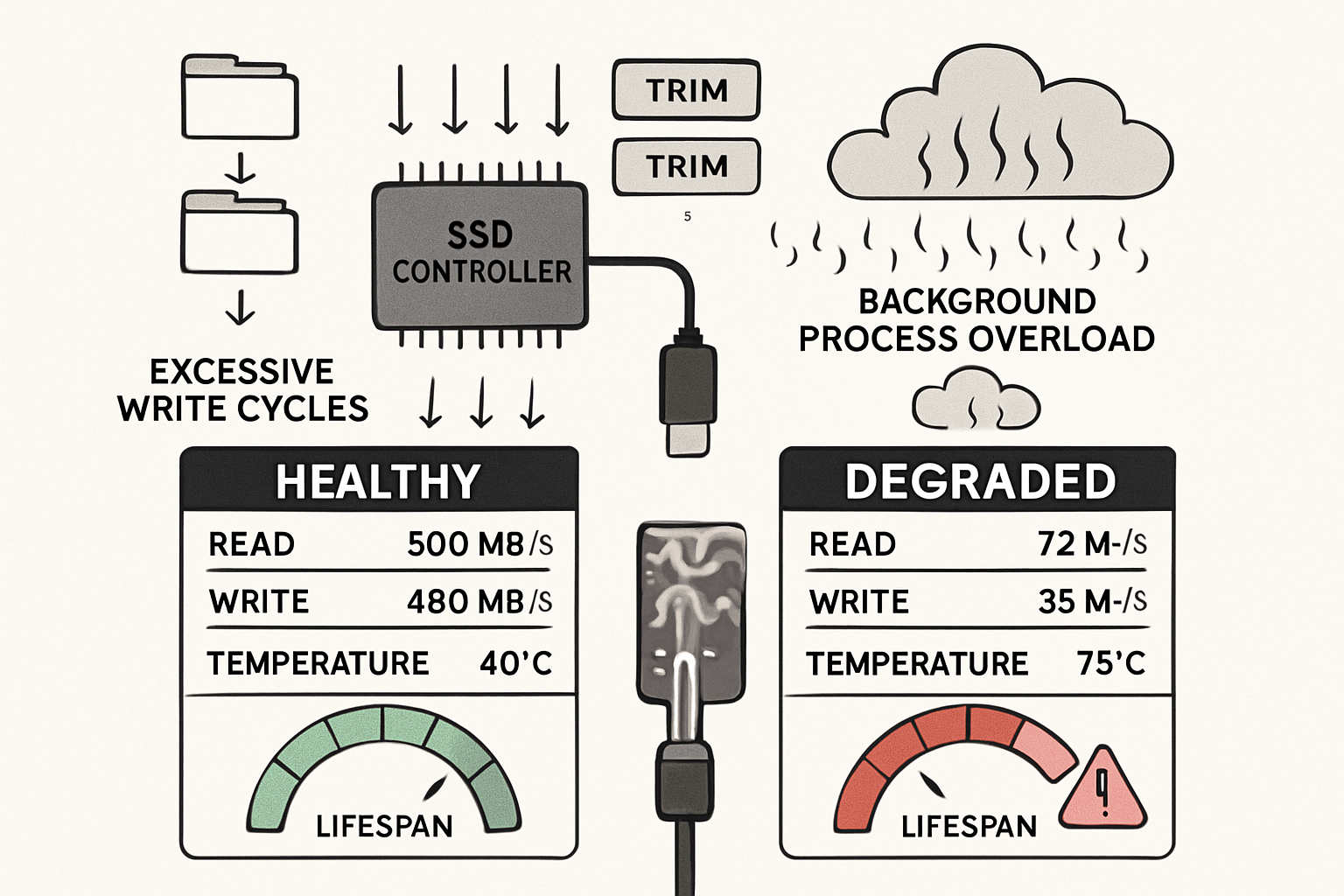
macOS runs numerous background processes that constantly read from and write to connected storage devices. Spotlight indexing, Time Machine backups, and system cache management create a continuous stream of disk activity that can overwhelm USB-C SSDs, especially as they approach their storage capacity.
When an SSD reaches 80-90% capacity, its performance degrades significantly due to reduced over-provisioning space. Combined with macOS’s aggressive file system management, this creates a scenario where the drive’s controller becomes overwhelmed, leading to:
- Excessive wear leveling operations
- Thermal throttling from sustained activity
- Controller firmware crashes
- Data corruption risks
“We’ve seen too many creative studios lose critical project files because they didn’t understand how macOS interacts with external storage. Prevention is always better than emergency recovery.” – MacWorks 360 Technical Team
Thermal Management: The Hidden Killer
USB-C SSDs pack incredible performance into compact enclosures, but this creates significant thermal challenges. When macOS initiates intensive background operations—especially on nearly full drives—the sustained activity generates heat that these small enclosures struggle to dissipate.
Heat is the enemy of SSD longevity. As temperatures rise:
- NAND flash memory becomes less reliable
- Controller chips throttle performance
- Error correction becomes more frequent
- Overall lifespan decreases exponentially
Creative professionals working with 4K video, high-resolution photography, or large design files compound this problem by adding their own intensive read/write operations on top of macOS’s background activity.
The Technical Details: How macOS File System Operations Impact SSDs
Understanding why macOS wrecks maxed-out USB-C SSDs requires examining the specific file-system operations that cause problems. Apple’s APFS (Apple File System) and HFS+ both implement features that, while beneficial for internal storage, can be problematic for external USB-C SSDs.
TRIM Command Conflicts
TRIM commands help SSDs maintain performance by informing the drive which data blocks are no longer in use. However, macOS doesn’t automatically enable TRIM for external drives, and when it is enabled, some USB-C SSD controllers handle these commands poorly, leading to:
- Performance degradation
- Increased write amplification
- Controller instability
- Potential data loss
Metadata and Journal Operations
macOS maintains extensive metadata for files and folders, including:
- Extended attributes
- Spotlight search indexes
- File system journals
- Version control data
On a nearly full USB-C SSD, these constant metadata updates can trigger cascading write operations that overwhelm the drive’s controller. The problem becomes particularly acute when working with large media files that generate substantial metadata.
Background Process Amplification
Several macOS processes contribute to the problem:
Spotlight Indexing
- Continuously scans and indexes file content
- Creates substantial write activity on external drives
- Intensifies when new files are added frequently
Time Machine
- Attempts to back up external drives by default
- Creates additional write pressure
- Can conflict with other backup solutions
System Cache Management
- Writes temporary files to available storage
- May use external drives for swap space
- Increases wear on SSD cells
Understanding these processes helps explain why Apple’s approach to device longevity doesn’t always extend to third-party external storage solutions.
Real-World Impact on Creative Workflows
For creative professionals and small business owners, why macOS wrecks maxed-out USB-C SSDs translates into tangible business risks that go far beyond simple inconvenience.
Photography Studios: When Every Shot Matters
Professional photographers often store thousands of RAW files on external SSDs, pushing these drives to their capacity limits. When macOS background processes combine with photo editing software operations, the result can be catastrophic:
- Corrupted RAW files during active editing sessions
- Lost client galleries when drives fail unexpectedly
- Workflow interruptions during critical shooting periods
- Expensive data recovery attempts
Video Production: High-Stakes Storage
Video editors working with 4K and 8K footage face even greater challenges. Large video files stress USB-C SSDs in multiple ways:
- Sustained high-bandwidth operations generate excessive heat
- Frequent file moves and copies accelerate wear leveling
- Render cache files consume the remaining free space
- Timeline scrubbing creates random access patterns that stress controllers
Small Business Operations: The Cost of Downtime
For small business owners who rely on external storage for critical business data, SSD failures can mean:
- Lost productivity during recovery efforts
- Client relationship damage from missed deadlines
- Financial losses from corrupted project files
- Emergency IT costs for data recovery services
The importance of proactive risk management becomes clear when considering these potential impacts.
Prevention Strategies: Protecting Your Investment
While understanding why macOS wrecks maxed-out USB-C SSDs is essential, implementing preventive measures is crucial to maintaining reliable creative workflows.
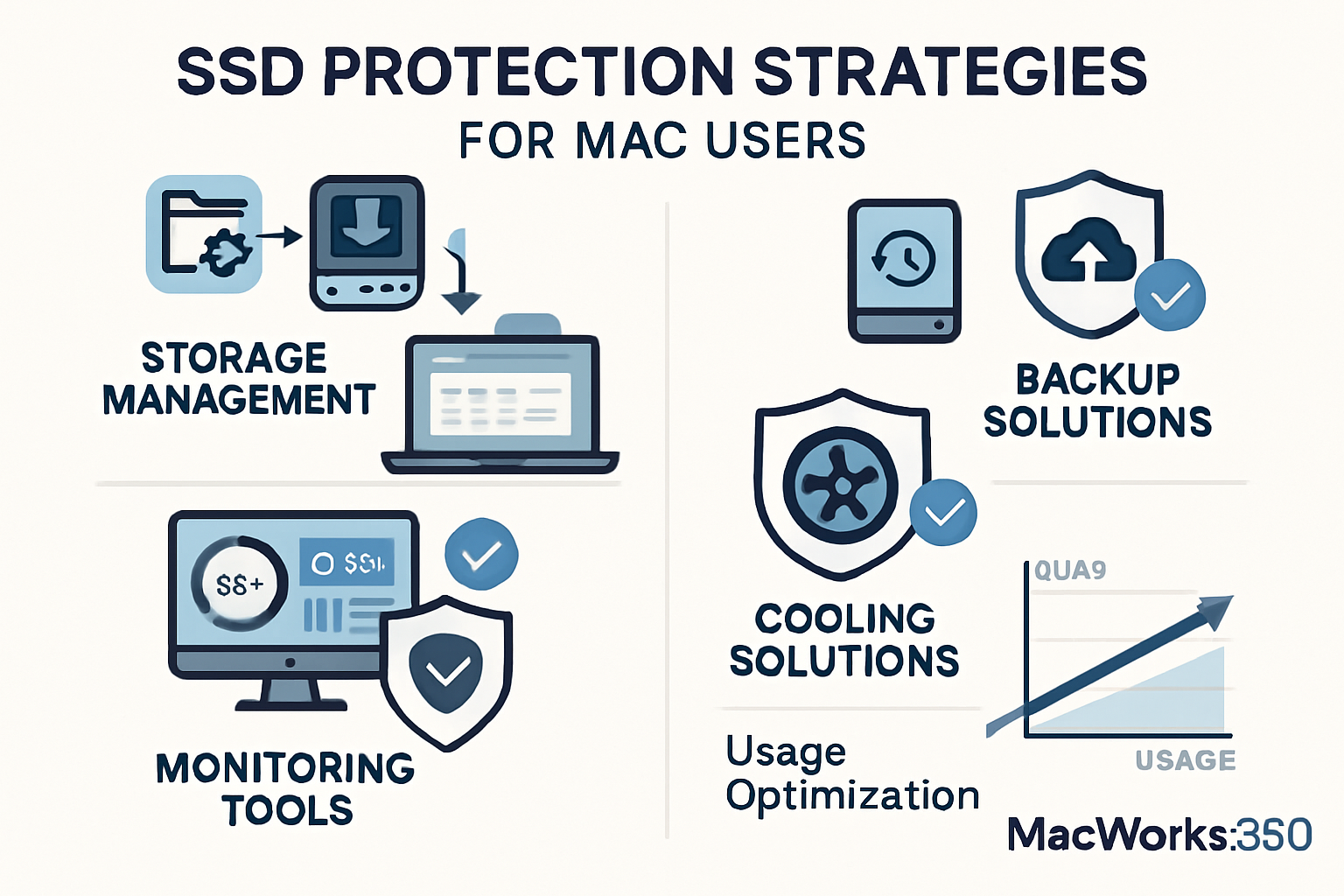
Storage Management Best Practices
Maintain Adequate Free Space
- Keep USB-C SSDs below 75% capacity
- Use multiple drives for large projects
- Implement automated cleanup routines
- Monitor storage usage regularly
Optimize macOS Settings
- Disable Spotlight indexing for external drives
- Exclude external drives from Time Machine
- Configure energy settings to prevent sleep interruptions
- Manage cache file locations
Thermal Management Solutions
Physical Cooling
- Use SSDs with aluminum enclosures for better heat dissipation
- Ensure adequate airflow around drives
- Consider active cooling solutions for intensive workflows
- Monitor drive temperatures during operation
Workload Distribution
- Spread intensive operations across multiple drives
- Schedule background tasks during off-hours
- Use internal storage for temporary files
- Implement staging workflows for large projects
Professional Monitoring and Maintenance
MacWorks 360’s experience with Mac IT support and Apple consulting has shown that proactive monitoring prevents most SSD failures. Professional monitoring includes:
- Drive health assessments using specialized tools
- Performance benchmarking to detect degradation
- Temperature monitoring during typical workflows
- Predictive failure analysis based on usage patterns
This approach aligns with our philosophy of proactive protection rather than reactive repairs.
Choosing the Right USB-C SSD for macOS
Not all USB-C SSDs are created equal when it comes to macOS compatibility and longevity. Understanding the key factors can help prevent the problems that cause macOS to wreck maxed-out USB-C SSDs.
Controller Compatibility
Preferred Controllers
- Look for drives with controllers known for macOS compatibility
- Avoid budget controllers that struggle with TRIM commands
- Research firmware update availability
- Check for thermal management features
Capacity Considerations
- Choose drives with a higher capacity than immediately needed
- Consider over-provisioning for better longevity
- Plan for future storage growth
- Factor in metadata overhead
Build Quality and Thermal Design
Enclosure Materials
- Aluminum enclosures provide better heat dissipation
- Avoid plastic enclosures for intensive workflows
- Consider drives with thermal padding
- Look for passive cooling features
Interface Standards
- USB 3.2 Gen 2 for reliable performance
- Thunderbolt 3/4 for maximum bandwidth
- Avoid USB 3.0 for large file workflows
- Consider future compatibility needs
Professional Solutions: MacWorks 360’s Approach
With over 20 years of expertise in Mac environments, MacWorks 360 has developed comprehensive solutions to address the challenges posed by macOS and why it wrecks maxed-out USB-C SSDs.
Customized Mac Infrastructure Optimization
Our approach begins with understanding your specific workflow requirements:
Workflow Analysis
- Document typical file sizes and access patterns
- Identify peak usage periods and bottlenecks
- Assess current storage architecture
- Plan for future growth and technology changes
Storage Architecture Design
- Design redundant storage systems
- Implement proper backup strategies
- Configure optimal macOS settings
- Establish monitoring and maintenance protocols
Proactive Monitoring and Support
Continuous Health Monitoring
- Real-time drive temperature tracking
- Performance degradation alerts
- Predictive failure warnings
- Automated health reports
Preventive Maintenance
- Regular drive health assessments
- Firmware update management
- Storage optimization routines
- Performance tuning adjustments
This comprehensive approach ensures peace of mind through technology solutions that protect your creative investment.
Advanced Troubleshooting: When Problems Occur
Despite best prevention efforts, USB-C SSD issues can still arise. Understanding advanced troubleshooting techniques can help minimize downtime and data loss.
Early Warning Signs
Performance Indicators
- Slower file transfer speeds
- Increased heat generation
- Frequent disconnections
- Application crashes during file operations
System Symptoms
- Beach ball delays during file access
- Finder freezes when browsing the drive
- Backup failures or interruptions
- Unusual fan activity on connected Macs
Emergency Response Procedures
When SSD problems occur:
- Immediate Assessment
- Stop all write operations to the drive
- Check the drive temperature and connection
- Document symptoms and error messages
- Assess data backup status
- Data Protection
- Create emergency backups if possible
- Use read-only access to minimize further damage
- Document critical files that need immediate recovery
- Contact professional support for guidance
- Professional Recovery
- Engage experienced Mac IT specialists
- Avoid DIY recovery attempts that could worsen damage
- Implement temporary workflow solutions
- Plan for drive replacement and data migration
MacWorks 360’s 24/7/365 monitoring capabilities ensure that when emergencies occur, expert help is immediately available to minimize business impact.
The Business Case for Professional Mac IT Support
Understanding why macOS wrecks maxed-out USB-C SSDs reveals a larger truth: modern creative workflows require professional IT expertise to maintain reliability and protect valuable assets.
Cost-Benefit Analysis
Prevention Costs
- Professional storage architecture design
- Ongoing monitoring and maintenance
- Quality hardware investments
- Staff training and education
Failure Costs
- Emergency data recovery services
- Lost productivity during downtime
- Potential client relationship damage
- Replacement hardware and setup time
The mathematics strongly favor prevention, especially when considering that innovative solutions for Mac users continue to evolve and improve.
Strategic Technology Partnership
Working with MacWorks 360 provides:
Expertise Access
- Deep understanding of macOS storage behavior
- Experience with diverse creative workflows
- Knowledge of emerging storage technologies
- Proven troubleshooting methodologies
Scalable Solutions
- Solutions that grow with your business
- Flexible service models to match your needs
- Long-term consulting relationships that understand your evolution
- Guaranteed results backed by decades of experience
Future-Proofing Your Storage Strategy
As storage technologies and macOS continue to evolve, staying ahead of potential issues becomes increasingly important for creative professionals and small businesses.
Emerging Technologies
Next-Generation Storage
- NVMe over USB4/Thunderbolt 5
- Improved thermal management designs
- Enhanced controller firmware
- Better macOS integration
Workflow Evolution
- Cloud-hybrid storage strategies
- Automated tiered storage management
- AI-powered predictive maintenance
- Integrated backup and recovery solutions
Planning for Change
Technology Roadmaps
- Plan storage upgrades around technology cycles
- Consider backward compatibility requirements
- Evaluate the total cost of ownership
- Factor in staff training and adaptation time
Partnership Benefits
- Access to emerging technology insights
- Guided migration planning
- Risk assessment and mitigation
- Ongoing optimization and support
The importance of staying current with technology cannot be overstated in today’s rapidly evolving digital landscape.
Conclusion
Understanding why macOS wrecks maxed-out USB-C SSDs is crucial for anyone who depends on external storage for their creative or business workflows. The combination of macOS background processes, thermal challenges, and file system behaviors creates a perfect storm that can destroy valuable data and disrupt critical projects.
However, with proper knowledge, quality hardware choices, and professional support, these risks can be effectively managed. The key is implementing proactive protection strategies rather than waiting for problems to occur.
Take Action Today:
- Assess Your Current Setup – Evaluate your existing USB-C SSDs for capacity, thermal management, and performance indicators
- Implement Best Practices – Configure macOS settings to reduce stress on external drives and maintain adequate free space
- Establish Monitoring – Set up systems to track drive health and performance before problems develop
- Partner with Experts – Work with experienced Mac IT professionals who understand the complexities of creative workflows
MacWorks 360’s boutique IT consulting approach ensures that your storage strategy aligns with your business needs while providing the peace of mind that comes from technology solutions that let you focus on what you do best—creating exceptional work for your clients.
Don’t wait for a storage disaster to disrupt your business. Contact MacWorks 360 today to discuss how our customized Mac infrastructure optimization can protect your valuable data and ensure reliable performance for years to come.
References
[1] Apple Inc. Technical Documentation – APFS and External Storage Management
[2] JEDEC Solid State Technology Association – SSD Endurance and Thermal Management Standards
[3] USB Implementers Forum – USB-C Power and Data Delivery Specifications
[4] NAND Flash Memory Manufacturers – Thermal Management and Longevity Studies

Want this Mac Email Security implemented for you?
MacWorks 360 hardens, monitors, and backs up Mac fleets across New Jersey. We build policies, deploy tools, and prove restores—so your team stays safe and focused.
Contact us · Managed IT for Mac · Apple IT Support
Based in Springfield, NJ—serving Summit, Millburn, Short Hills, Chatham, Montclair, and beyond.