Calendar events are usually straightforward. For instance, if you schedule a meeting for 3 PM on Thursday, an alert will remind you to leave 30 minutes beforehand.
However, since we live in an increasingly global world, we occasionally have to consider time zones when scheduling meetings. Business travelers have long needed to keep track of meeting times as they move across time zones, and the number of online meetings spanning the globe has skyrocketed since the pandemic. Whether you’re scheduling appointments on the other side of the country or collaborating with a remote team, it’s essential to be able to work effectively with time zones on your iPhone, iPad, and Mac. Here’s what you need to know.
Fact 1: All Events and Reminders Have Time Zones
The first thing to understand is that every calendar event and reminder has an associated time zone. However, that’s not always obvious—you won’t see any options for adjusting time zones in Calendar on the Mac unless you enable an advanced setting, and reminders never show their time zone.
By default, events use the local time zone of the device on which you create them, which is usually appropriate. However, you can adjust an event’s time zone to make sure you’re notified at the right time after traveling.
Unlike calendar events, timed reminders in the Reminders app are permanently linked to the time zone in which they were created, and this setting cannot be altered. When traveling across time zones, reminders’ local times will adjust accordingly, triggering alerts at unexpected times.
Fact 2: Time Zone Display Can and Will Change
The second point to grasp is that calendar apps display the times of events based on two factors:
- Device time zone: Apple devices typically set their time zone automatically based on location. If you live in Virginia and fly to Oregon, your iPhone will switch from Eastern Time to Pacific Time as soon as you take it out of airplane mode, and your Mac will do the same once it connects to the Internet. You can manually set the device time zone in Settings/System Settings > General > Date & Time, but that’s seldom necessary.
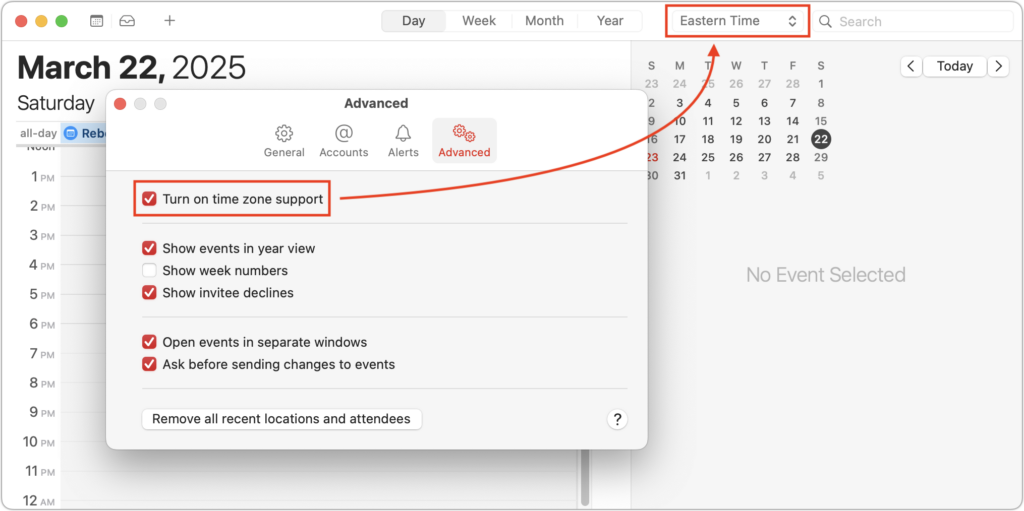
- Calendar time zone overrides: You can make the Calendar app display events as if you were in a different time zone. This feature can help you confirm that events scheduled in another time zone show up at the correct times. On the iPhone or iPad, enable Settings > Apps > Calendar > Time Zone Override. Be careful not to forget about this override, or it may lead to confusion later. On the Mac, go to Calendar > Settings > Advanced, select “Turn on time zone support,” and choose a time zone from the pop-up menu that appears near the upper-right corner of the window.
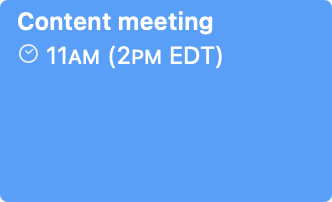
When an event’s time zone differs from your device’s current time zone or the time zone override setting, Calendar will indicate the discrepancy. For example, an event at 2 PM Eastern Time event viewed on a device set to Pacific Time will display as 11 AM, with the original time zone noted in parentheses.
Working with Event Time Zones
When creating events where the time zone might be significant, you have three options:
- Stick with the local time zone: Since all events are associated with a time zone, if you do nothing when creating an event, it will default to your current time zone. This is appropriate when the event will be shared with someone in another time zone through an invitation or shared calendar. However, it poses issues when creating events related to a trip.
- Change to a remote time zone: When scheduling your future self in another time zone—perhaps for business meetings or conference sessions—you can set those events to the time zone of your destination, ensuring they appear at the correct time once you arrive. On the iPhone and iPad, choose the time zone when setting the start time. On the Mac, with time zone support enabled, select it from the Time Zone menu.
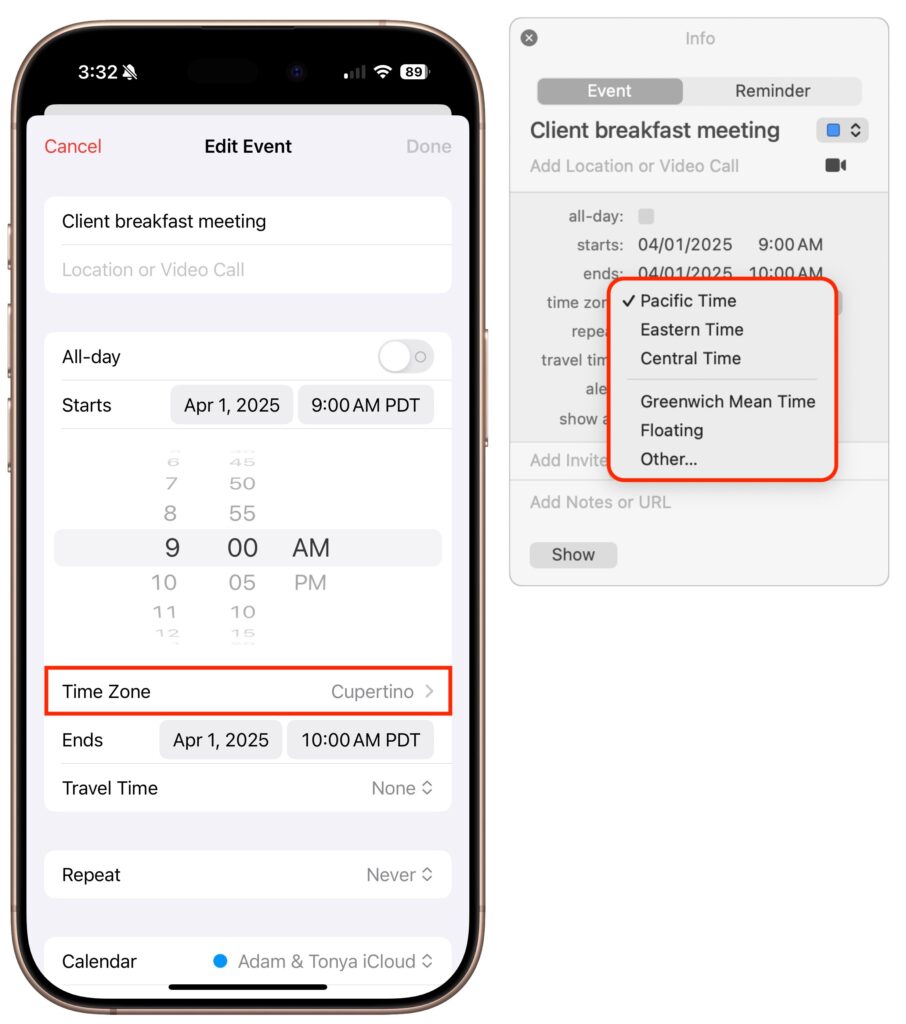
- Switch to the floating time zone: For travelers who frequently cross time zones, Apple supports a special “floating time zone” that ensures events appear at the same local time regardless of location. For example, a noon lunch meeting set with a floating time zone will always appear at noon, whether you’re in Boston or Denver. However, the floating time zone does have its limitations. While all Apple devices synced through iCloud honor the floating time zone, you can create events with it only on the Mac, not on the iPhone, iPad, or iCloud.com. Additionally, syncing events through Google Calendar or Microsoft Exchange should work, but if you edit an event on the Web or with non-Apple apps, it will revert to the local time zone.
Common Time Zone Scenarios
Now that you understand that events are always associated with time zones, how they appear in Calendar, and how to specify particular time zones for events, let’s look at some common time zone scenarios:
- When traveling to another time zone: For events during an upcoming trip, you can either manually set the event’s time zone to match your destination or use the floating time zone. The manual approach ensures that events appear at the correct local time once you arrive, although it may be confusing to visualize before departure. The floating time zone maintains the same “wall clock time” regardless of your location, making it easier to plan your schedule before you leave.
- Creating events while away: Conversely, when scheduling an appointment back home while traveling, set the event time zone to your home time zone. The event will appear on your calendar at the correct adjusted time. The floating time zone works well as an alternative for personal events that should take place at the same local time, no matter where you are.
- Trips with multiple time zones: For complex itineraries involving flights and travel transitions with departure and arrival times in different zones, the Calendar app on the iPhone and iPad allows you to create events that start and end in different time zones. Tap the Time Zone option beneath the Start and End time pickers to set different time zones. Although you cannot create these multi-zone events on the Mac, they will display correctly on all your synced devices.
- Remote scheduling: When inviting people from different time zones to an event or scheduling meetings with team members in various locations, create the event in your local time zone. The invitations and shared events will automatically adjust to each recipient’s time zone. When searching for optimal meeting times across multiple time zones, use a tool like World Time Buddy, which provides visual guidance for overlapping business hours.
- Reminders can be tricky: Since reminders always use the time zone where they were created, their local times will shift as you travel, leading to notifications at unexpected times. The only workaround is to edit their times manually when you arrive at your destination and again when you return home. Alternatively, consider using an app like Due that keeps reminders consistent with “wall clock time.”
- Scheduling global events: When planning a webinar or other online event that people in many different time zones might attend, use a tool like Every Time Zone to identify suitable times across various regions. After creating the event at the selected time, drag it from Calendar to the desktop to generate an ICS file for sharing with participants. This file will reflect your local time zone, and when attendees double-click it to import, their calendar app will display it at the appropriate time for them.
Although we’ve focused on Calendar on the iPhone, iPad, and Mac here, the same concepts—except for the floating time zone—apply to other apps like Microsoft Outlook and Google Calendar. By keeping these time zone concepts in mind, you can avoid calendar confusion and ensure that you don’t miss important meetings, regardless of where in the world you find yourself.
(Featured image by iStock.com/STILLFX)
Social Media: Managing time zones in Apple’s calendar tools is straightforward if you remember two key points. Our article clarifies your options and explains how to handle common scenarios.