
Quick Answer
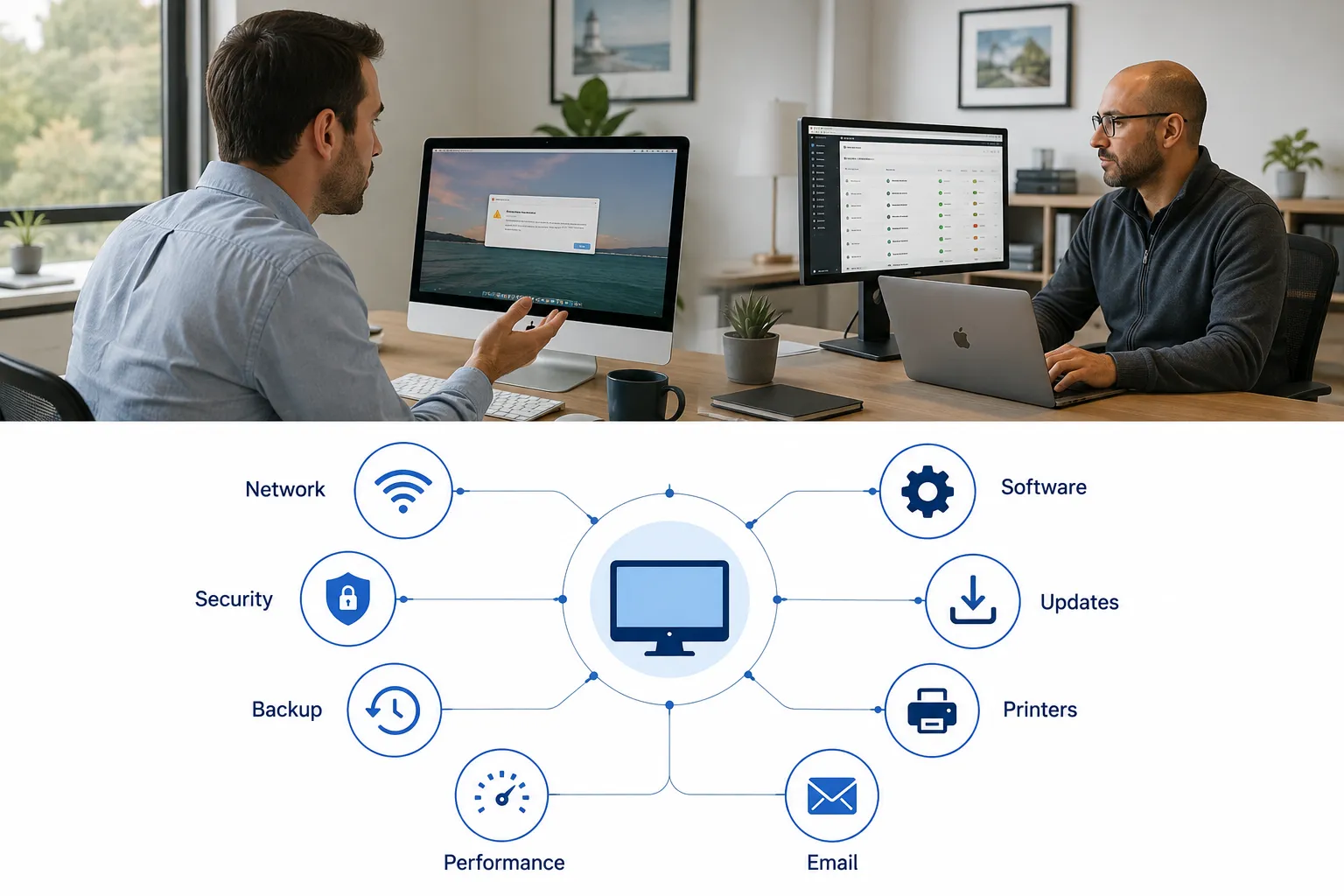
The most common Mac IT issues businesses face are: network connectivity drops, software compatibility conflicts (especially in mixed Mac and Windows environments), poorly timed macOS updates, unreliable or unmonitored backups, performance degradation, security vulnerabilities, file sharing problems, email sync failures, and printer connectivity issues. Most of these problems have a first-response checklist your team can work through, but recurring or business-critical failures typically warrant professional Mac IT support.
Key Takeaways
- Network drops, software conflicts, and performance slowdowns are the top day-to-day complaints from Mac users in business environments.
- Mixed Mac and Windows environments create compatibility friction that does not resolve itself without deliberate configuration.
- Time Machine is a useful backup layer, but it is not a complete business backup strategy on its own. Businesses need centrally monitored, encrypted, and tested recovery processes.
- macOS update timing should be risk-based, not calendar-based. Test critical workflows before deploying company-wide.
- Security tools such as FileVault, antivirus software, and multi-factor authentication are good practices, but they do not automatically satisfy HIPAA, GDPR, CCPA, or other regulatory requirements.
- Apple device management at scale requires a Mobile Device Management (MDM) platform. Ad-hoc management breaks down quickly beyond a handful of devices.
- Mac IT support does not require a separate IT team, but it does require staff or a provider who understands macOS-specific behavior, Apple’s management frameworks, and cross-platform integration.
- Clearing system caches or switching DNS servers without understanding the downstream effects can create new problems. Both actions require care.
What Are the Most Common Mac Problems in Business Environments?
For New Jersey small and midsize businesses running Macs, the recurring issues cluster around eight areas: network access, software compatibility, update management, backup reliability, system performance, security posture, file sharing, and peripheral connectivity (printers in particular).
According to MacPaw’s 2026 Mac Admins Survey, IT administrators managing Apple fleets cite software compatibility, update deployment, and security enforcement as their top operational challenges. These are not isolated technical glitches. They compound across teams and affect output quality, project timelines, and employee confidence in their tools.
The table below maps each issue to a first check, the business risk if ignored, and the signal to escalate.
| Issue | First Check | Business Risk | When to Escalate |
|---|---|---|---|
| Network connectivity drops | Check System Settings, restart router, test on Ethernet | Lost access to cloud apps, collaboration tools | Persistent drops, VPN failures, enterprise auth errors |
| Software compatibility | Check vendor compatibility notes before updating | Crashes, lost formatting, broken workflows | Cross-platform integration failures, plugin conflicts |
| macOS update conflicts | Test on one machine before broad rollout | App breakage, security gaps from delayed patches | MDM deployment needed, critical app incompatibility |
| Backup failures | Verify last successful backup in Time Machine or backup console | Permanent data loss from hardware failure or ransomware | No off-site copy, no tested recovery, no central monitoring |
| Performance degradation | Check Activity Monitor, available storage, login items | Wasted employee time, missed deadlines | Widespread slowdowns, hardware near end of life |
| Security vulnerabilities | Confirm FileVault on, software current, MFA enabled | Data breach, regulatory exposure, reputational damage | Suspected compromise, compliance audit, endpoint management gaps |
| File sharing and collaboration | Check file format settings, SMB configuration | Formatting errors, version conflicts, lost work | Persistent cross-platform failures, permission errors |
| Printer connectivity | Re-add printer, update drivers, check network segment | Operational delays, frustrated staff | Network printing broken fleet-wide, driver conflicts after update |
How Do I Fix Mac Connectivity Issues on Corporate Networks?
Mac connectivity problems on business networks usually fall into three categories: Wi-Fi instability, authentication failures on enterprise networks, and VPN configuration errors.
What your team can check first:
- Open System Settings, confirm the correct network is selected, and verify the password.
- Renew the DHCP lease (System Settings > Network > select the connection > Details > TCP/IP > Renew DHCP Lease).
- Remove and re-add the Wi-Fi network to clear a corrupted preference file.
- Test with an Ethernet cable to isolate whether the problem is wireless or network-wide.
- Check for firmware updates on the router or access point.
- In dense office buildings, check whether neighboring networks are competing on the same Wi-Fi channel. Switching to a less congested channel often resolves intermittent drops.
A note on DNS changes: Some guides suggest switching to a public DNS service as a quick fix. Before doing this on a business network, check with whoever manages the network. Public DNS can break internal hostname resolution, interfere with VPN split-tunneling, bypass content filtering policies, or conflict with Active Directory lookups. It is not a safe default change in a managed environment.
When to call a Mac IT professional: If Macs consistently fail to authenticate on an enterprise Wi-Fi network (802.1X), if VPN connections drop under specific conditions but not others, or if the problem affects multiple devices simultaneously, the issue is likely in network infrastructure or certificate configuration rather than the individual Mac.
Why Do Macs Keep Disconnecting from Wi-Fi at Work?
Intermittent Wi-Fi drops on Macs in office environments are often caused by signal interference, access point roaming configuration, or power management settings, not a flaw in the Mac itself.
Specific causes to investigate:
- Power management: macOS can reduce Wi-Fi activity to save power. Check Energy Saver settings and, for laptops plugged in at desks, confirm that Wi-Fi is not throttling during idle periods.
- Access point roaming: In offices with multiple access points, Macs may not roam cleanly between them if the network is not configured for seamless handoff. This produces drops that look random but correlate with movement.
- Channel congestion: In multi-tenant buildings, the 2.4 GHz band is frequently overloaded. Moving critical devices to 5 GHz or 6 GHz (Wi-Fi 6E) reduces interference significantly.
- Outdated network drivers or firmware: Both the Mac’s Wi-Fi firmware (updated through macOS updates) and the access point firmware should be current.
What Mac IT Issues Can I Fix Myself vs. When to Call Support?
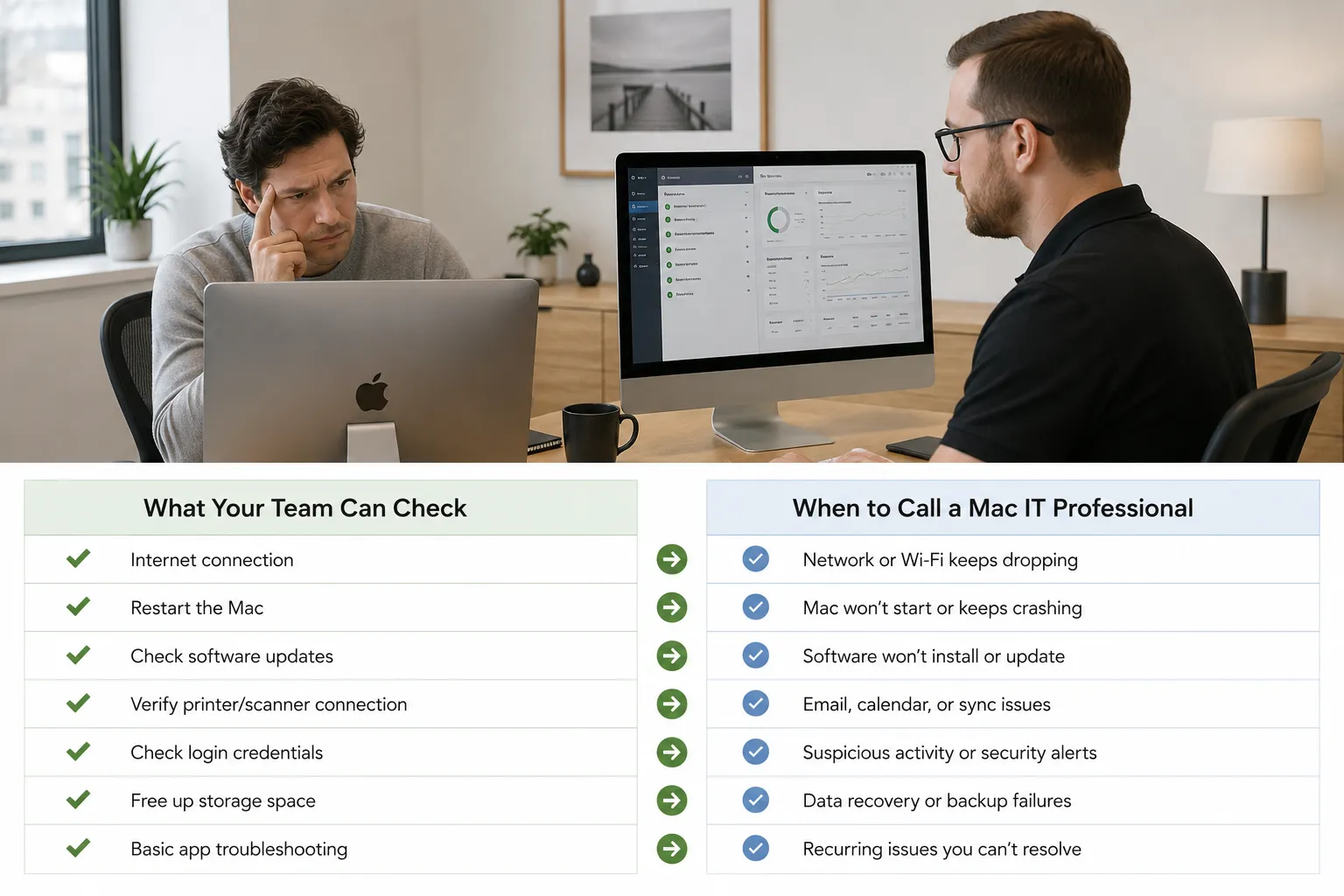
Most first-response troubleshooting is within reach of an organized office manager or internal IT generalist. The line shifts when problems are recurring, affect multiple devices, or involve security or compliance.
What your team can check first:
- Restart the Mac and retest before assuming a deeper problem.
- Check Activity Monitor (CPU, Memory, Energy tabs) to identify processes consuming excessive resources.
- Review login items in System Settings under General, Login Items, and remove anything unfamiliar or unnecessary.
- Verify that macOS and all business-critical applications are up to date.
- Confirm that the last Time Machine backup completed successfully.
- Re-add printers that stopped responding after a macOS update.
- Check Apple’s System Status page to rule out service outages affecting iCloud, email, or other Apple services.
When to call a Mac IT professional:
- The same problem recurs after your team has applied the standard fix.
- A security incident is suspected (unusual account activity, unexpected software, ransomware indicators).
- You need to deploy, configure, or retire Macs across multiple employees in a consistent, auditable way.
- A macOS update has broken a business-critical application, and the vendor has not yet released a patch.
- Backup jobs are failing silently, or recovery has never been tested.
- Compliance requirements (HIPAA, CMMC, state privacy laws) require documented security controls that go beyond basic settings.
How Do I Manage Multiple Macs Across a Business?
Managing more than a handful of Macs without a Mobile Device Management (MDM) platform creates inconsistency, security gaps, and significant administrative overhead. Apple device management at scale requires a structured approach.
MDM platforms (such as Jamf, Kandji, or Mosyle) allow IT administrators or a managed service provider to:
- Enforce security policies (FileVault encryption, screen lock, password complexity) across all devices from a central console.
- Deploy software and configuration profiles without touching each machine individually.
- Run macOS updates on a controlled schedule rather than leaving it to individual employees.
- Remotely wipe a lost or stolen device.
- Automate employee onboarding on Apple devices so new hires are productive on day one.
According to Addigy’s 2026 Apple MDM analysis, organizations that rely on ad-hoc Mac management consistently struggle with policy drift, where individual devices fall out of compliance over time because updates, settings, and software installations happen inconsistently. For New Jersey businesses in regulated industries, policy drift is not just an inconvenience. It is an audit risk.
Choose MDM if: You have five or more Macs, employees work remotely, or your industry has data security requirements.
How Do I Troubleshoot Mac Performance Issues on a Work Network?
Mac performance problems usually have one of four causes: insufficient available storage, too many background processes, aging hardware running current software, or a network bottleneck being misread as a local performance issue.
Step-by-step first checks:
- Open Activity Monitor and sort by CPU, then by Memory. Identify any process consuming an outsized share of resources.
- Check available storage in System Settings under General, Storage. Very low free space can impair performance and prevent macOS updates from completing. Review Apple’s current storage guidance and your applications’ stated requirements, as thresholds vary.
- Review login items and turn off automatic launch for applications not needed at startup.
- Restart the Mac. Many performance issues clear after a restart because temporary files are purged and Memory is reset.
- Check whether the slowdown is application-specific or system-wide. Application-specific slowdowns often point to a compatibility issue with the current macOS version.
A note on cache clearing: Some guides recommend deleting the contents of ~/Library/Caches as a performance fix. This is an advanced action, not a routine maintenance step. Clearing caches indiscriminately can cause applications to run more slowly while they rebuild, break account data for certain apps, or cause unexpected behavior. If cache corruption is suspected for a specific application, target that application’s cache folder rather than clearing everything.
When to escalate: If multiple employees report slowdowns simultaneously and the problem correlates with network activity, the bottleneck may be in shared infrastructure rather than individual Macs. A managed Mac IT support provider can run diagnostics that distinguish local from network-side performance issues.
What Security Issues Should I Watch for with Business Macs?
Macs are not immune to malware, and the threat landscape has shifted. Jamf’s 2025 enterprise security research documents a growing volume of Mac-targeted threats, including adware, info-stealers, and Trojans distributed through legitimate-looking software installers. The belief that macOS does not need security attention is outdated.
Practical security baseline for business Macs:
- Enable FileVault disk encryption on every device. This protects data if a laptop is lost or stolen.
- Keep macOS and all applications current. Most successful attacks exploit known vulnerabilities in unpatched software.
- Use business-grade endpoint protection, not a consumer antivirus product.
- Require strong, unique passwords and enable multi-factor authentication on all business accounts. The risks of reused or exposed passwords are well documented.
- Train employees to recognize phishing attempts. Identifying phishing emails is a practical skill that reduces risk more reliably than any single technical control.
- Enforce application allowlisting or, at minimum, prevent installation of software from unidentified developers through MDM policy.
Important distinction: Enabling FileVault, antivirus software, a firewall, and MFA are good security practices. They do not, by themselves, make a business compliant with HIPAA, GDPR, CCPA, or other regulations. Compliance requires documented policies, risk assessments, access controls, audit trails, and in some cases third-party assessments. If your business handles protected health information or payment card data, consult a compliance specialist alongside your IT provider.
How Do I Manage macOS Updates Without Breaking Business Applications?
The right update strategy is risk-based, not calendar-based. Apple releases security patches that address actively exploited vulnerabilities, and delaying those patches carries real risk. At the same time, major macOS version updates can break compatibility with business-critical software.
A practical update framework:
- Separate security patches from major version updates in your decision-making. Rapid Security Responses and point releases (for example, 15.x to 15.x.1) generally carry lower compatibility risk than major version jumps.
- Before deploying any update company-wide, test it on one or two machines running your full application stack. Check vendor release notes and support forums for known issues.
- Use MDM to set an approved deployment window. This prevents employees from updating at inconvenient times while ensuring updates roll out within a defined period.
- For major macOS versions, give vendors time to release compatible updates for business-critical software before committing to the upgrade. The appropriate window depends on how critical the affected applications are and whether any security vulnerabilities in the current version are being actively exploited.
- Document which macOS version each critical application has been tested against.
According to SOTI’s analysis of Apple device management trends after MacAdmins 2026, update management is one of the top priorities for IT leaders managing Apple fleets at scale, precisely because the consequences of getting it wrong in either direction (too fast or too slow) are significant.
How Do I Prevent Data Loss on Company Macs?
Data loss on business Macs happens through hardware failure, accidental deletion, ransomware, and employee departures where files exist only on a local machine. A complete backup strategy addresses all four scenarios.
What a business backup strategy requires:
- Local backup: Time Machine is a reasonable first layer. It enables fast recovery of accidentally deleted files and supports multiple backup disks. However, a local-only backup does not protect against fire, flood, theft, or ransomware that encrypts the backup destination alongside the source.
- Off-site or cloud backup: A second backup copy stored in a separate physical location or a cloud service protects against site-level incidents. Choose a provider with strong encryption in transit and at rest, and verify their data retention and recovery policies before committing.
- Central monitoring: In a business environment, backup jobs should be monitored centrally so failures are caught and corrected, not discovered during a recovery emergency.
- Tested recovery: A backup that has never been tested is an assumption, not a guarantee. Run recovery drills periodically and document the process so recovery is not dependent on one person’s institutional knowledge.
- Offboarding procedures: When an employee leaves, ensure their files are transferred or archived before the device is wiped. This is a process gap that structured Apple device onboarding and offboarding helps close.
Do I Need Special IT Staff to Support Macs at My Company?
You do not need a dedicated Mac-only IT team. That said, you do need someone, whether internal or external, who understands macOS-specific behavior, Apple’s management frameworks, and how Macs interact with non-Apple infrastructure.
General Windows-focused IT support can handle some Mac issues. Still, common gaps include: configuring Macs for enterprise Wi-Fi authentication, managing Apple Business Manager enrollment, troubleshooting macOS-specific application conflicts, and understanding how Apple’s security model differs from Windows in ways that affect policy enforcement.
Computerworld’s enterprise Apple coverage notes that Apple’s management tools have matured significantly. However, the ecosystem still requires administrators who understand Apple-specific frameworks rather than applying Windows-centric assumptions to Mac environments.
For most New Jersey SMBs, the practical answer is a managed Mac IT support provider with demonstrated Apple experience, rather than hiring a full-time Mac specialist.
Is It Worth Switching from Windows to Mac for My Small Business?
This depends on your existing software stack, team workflows, and support capacity, not on a general preference for one platform.
Macs may be a good fit if:
- Your team uses creative tools (Adobe Creative Cloud, Final Cut Pro, Logic Pro) that perform well on Apple Silicon.
- Your employees already use iPhones and iPads, and cross-device continuity features add genuine productivity value.
- Security and device longevity are priorities. Apple Silicon Macs have a strong track record for both.
Windows may remain the better fit if:
- Your business relies on Windows-only line-of-business applications with no Mac version or viable alternative.
- Your existing IT infrastructure is deeply Windows-integrated (Active Directory, Group Policy, Windows Server file shares) and you lack the resources to manage a mixed environment.
- Your IT support staff has no Mac experience, and you are not ready to change that.
A mixed environment is manageable with the right MDM tools and a support provider experienced in both platforms, but it does add complexity. Jamf’s research on IT objections to Mac in the enterprise addresses the most common concerns, including support costs and cross-platform integration, with practical responses.
What Are Common Mac Printer Problems in Offices?
Mac printer problems in business environments most often occur after a macOS update, when printer drivers become incompatible, or when network printing configurations change.
What your team can check first:
- Remove the printer from System Settings, Printers and Scanners, then re-add it. This clears corrupted queue data.
- Check the printer manufacturer’s website for a macOS-compatible driver update. Apple’s built-in AirPrint works well for supported printers, but older enterprise printers often require a vendor driver.
- Confirm the printer is on the same network segment as the Mac. In segmented office networks, Macs and printers are sometimes on different VLANs, which blocks discovery.
- Reset the printing system (right-click or Control-click in the Printers and Scanners list) as a last resort before escalating. Note that this removes all printers and requires re-adding them.
When to escalate: Fleet-wide printing failures after a macOS update, persistent authentication errors with print servers, or printing issues that only affect certain user accounts typically require IT-level investigation.
FAQ: Common Mac IT Issues for Businesses
Q: How often should business Macs be restarted?
A: A weekly restart is a reasonable baseline for most business Macs. Restarts clear temporary files, apply pending updates, and reset system resources. Macs left running for weeks without a restart often show gradual performance degradation.
Q: Can Macs join a Windows Active Directory domain?
A: Yes. macOS supports Active Directory binding natively. However, the experience has limitations compared to Windows domain membership, and some Group Policy equivalents require MDM rather than AD to enforce on Macs. A hybrid approach using both AD and MDM is common in mixed environments.
Q: Is Time Machine enough for business backup?
A: Time Machine is a useful local backup layer, but it is not a complete business backup strategy. Businesses also need an off-site or cloud copy, central monitoring of backup job status, and documented, tested recovery procedures.
Q: Do Macs need antivirus software?
A: Yes. macOS includes built-in protections (XProtect, Gatekeeper, Notarization), but these do not replace business-grade endpoint protection. Mac-targeted malware exists and is increasing as Apple’s market share grows. Jamf’s 2025 security research documents the current threat landscape in detail.
Q: Why does my Mac slow down after a macOS update?
A: Slowdowns immediately after an update are often temporary. Spotlight re-indexes the drive, and some background processes run after installation. If slowdowns persist beyond 24 to 48 hours, check Activity Monitor for runaway processes and verify that your applications are compatible with the new macOS version.
Q: What is Apple Business Manager and does my business need it?
A: Apple Business Manager (ABM) is a free web portal that allows businesses to enroll devices in MDM automatically, purchase and distribute apps and books, and manage Apple IDs for employees. Any business deploying more than a few Macs should enroll in ABM. It is the foundation of a managed Apple environment.
Q: How do I stop employees from installing unauthorized software on company Macs?
A: MDM platforms can restrict software installation to approved applications. Without MDM, this is difficult to enforce consistently. Establishing a clear acceptable use policy is a minimum step, but policy without technical enforcement has limited effect.
Q: What should I do if I suspect a Mac has been compromised?
A: Disconnect the device from the network immediately to prevent lateral movement. Do not attempt to clean the device yourself. Contact your IT support provider and preserve logs. If the device handles regulated data (health records, payment card data), notify your compliance or legal contact as well.
Q: Are Macs more expensive to support than Windows PCs?
A: The answer depends on the environment. Mac hardware typically costs more upfront. However, research cited by Jamf suggests that total cost of ownership, including support time, can be competitive when Macs are properly managed with MDM. The cost comparison shifts unfavorably when Macs are managed with Windows-centric tools that do not account for Apple-specific behavior.
Q: How do I set up a new Mac for an employee without IT support?
A: Apple Business Manager combined with an MDM platform allows zero-touch deployment, where a new Mac configures itself automatically when the employee signs in. Without MDM, manual setup is required for each device, and consistency is difficult to guarantee. Structured employee onboarding for Apple devices reduces setup time and ensures every device meets the same baseline configuration.
Ready to Address Your Mac IT Issues?
If recurring Mac problems are affecting your team’s output or you are not confident in your current backup, security, or device management setup, a focused Mac IT consultation can clarify exactly where the gaps are and what a realistic remediation path looks like.
MacWorks 360 provides Mac-focused IT support for New Jersey businesses. To discuss your environment and current challenges, visit the MacWorks 360 Apple device onboarding and support page to request a consultation.
References
- MacPaw. (2026). Mac Admins Survey 2026: Key Trends and Insights.
- Jamf. (2025). Mac Security Threats in 2025: Enterprise Defense Strategies.
- SOTI. (2026). Apple Device Management at Scale: Enterprise Trends IT Leaders Are Prioritizing After MacAdmins 2026.
- Jamf. (n.d.). IT Objections to Mac in the Enterprise and Overcoming Them.
- Addigy. (2026). Apple MDM in 2026: Why “Good Enough” Device Management Won’t Cut It.
- Computerworld. (2025). Where Apple Falls Short for Enterprise IT.