
How to Turn Off Google Web & App Activity (iPhone, Android, Web) | MacWorks 360
How to Turn Off Google Web & App Activity (iPhone, Android, Web)
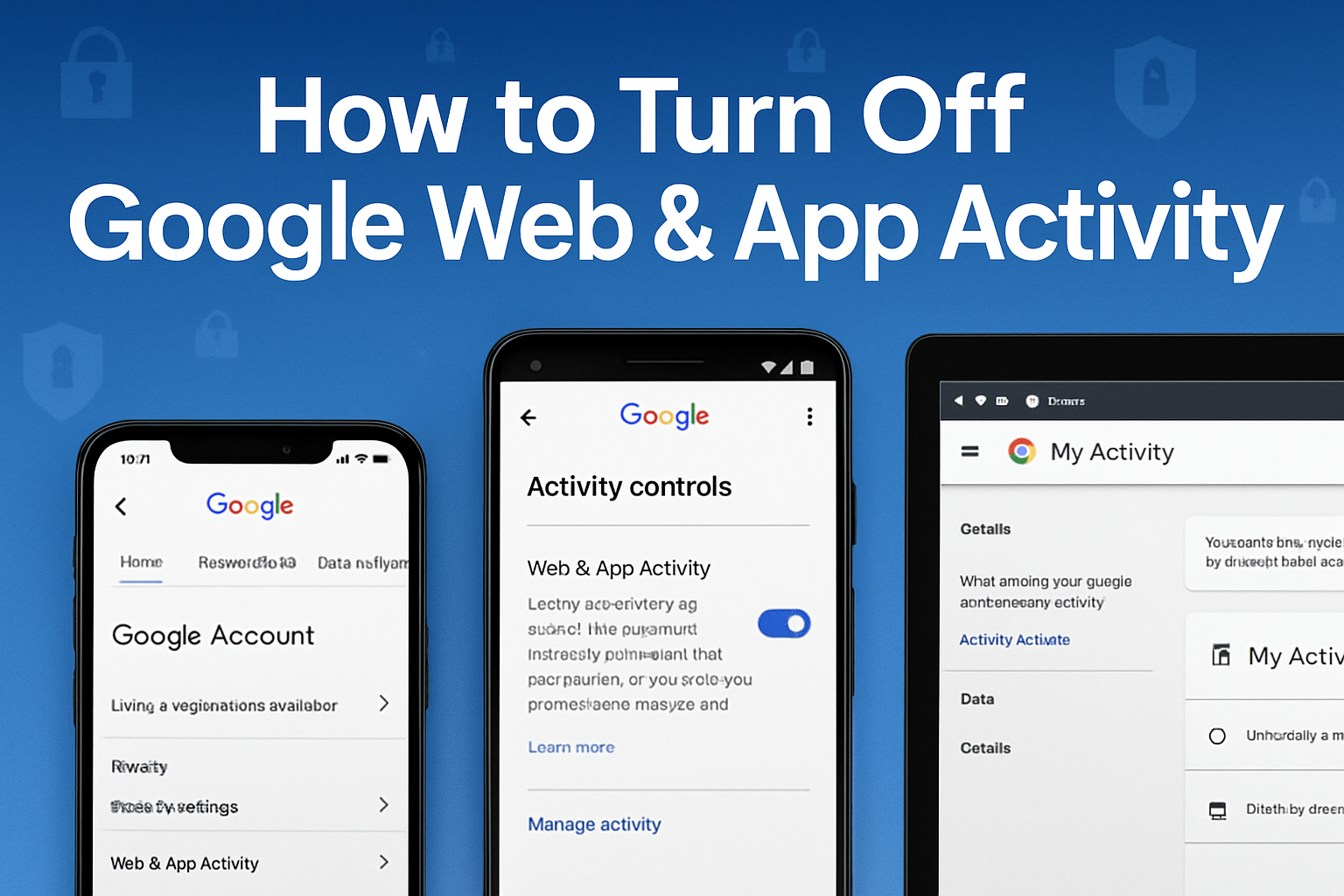
Picture this: you’re searching for a surprise birthday gift for your partner on your phone. Three hours later, ads for that exact product are following you across every website you visit—and worse, your partner sees them too when borrowing your tablet. Sound familiar?
That’s Google Web & App Activity at work. It’s the invisible recorder running in the background of nearly everything you do online, from your 2 AM “how to fix a leaky faucet” searches to the YouTube rabbit holes you fall into on lazy Sundays. While this tracking powers the personalized experience Google promises, it also means the company knows more about your daily habits than most of your close friends do.
For small business owners managing team devices, creative professionals handling client work, or anyone sharing devices across a household, understanding how to control this data collection isn’t just about privacy—it’s about maintaining professional boundaries, protecting sensitive business information, and ensuring your digital footprint doesn’t accidentally reveal more than you intend.
The good news? You have more control than you think. This guide walks through exactly what Google Web & App Activity captures, why it matters for your business and personal life, and how to adjust these settings across iPhone, Android, and web platforms—without breaking the features you actually rely on.
Key Takeaways
- Google Web & App Activity records virtually everything you do across Google services—searches, Chrome browsing, Maps usage, Assistant commands, and activity from partner sites.
- Turning it off completely may reduce personalization, but won’t eliminate all tracking or advertising; Google still collects data through other mechanisms.
- The best compromise for most users: enable auto-delete (set to 3 or 18 months) and pause Chrome history tracking while keeping core Search activity for functionality
- Location History and YouTube History are separate settings that require independent action—disabling Web & App Activity alone won’t stop location tracking.
- Quick access URLs: myactivity.google.com to view/delete data and myaccount.google.com/activitycontrols to manage settings
What Is Google Web & App Activity? (Plain-English Definition)
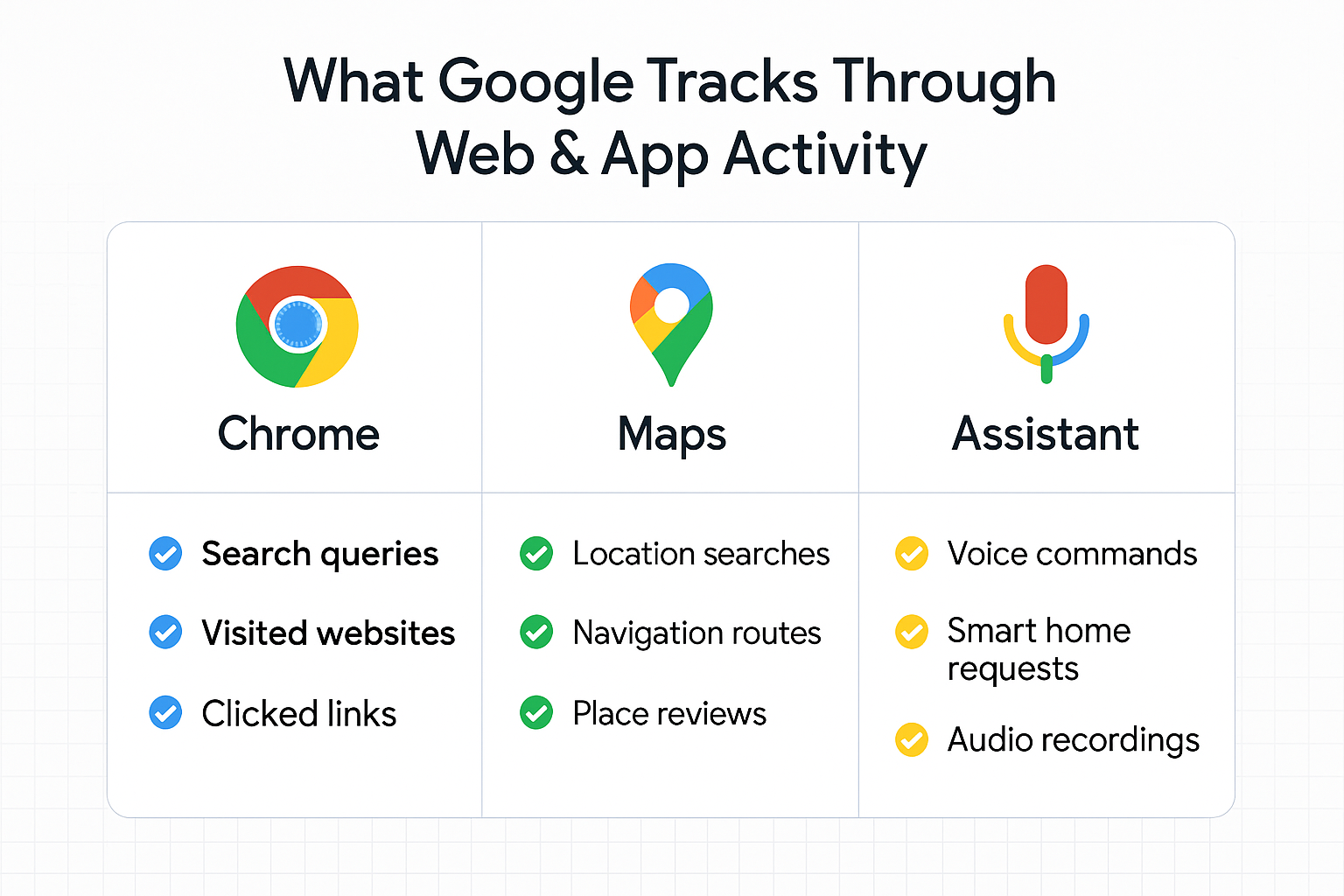
Google Web & App Activity is a master recording setting that tracks and stores nearly everything you do across Google’s ecosystem. Think of it as a detailed diary that Google keeps about your digital life—except you didn’t necessarily know you were writing it.
When this setting is enabled (which it is by default for most accounts), Google creates a chronological log of:
- Every search query you type into Google Search
- Websites you visit while using the Chrome browser
- YouTube videos you watch, search for, or interact with
- Places you search for or navigate to in Google Maps
- Voice commands you give to Google Assistant
- Apps you use on Android devices
- Activity from third-party websites and apps that use Google services[1]
This data collection happens continuously, even when you’re offline in some cases. Your Android phone, for instance, stores diagnostic information and syncs it to your Google account once you reconnect to the internet[1].
The Business Impact
For small business owners and creative professionals, this has real implications. If you’re using a shared iPad at your design studio to show client presentations, or if your team shares a Chrome browser profile for research, that Web & App Activity log becomes a mixed record of professional and personal browsing that could:
- Reveal confidential client research to the wrong team member
- Mix personal shopping habits with business expense research
- Create awkward situations when personalized suggestions appear during client meetings
- Potentially expose sensitive business strategy if devices are compromised
One creative agency owner shared: “We discovered our shared studio iPad was suggesting competitor websites and pricing tools to clients during presentations—all because our research team had been using the same Google account for competitive analysis. It was a wake-up call about device hygiene.”
What Gets Saved Through Web & App Activity
Understanding the scope of what Google captures helps you make informed decisions about your privacy settings. The tracking is more comprehensive than most people realize.
Search Activity
Every query you type into Google Search gets recorded with:
- The exact search terms
- Timestamp (date and time)
- Device used (iPhone, Android, desktop)
- Your approximate location (even if Location History is paused)
- Which results did you click?
- How long did you spend on those pages[1]
Maps & Location Data
Google Maps activity includes:
- Addresses you search for
- Directions you request
- Places you review or rate
- Photos you upload to business listings
- Transit routes you plan
- Real-time navigation history
Important distinction: This is separate from Location History. Even with Location History paused, Google still captures location signals through Web & App Activity when you actively use Maps or perform location-based searches[1].
Google Assistant & Voice Interactions
When you use Google Assistant, the system saves:
- Audio recordings of your voice commands
- Transcriptions of what you said
- Assistant’s responses
- Smart home device commands
- Contextual information about your request[2]
For photographers and creative professionals who use voice commands while their hands are busy editing, this creates a surprisingly detailed log of work sessions, project names, and innovative processes.
Chrome Browsing History
If you’re signed into Chrome, Web & App Activity extends beyond Google sites to include:
- Every website you visit (URLs and page titles)
- Forms you fill out
- Passwords you save
- Extensions you use
- Tabs you open and close[1]
This is particularly relevant for Mac users who prefer Chrome over Safari—your entire browsing history becomes part of your Google profile.
Android Device Activity
Android users share even more data through Web & App Activity:
- Apps you open and use
- App crashes and diagnostic data
- Phone calls made through Google services
- Text messages sent via Google Messages
- Device sensor data (accelerometer, gyroscope)
- Network information[1]
Partner Sites & Apps Using Google Services
This is the tracking most people don’t expect: websites and apps that integrate Google services (like Google Analytics, Google Sign-In, or Google Ads) can also contribute to your Web & App Activity log[1].
That means your activity on non-Google sites—shopping on retail websites, reading news articles, booking travel—may still feed data back to your Google profile if those sites use Google’s tools.
| Activity Type | What’s Captured | Captured Even If Offline? |
|---|---|---|
| Google Search | Queries, clicks, time spent | No |
| Chrome Browsing | Full URL history, forms | Syncs when online |
| YouTube | Watches, searches, likes | Syncs when online |
| Maps | Searches, routes, reviews | Syncs when online |
| Assistant | Voice recordings, commands | Syncs when online |
| Android Apps | App usage, diagnostics | Yes (syncs later) |
| Partner Sites | Varies by integration | No |
Where to View Your Activity: My Activity & Activity Controls
Google provides two primary dashboards for managing your data, and knowing the difference between them is crucial for taking control.
My Activity (myactivity.google.com)
This is your timeline view—a chronological feed showing everything Google has recorded. Access it directly at myactivity.google.com.
What you’ll find here:
- Bundled view showing recent activity grouped by day
- Filter options to view specific services (Search, YouTube, Maps, etc.)
- Individual item controls to delete specific searches or activities
- Download option to export your entire activity history
Think of My Activity as your personal Google surveillance report. It’s eye-opening the first time you scroll through it—many users discover searches they don’t remember making, websites they forgot visiting, and a surprising amount of accidental voice activations.
Activity Controls (myaccount.google.com/activitycontrols)
This is your master control panel—where you actually turn tracking on or off. Access it at myaccount.google.com/activitycontrols.
Here you’ll find toggle switches for:
- Web & App Activity (the primary setting)
- Sub-option: Include Chrome history and activity from sites, apps, and devices that use Google services
- Sub-option: Include audio recordings
- Location History (separate from Web & App Activity)
- YouTube History (separate control for YouTube-specific tracking)
Pro tip for business owners: Bookmark both URLs and add them to your team’s device setup checklist. When onboarding new employees or configuring shared devices, visiting Activity Controls should be part of your standard security protocol—right alongside setting up two-factor authentication.
Why Google Wants Web & App Activity Enabled
Google isn’t shy about the benefits of keeping this tracking enabled. The company frames it as a value exchange: your data for better service. Understanding their reasoning helps you weigh the trade-offs.
Personalization & Convenience
The primary pitch is personalized experiences:
- More brilliant search results that remember your past queries and preferences
- Faster autocomplete suggestions based on your search patterns
- Relevant YouTube recommendations aligned with your viewing history
- Helpful Maps suggestions for places you might want to visit
- Context-aware Assistant responses that understand your routines[2]
For example, if you frequently search for vegetarian restaurants, Google Search will prioritize those results. If you constantly ask the Assistant for the weather at 7 AM, it might proactively offer that information.
Improved Service Performance
Google argues that activity data helps them:
- Detect and prevent spam and abuse
- Understand how people use their services
- Develop new features based on usage patterns
- Troubleshoot problems more effectively[2]
The Unspoken Reason: Advertising Revenue
Here’s what Google emphasizes less prominently: Web & App Activity is the foundation of their advertising business model.
The bulk of Google’s revenue comes from advertisers who pay premium rates to target specific audiences. Your activity data allows advertisers to:
- Show you ads based on your actual interests and recent searches
- Retarget them after they visit their websites
- Measure ad effectiveness by tracking your behavior
- Build detailed audience profiles for lookalike targeting[1]
This isn’t inherently malicious—targeted advertising funds the free services we use daily. But it’s important to understand that “personalization” and “advertising optimization” are two sides of the same coin.
For small business owners, this creates an interesting dynamic: you might be simultaneously a Google Ads customer (wanting detailed targeting for your campaigns) and a privacy-conscious user (wanting to limit how much Google knows about you personally).
Reasons to Turn Off Web & App Activity
While Google touts the benefits of tracking, there are legitimate reasons to pause or limit Web & App Activity—especially for business and professional contexts.
Privacy & Data Minimization
The fundamental privacy argument is simple: you don’t need a corporation maintaining a permanent record of your every digital action.
Consider these scenarios:
- Medical research: Searching for health symptoms or conditions creates a sensitive record
- Financial planning: Queries about debt, bankruptcy, or financial struggles could be exploited
- Personal relationships: Relationship advice searches, dating activity, or family planning research
- Political views: Political searches and news consumption patterns reveal ideological leanings
Even if you trust Google to protect this data (a separate question), reducing the data collected in the first place is the most effective way to protect privacy.
Shared Devices & Family Accounts
For creative studios, small businesses, or families sharing iPads and computers, Web & App Activity creates problematic data mixing:
- Client confidentiality: Research for one client appears as suggestions during another client’s meeting
- Surprise spoilers: Gift searches, party planning, or surprise trip research gets revealed through suggestions
- Professional boundaries: Personal browsing on a work device affects business search results
- Age-inappropriate content: Adult searches influencing suggestions on devices used by children
A photographer shared this experience: “I was showing a wedding client venue options on my iPad when Google Maps started suggesting the divorce attorney offices I’d been researching for a friend. Incredibly awkward moment that made me rethink our studio device policies.”
Workplace & G Suite Considerations
If you use Google Workspace (formerly G Suite) for business, your organization’s administrator may have visibility into account activity. While personal Web & App Activity on a work account is typically private, the boundary isn’t always clear.
Best practices for business accounts:
- Separate personal and business accounts completely
- Use browser profiles to maintain distinct Chrome histories
- Pause Web & App Activity on shared team accounts
- Review the admin settings to understand what your organization can access
Reducing Ad Targeting
Some users prefer generic ads over personalized ones. Reasons include:
- Reducing manipulation: Personalized ads are more persuasive and can encourage unnecessary purchases
- Avoiding embarrassment: Ads for sensitive products appearing in public or shared spaces
- Breaking filter bubbles: Exposure to diverse content rather than algorithmically reinforced preferences
Necessary clarification: Pausing Web & App Activity doesn’t eliminate ads—Google will still show you advertisements. They’ll just be based on general demographics and the current page context rather than your personal browsing history[3].
Important Sub-Settings You Might Miss
The Web & App Activity toggle isn’t a simple on/off switch. Google has nested several crucial sub-settings that many users overlook, creating a false sense of privacy control.
Chrome History + Activity from Sites, Apps & Devices Using Google Services
When you enable Web & App Activity, Google automatically checks a sub-option with a deceptively long name: “Include Chrome history and activity from sites, apps, and devices that use Google services”[1].
This single checkbox dramatically expands tracking scope:
What it adds:
- Complete Chrome browsing history (every website, not just Google sites)
- Activity on websites using Google Analytics
- Apps that integrate Google Sign-In
- Third-party services using Google Cloud Platform
- Android app usage beyond Google’s own apps
Why it matters:
Many users think they’re only sharing Google Search activity, not realizing their entire web browsing history across all sites is being captured.
How to check it:
- Visit myaccount.google.com/activitycontrols
- Look under the Web & App Activity toggle
- You’ll see a checkbox for this extended tracking
- Uncheck it to limit tracking to Google properties only
Voice & Audio Activity
Another sub-option controls whether Google saves audio recordings of your voice interactions with Assistant, Search, and Maps[2].
What gets saved:
- Actual audio files of your voice commands (not just transcriptions)
- Background noise and conversations
- Accidental activations (when the Assistant triggers by mistake)
- Voice searches performed on mobile devices
Why it matters:
Audio recordings are more revealing than text transcripts—they capture tone, emotion, and sometimes conversations you didn’t intend to record. For business owners, this could inadvertently capture confidential client discussions if the Assistant activates during meetings.
Privacy consideration:
Google uses these recordings to improve voice recognition, but they’ve also been subject to human review by contractors[2]. While Google has tightened these policies, the tapes still exist in your account.
How to disable:
- Go to Activity Controls
- Under Web & App Activity, find “Include audio recordings”
- Uncheck this option
- Consider also deleting past audio recordings from My Activity
Visual Search History
A lesser-known feature: Google Lens and visual search activities are also captured under Web & App Activity.
What this includes:
- Photos you upload to Google Lens for identification
- Screenshots you search with
- Camera-based translations
- Visual product searches
Why it matters:
These images might contain sensitive information—business documents, whiteboards with strategy notes, or personal photos you’d rather not store in Google’s servers.
The Location Data Confusion
Here’s where many users get tripped up: Web & App Activity captures location data even when Location History is paused[1].
The distinction:
- Location History: Continuous background tracking of your device’s physical location
- Web & App Activity location data: Location signals captured when you actively use Google services (searching, using Maps, even just performing a Google search)
What this means:
You can pause Location History and still have your location recorded every time you:
- Search for a local business
- Use Google Maps
- Perform a search on your phone (Google infers location from IP address)
- Take a photo with location metadata enabled
To truly minimize location tracking:
- Pause Location History
- Pause Web & App Activity
- Disable location permissions for Google apps at the device level
- Use a VPN to mask IP-based location inference
Web & App Activity vs. Location History vs. YouTube History
Google’s privacy controls are fragmented across multiple settings, which creates confusion. Understanding what each setting controls is essential for effective privacy management.
Comparison Table
| Setting | What It Controls | Default State | Impact When Paused |
|---|---|---|---|
| Web & App Activity | Search, Chrome browsing, Maps searches, Assistant commands, app usage | Enabled | Reduced personalization; generic search results; Assistant loses context |
| Location History | Continuous background location tracking; Timeline feature | Varies | Timeline stops updating, traffic predictions become less accurate, and personalized location-based suggestions are no longer available. |
| YouTube History | Video watches, searches, likes, subscriptions | Enabled | No video recommendations; homepage shows generic trending content; subscriptions still work |
How They Interact
These settings aren’t entirely independent—they overlap in ways that surprise users:
Scenario 1: Location tracking confusion
- Web & App Activity: ON
- Location History: OFF
- Result: Google still captures your location when you use Maps or perform searches, just not continuously in the background[1]
Scenario 2: YouTube privacy
- Web & App Activity: OFF
- YouTube History: ON
- Result: YouTube watch and search history is still saved; turning off Web & App Activity alone doesn’t stop YouTube tracking
Scenario 3: Complete privacy attempt
- Web & App Activity: OFF
- Location History: OFF
- YouTube History: OFF
- Result: Most personalization stops, but Google still collects anonymous usage data and serves ads based on the current context
Why Google Separated These Controls
The fragmentation isn’t accidental. By separating controls, Google:
- Maintains granular data collection: Users who pause one setting often leave others enabled.
- Reduces complete opt-outs: Few users find and disable all tracking mechanisms.
- Preserves key revenue streams: YouTube History remaining separate protects video advertising data.
- Provides plausible user control: Google can claim they offer privacy options while knowing most users won’t find them all.
For small business owners managing team devices, this means a single privacy setting change isn’t enough. Comprehensive privacy requires adjusting multiple controls across different dashboards.
Should You Leave Web & App Activity Enabled? (A Decision Framework)
There’s no universal answer—the right choice depends on your specific situation, risk tolerance, and how you use Google services. Here’s a practical framework to guide your decision.
Three User Personas
Persona 1: The Privacy-First User
Profile:
- Handles sensitive information (legal, medical, financial)
- Values data minimization as a principle
- Willing to sacrifice convenience for privacy
- Uses multiple browsers and search engines
- Comfortable with manual configuration
Recommendation:
- Pause Web & App Activity completely
- Pause Location History
- Pause YouTube History
- Use privacy-focused alternatives (DuckDuckGo for search, Firefox for browsing)
- Regularly delete any accumulated data
- Consider separate Google accounts for different contexts
Trade-offs accepted:
- No personalized search results
- Generic YouTube homepage
- Assistant loses most functionality
- Manual entry of common searches
- Less accurate Maps predictions
Persona 2: The Balanced User Recommended for most small business owners
Profile:
- Values both privacy and convenience
- Uses Google services regularly for work
- Shares devices occasionally
- Wants to limit data exposure without breaking functionality
- Willing to manage settings periodically
Recommendation:
- Keep Web & App Activity enabled BUT with modifications:
- Uncheck “Include Chrome history and activity from sites/apps”
- Uncheck “Include audio recordings”
- Enable auto-delete: 3 or 18 months
- Pause Location History (unless you specifically use Timeline)
- Keep YouTube History enabled (if you use YouTube regularly)
- Review and delete sensitive searches manually from My Activity
Trade-offs accepted:
- Some personalization preserved
- Periodic data deletion requires setup
- Manual privacy audits needed
- Slightly reduced convenience
Why this works for business:
This configuration maintains useful features like search autocomplete and Assistant functionality while limiting long-term data accumulation and third-party tracking. For creative professionals and small business owners, it strikes the best balance between operational efficiency and privacy protection.
Persona 3: The Convenience-First User
Profile:
- Prioritizes seamless experience above privacy concerns
- Trusts Google’s data protection
- Uses Google ecosystem extensively (Assistant, Home, Nest, etc.)
- Rarely shares devices
- Values time-saving features
Recommendation:
- Keep Web & App Activity fully enabled
- Keep Location History enabled
- Keep YouTube History enabled
- Enable auto-delete: 36 months (as a fundamental safeguard)
- Use Google’s privacy checkup tool annually
Trade-offs accepted:
- Maximum data collection
- Comprehensive personalization
- Potential privacy risks if the account is compromised
- Advertising profile built on complete activity
The Best “Middle Ground” Setup (Recommended for Most Users)
After weighing the trade-offs, here’s the configuration that provides the best compromise between privacy and functionality:
Step-by-step configuration:
- Enable Web & App Activity (keep the main toggle ON)
- This preserves core Google Search functionality and Assistant basics
- Disable Chrome history tracking
- Uncheck “Include Chrome history and activity from sites, apps, and devices that use Google services”
- This prevents your complete browsing history from being stored
- Disable audio recordings
- Uncheck “Include audio recordings”
- This stops Google from saving voice command audio files
- Set auto-delete to 18 months
- This automatically purges old data while keeping recent activity for personalization
- 18 months is long enough to maintain functional patterns but short enough to limit long-term exposure
- Pause Location History
- Unless you specifically use Google Timeline, this tracking isn’t necessary
- You’ll still get location-based search results through Web & App Activity
- Keep YouTube History enabled
- If you use YouTube regularly, recommendations significantly improve the experience
- Set auto-delete to 18 months here, too
- Schedule quarterly reviews
- Set a calendar reminder to visit My Activity every 3 months
- Manually delete any sensitive searches or activities
Why this works:
This setup gives you:
- Functional search autocomplete and suggestions
- Working with the Google Assistant for basic tasks
- Useful YouTube recommendations
- Automatic data expiration
- Protection from third-party site tracking
- No permanent audio recordings
- Limited long-term data accumulation
You lose:
- Exact long-term personalization
- Google Timeline location history
- Cross-device browsing history sync in Chrome
For Mac users managing creative teams or small business operations, this configuration maintains productivity while implementing reasonable privacy boundaries—precisely the kind of practical, no-drama solution that keeps workflows smooth without compromising security.
How to Turn Off or Modify Web & App Activity (Step-by-Step)
Ready to take control? Here are the exact steps for each platform, with quick paths that get you there in seconds.
iPhone & iPad Steps
Method 1: Through Google App (Fastest)
- Open the Google app on your iPhone or iPad
- Tap your profile picture in the top-right corner
- Tap “Manage your Google Account”
- Tap the “Data & privacy” tab at the top
- Scroll to “History settings”
- Tap “Web & App Activity”
- Toggle the switch to OFF (or modify sub-settings)
- Tap “Pause” in the confirmation dialog
Method 2: Through Safari (Works for Any Browser)
- Open Safari and go to myaccount.google.com/activitycontrols
- Sign in to your Google account if prompted
- Find the “Web & App Activity” section
- Click the toggle switch to turn it OFF
- Uncheck sub-options if you want to keep it on but limit tracking:
- Uncheck “Include Chrome history…”
- Uncheck “Include audio recordings”
- Scroll down to “Auto-delete” and click “Choose an auto-delete option”
- Select 3 months, 18 months, or 36 months
- Click “Next” then “Confirm”
iOS-specific tip: If you use Chrome on iPhone, your browsing history will still be captured unless you uncheck the Chrome history sub-option. Safari browsing is not affected by this setting.
Android Steps
Method 1: Through Settings App (Fastest on Android)
- Open Settings on your Android device
- Tap “Google” (or “Google Account” on some devices)
- Tap “Manage your Google Account”
- Tap “Data & privacy”
- Under “History settings,“ tap “Web & App Activity”
- Toggle OFF or adjust sub-settings
- Tap “Pause” to confirm
Method 2: Through Google App
- Open the Google app
- Tap your profile picture
- Tap “Manage your Google Account”
- Follow steps 4-7 from Method 1 above
Method 3: Through Chrome Browser
- Open Chrome on your Android device
- Go to myaccount.google.com/activitycontrols
- Follow the same steps as the iPhone Safari method above
Android-specific consideration: On Android devices, Web & App Activity also captures app usage data and diagnostic information. Pausing this setting will stop that collection, but basic Android system diagnostics may still be sent to Google through separate device settings.
Desktop/Web Steps (Mac, Windows, ChromeOS)
Direct URL Method (Fastest)
- Open any web browser
- Go directly to: myaccount.google.com/activitycontrols
- Sign in if prompted
- Locate “Web & App Activity”
- Click the toggle to turn OFF or adjust:
- Uncheck “Include Chrome history and activity from sites, apps, and devices that use Google services”
- Uncheck “Include audio recordings”
- Set up auto-delete:
- Click “Auto-delete (Off)”
- Choose “Auto-delete activity older than”
- Select your timeframe: 3, 18, or 36 months
- Click “Next” → “Confirm”
Throughthe Google Account Menu
- Go to google.com
- Click your profile picture (top-right)
- Click “Manage your Google Account”
- Click “Data & privacy” in the left sidebar
- Scroll to “History settings”
- Click “Web & App Activity”
- Follow steps 5-6 above
Mac-specific tip for Safari users: If you use Safari as your primary browser, Web & App Activity won’t capture your browsing history (since Safari doesn’t sync with Google). However, any Google searches performed in Safari will still be recorded unless you pause the setting entirely.
Quick Reference URLs
Bookmark these for instant access:
| Task | Direct URL |
|---|---|
| View all activity | myactivity.google.com |
| Manage tracking settings | myaccount.google.com/activitycontrols |
| Delete activity | myactivity.google.com/delete-activity |
| Privacy checkup | myaccount.google.com/privacycheckup |
| Location History | myaccount.google.com/activitycontrols/location |
| YouTube History | myaccount.google.com/activitycontrols/youtube |
How to Delete Past Web & App Activity
Changing your settings only affects future tracking—existing data remains until you actively delete it. Here’s how to clean up your history.
Manual Deletion Methods
Delete Everything (Nuclear Option)
- Go to myactivity.google.com
- Click “Delete” dropdown (next to the search bar)
- Select “All time”
- Choose “All products” or select specific services
- Click “Next”
- Review what will be deleted
- Click “Delete” to confirm
Warning: This removes all personalization data. Your search suggestions, Assistant preferences, and YouTube recommendations will reset completely.
Delete by Date Range
- Go to myactivity.google.com
- Click “Delete” dropdown
- Select “Custom range”
- Choose start and end dates
- Select which products to delete from
- Click “Next” → “Delete”
Use case: Delete activity from a specific trip, project, or time period without losing everything.
Delete by Product/Service
- Go to myactivity.google.com
- Click “Filter by date & product” (left sidebar)
- Check specific services:
- Search
- Chrome
- Maps
- YouTube
- Assistant
- Click “Apply”
- Click “Delete” dropdown → “All time” or choose a range
- Confirm deletion
Use case: Clean up YouTube history while keeping Search data, or vice versa.
Delete Individual Items
- Go to myactivity.google.com
- Scroll through your timeline
- Find the specific search or activity
- Click the three dots (⋮) next to the item
- Click “Delete”
Use case: Remove a single embarrassing search or sensitive query without affecting other data.
Auto-Delete Configuration (Set It and Forget It)
The most practical approach for ongoing privacy management is auto-delete. This automatically purges old data while maintaining recent activity for functionality.
How to Set Up Auto-Delete:
- Go to myaccount.google.com/activitycontrols
- Under “Web & App Activity”, find “Auto-delete (Off)”
- Click “Auto-delete (Off)”
- Select “Auto-delete activity older than”
- Choose your window:
- 3 months: Maximum privacy, minimal personalization
- 18 months: Balanced approach (recommended)
- 36 months: Longer personalization, less privacy
- Click “Next”
- Review the summary
- Click “Confirm”
What happens:
- Google automatically deletes activity older than your chosen timeframe
- Deletion occurs continuously in the background
- You can change or disable auto-delete anytime
- Already-deleted data cannot be recovered
Business recommendation: For shared team devices or business Google accounts, set auto-delete to 3 months. This minimizes data exposure while still providing basic functionality. For personal accounts, 18 months offers the best balance.
Download Your Data Before Deleting
If you want a personal archive before wiping your Google activity:
- Go to takeout.google.com
- Click “Deselect all”
- Scroll down and check “My Activity”
- Click “Next step”
- Choose delivery method (email link or cloud storage)
- Select file type and size
- Click “Create export”
- Wait for email notification (can take hours or days for extensive archives)
- Download your archive
- Then proceed with deletion from My Activity
This gives you a local backup of your search history and activity data before permanently removing it from Google’s servers.
Frequently Asked Questions
Will turning off Web & App Activity stop all Google tracking?
Short answer: No.
Detailed explanation: Pausing Web & App Activity stops Google from saving your search queries, Chrome browsing, and app usage to your account timeline. However, Google still collects:
- Anonymous usage data to improve services
- Advertising data through cookies and tracking pixels on third-party sites
- Location data, if Location History is still enabled
- YouTube activity if YouTube History is separate and still on
- Account security information (login times, IP addresses, device info)
- Payment data through Google Pay/Wallet
Additionally, websites you visit may still use Google Analytics, Google Ads, and other tracking tools that collect data independently of your Web & App Activity setting[3].
For true privacy: You’d need to combine pausing Web & App Activity with browser extensions (like uBlock Origin), VPN usage, separate email addresses, and avoiding Google services entirely—a significant commitment most users aren’t willing to make.
Will I still see ads if I turn off Web & App Activity?
Short answer: Yes, you’ll see the same number of ads, just less personalized ones.
Detailed explanation: Google’s business model depends on advertising revenue so that ads won’t disappear. What changes is the targeting:
With Web & App Activity ON:
- Ads based on your search history
- Retargeting from websites you visited
- Interest-based targeting from your YouTube watches
- Personalized product recommendations
With Web & App Activity OFF:
- Generic ads based on current page content
- Demographic targeting (age, gender, general location)
- Contextual ads related to what you’re currently viewing
- No personalized retargeting[3]
The experience difference: You might see ads for products you’d never buy, repeated ads for the same services, or completely irrelevant advertising. Some users prefer this; others find it more annoying than personalized ads.
For small business owners: If you run Google Ads campaigns for your business, turning off your personal Web & App Activity won’t affect your ability to target other users—you’re just opting yourself out of being targeted.
Will Google Maps and Assistant still work?
Short answer: Yes, but with reduced functionality.
Google Maps:
- Still works: Navigation, search, traffic, reviews, Street View
- Reduced functionality:
- No personalized place recommendations
- No “For You” suggestions
- No commute predictions
- No saved parking locations
- Timeline feature stops updating (if Location History is also paused)
Google Assistant:
- Still works: Basic commands, timers, weather, general questions
- Reduced functionality:
- No personalized responses based on past queries
- Can’t remember your preferences over time
- No context from previous conversations
- May not store voice recordings (if audio sub-setting disabled)
- Smart home routines may be less intelligent[2]
Workaround: You can manually save favorite places in Maps and create explicit routines in Assistant to compensate for lost personalization.
Business impact: For creative professionals who rely on Assistant for hands-free workflow control, the reduced context awareness can be frustrating. Consider keeping Web & App Activity on with auto-delete enabled as a middle ground.
Can my employer see my Web & App Activity if I use a work Google account?
Short answer: Generally, no, but it depends on your organization’s Google Workspace settings.
Detailed explanation:
What employers CAN see:
- Email sent/received through the company Gmail
- Files stored in the company’s Google Drive
- Calendar events and meeting attendance
- Google Workspace app usage (Docs, Sheets, Slides)
- Admin console shows last login time and device info
What employers typically CANNOT see:
- Personal Web & App Activity (searches, browsing)
- YouTube watch history
- Google Maps searches
- Personal Assistant queries
Exception: If your organization has enabled advanced monitoring or uses third-party security tools, they might capture more data. Additionally, if you’re using Chrome with a managed browser profile, your employer may have visibility into browsing activity.
Best practice: Never use work Google accounts for personal searches or browsing. Maintain completely separate accounts:
- Work account: Only for business email, documents, and collaboration
- Personal account: For all personal searches, YouTube, Maps, etc.
Use different browsers or browser profiles to keep them separate, and never sign in to your personal Google account on a work device.
What’s the difference between pausing and deleting?
Pausing:
- Stops NEW data from being collected
- Existing data remains in your account
- You can resume tracking anytime
- Reversible decision
Deleting:
- Removes existing data from Google’s servers
- Does NOT stop future collection (you need to pause for that)
- Permanent action (cannot be undone)
- Resets personalization
The right approach: Do BOTH:
- First, delete the existing activity you want removed
- Then, pause Web & App Activity to stop future collection
- Or set up auto-delete to continuously purge old data
Many users make the mistake of either pausing and leaving years of historical data intact or deleting without pausing, allowing new data to accumulate again immediately.
Does incognito mode prevent Web & App Activity tracking?
Short answer: Only partially.
What incognito/private browsing DOES:
- Prevents local browser history from being saved on your device
- Doesn’t save cookies after you close the window
- Doesn’t save form data or passwords
What incognito DOES NOT prevent:
- If you sign into your Google account in incognito mode, Web & App Activity still records your searches
- Your ISP can still see what websites you visit
- Websites can still track you through other methods
- Your employer/school can still monitor network traffic
The confusion: Many users assume incognito mode provides complete privacy, but it’s primarily a local privacy tool (hiding activity from other users of the same device), not protection from Google or other online tracking.
For actual privacy: Use incognito mode AND don’t sign into your Google account, or use a privacy-focused browser like Firefox with tracking protection enabled.
Conclusion: Recommended Settings by Persona
Taking control of your Google Web & App Activity isn’t about paranoia—it’s about making informed choices that align with your privacy needs and workflow requirements. After examining the mechanics, trade-offs, and implications, here are clear recommendations based on your situation.
For Privacy-First Users
Your priority: Minimal data collection, maximum control
Recommended configuration:
- Web & App Activity: OFF
- Location History: OFF
- YouTube History: OFF
- Delete all existing activity
- Use privacy-focused alternatives (DuckDuckGo, Firefox, ProtonMail)
- Monthly privacy audits
Accept these trade-offs:
- No personalized search results
- Manual entry of frequent searches
- Generic YouTube content
- Reduced Assistant functionality
Best for: Legal professionals, healthcare workers, journalists, activists, anyone handling sensitive information, or those philosophically committed to data minimization.
For Balanced Users (Recommended for Small Business Owners)
Your priority: Practical privacy without breaking productivity
Recommended configuration:
- Web & App Activity: ON with modifications:
- Uncheck “Include Chrome history…”
- Uncheck “Include audio recordings”
- Set auto-delete: 18 months
- Location History: OFF (unless you specifically use Timeline)
- YouTube History: ON with auto-delete
- Quarterly manual review and deletion of sensitive searches
Accept these trade-offs:
- Some personalization preserved
- Periodic privacy maintenance required
- Slightly reduced long-term personalization
Best for: Creative professionals, small business owners, Mac fleet managers, photographers, designers, operations managers—anyone who needs Google services for work but wants reasonable privacy boundaries.
Why this works: This configuration maintains the productivity features that make Google services valuable (search suggestions, functional Assistant responses, YouTube recommendations) while implementing automatic data expiration and blocking the most invasive tracking (third-party site monitoring, permanent audio recordings). It’s the practical middle ground that doesn’t require constant manual intervention or workflow disruption.
For Convenience-First Users
Your priority: Seamless experience, maximum personalization
Recommended configuration:
- Web & App Activity: ON (all sub-options enabled)
- Location History: ON
- YouTube History: ON
- Set auto-delete: 36 months (as a fundamental safeguard)
- Annual privacy checkup
Accept these trade-offs:
- Maximum data collection
- Comprehensive advertising profile
- Privacy risks if the account is compromised
Best for: Heavy Google ecosystem users (Assistant, Home, Nest, Pixel devices), users who prioritize convenience above privacy, and those who trust Google’s data protection.
Minimum recommendation: Even if you keep everything enabled, at least set up auto-delete. There’s no reason to maintain a permanent, indefinite record of every search you’ve ever made.
For Business/Shared Devices
Your priority: Professional boundaries, client confidentiality
Recommended configuration:
- Web & App Activity: OFF on shared team accounts
- Location History: OFF
- YouTube History: OFF
- Create separate Google accounts for different purposes:
- Team/shared account: All tracking OFF
- Individual work accounts: Balanced settings
- Personal accounts: User’s choice
- Use Chrome profiles or separate browsers for different contexts
- Weekly data deletion on shared devices
Accept these trade-offs:
- Extra account management overhead
- Need for clear team policies
- Regular privacy maintenance
Best for: Creative studios, small agencies, photography businesses, any organization sharing iPads/Macs, and teams handling client work.
Critical insight: The most significant privacy risks in small business environments come from account mixing, not from Google itself. A single shared Google account used by multiple team members can lead to data contamination that exposes client confidentiality, reveals business strategy, or creates awkward client interactions. Proper account architecture matters more than individual privacy settings.
Immediate Action Steps
Regardless of which persona fits you best, take these steps today:
- Bookmark these URLs:
- myactivity.google.com (view your data)
- myaccount.google.com/activitycontrols (control settings)
- Spend 10 minutes reviewing:
- Visit My Activity and scroll through what Google has recorded
- Check Activity Controls to see what’s currently enabled
- Look for surprises (most people find them)
- Make one change:
- At minimum, set up auto-delete (18 months is a good starting point)
- Or uncheck “Include Chrome history…” to stop third-party site tracking
- Or delete activity from the past 6 months
- Set a calendar reminder:
- Quarterly privacy review (15 minutes every 3 months)
- Annual comprehensive audit
- Review after any security incident or device change
The peace-of-mind principle: Just as you wouldn’t let physical files accumulate indefinitely without organization or disposal, your digital activity deserves the same thoughtful management. Web & App Activity is a tool—when appropriately configured, it serves you without exposing unnecessary risk.
For small business owners and creative professionals, privacy isn’t about hiding—it’s about maintaining professional boundaries, protecting client confidentiality, and ensuring your technology supports your work rather than complicating it. That’s precisely the kind of calm clarity and proactive protection that keeps workflows smooth and competitive advantages secure.
Take control of your Google Web & App Activity today. Your future self (and your clients) will thank you.
References
[1] Google Support. “Web & App Activity.” Google Account Help. Accessed 2025. https://support.google.com/accounts/answer/54068
[2] Google Support. “Activity Controls.” Google Account Help. Accessed 2025. https://support.google.com/accounts/answer/162744
[3] Google Policies. “How Google uses information from sites or apps that use our services.” Google Privacy & Terms. Accessed 2025. https://policies.google.com/technologies/partner-sites