
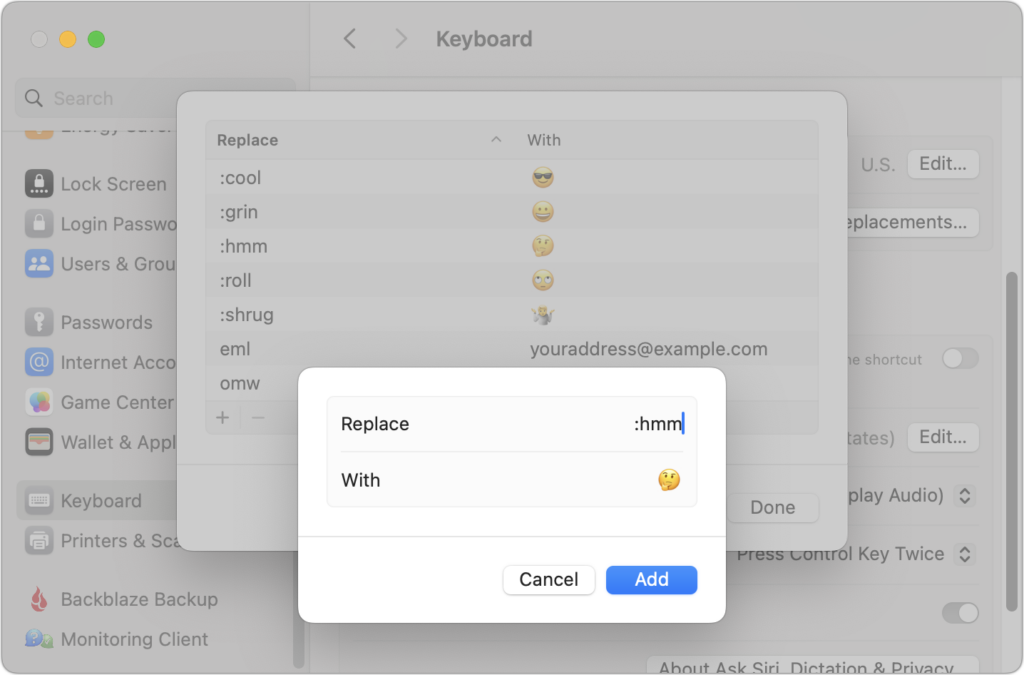
For many of us, emoji are fun, but we don’t want to choose Edit > Emoji & Symbols whenever we want to insert one. A faster, better technique is to set up text replacements for emoji you insert often. Open System Settings > Keyboard > Text Replacements, click the + button at the bottom, and enter the “trigger” text you want to type and the emoji you want entered. You can set the trigger to anything you like, but we prefer the Slack convention of a colon and a few characters from the emoji name, such as :roll for 🙄. Bonus: these replacements sync between your Mac, iPhone, and iPad!
(Featured image based on an original by iStock.com/Yosi Azwan)
Social Media: Finding and entering a desired emoji can be tedious. For those you like to use regularly, creating a text replacement lets you type a few characters to get a particular emoji quickly and easily.