
Setting Up a Secure Apple Network: Wi-Fi, File Sharing & Device Integration – Small Business-Class Networking & Connectivity
Setting Up a Secure Apple Network: Wi-Fi, File Sharing & Device Integration – Small Business-Class Networking & Connectivity
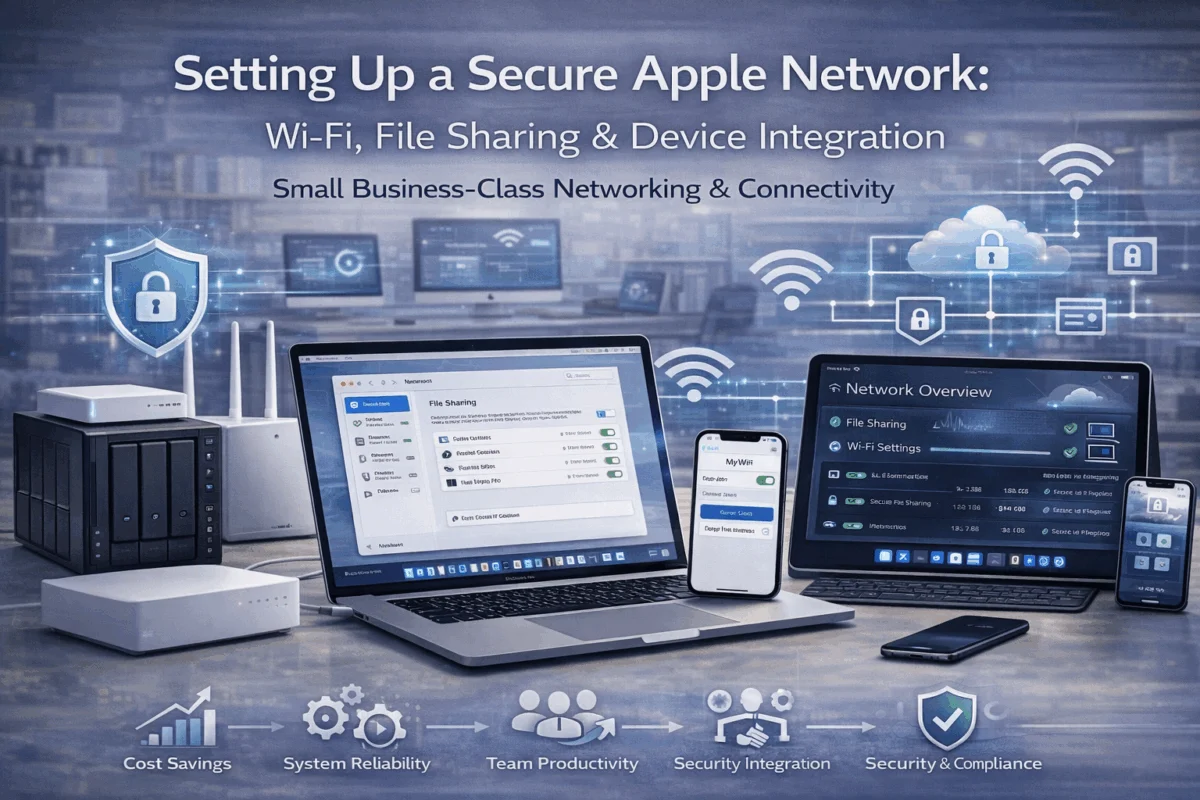
When creative agencies and small businesses invest in Apple’s ecosystem, they expect seamless connectivity that works. However, Setting Up a Secure Apple Network: Wi-Fi, File Sharing & Device Integration – Small Business-Class Networking & Connectivity requires more than simply connecting devices to Wi-Fi. The difference between a basic setup and a professionally configured Apple network can mean the difference between frustrated employees and smooth, productive workflows that protect your competitive advantage.
Key Takeaways
• Apple-optimized networking requires specific router configurations and protocols to maximize performance across Mac, iPhone, and iPad devices
• Zero-configuration file sharing through proper Bonjour setup enables seamless collaboration without compromising security
• Device integration strategies like Handoff, AirDrop, and Universal Clipboard work best with optimized network infrastructure
• Layered security approaches protect sensitive creative work while maintaining the user-friendly experience Apple users expect
• Proactive network monitoring prevents connectivity issues before they impact productivity and client deliverables
Foundation: Apple Network Architecture for Small Business Success
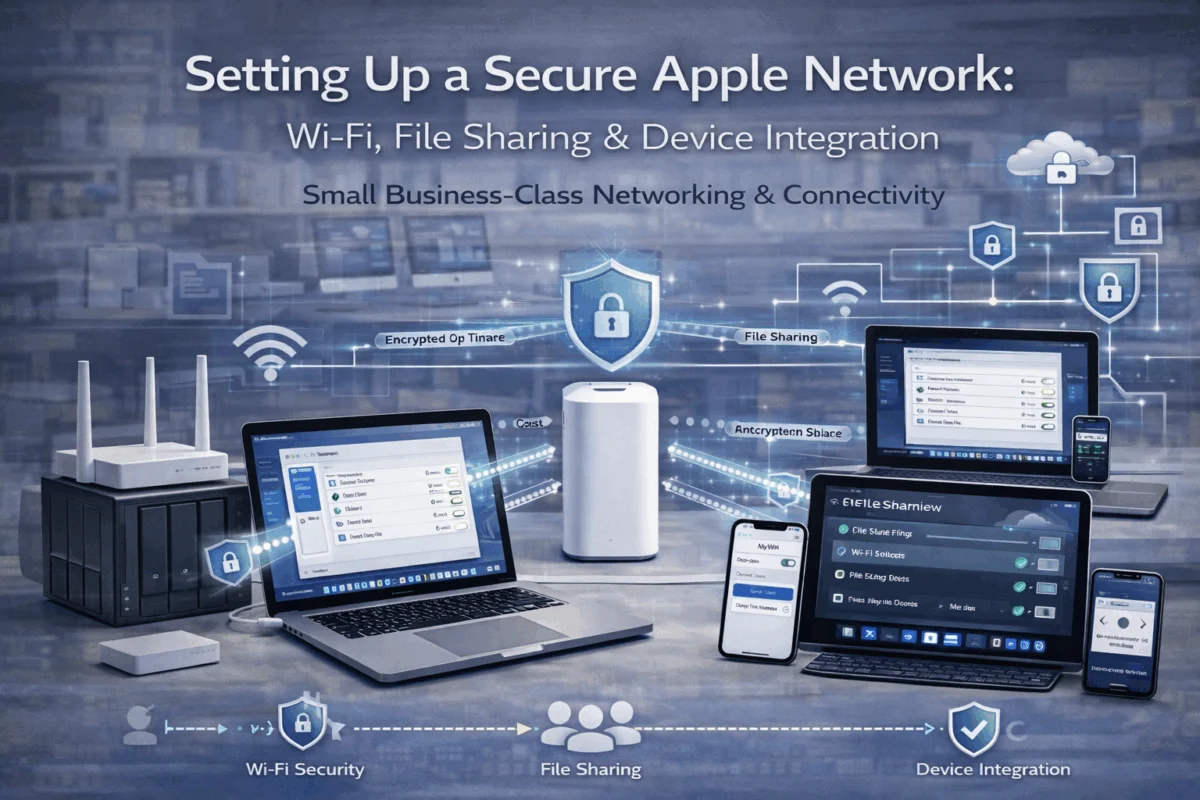
Creating a robust Apple network starts with understanding how Mac, iPhone, and iPad devices communicate—unlike generic IT setups, Setting Up a Secure Apple Network: Wi-Fi, File Sharing & Device Integration – Small Business-Class Networking & Connectivity leverages Apple’s built-in protocols, such as Bonjour, for service discovery and seamless device interaction.
Essential Network Components
Router Selection and Configuration
Apple’s ecosystem performs best with routers that fully support multicast DNS (mDNS) and don’t interfere with Bonjour traffic. While Apple discontinued the AirPort line, several enterprise-grade alternatives provide excellent compatibility:
- Ubiquiti UniFi systems offer professional-grade performance with Apple-friendly default settings
- ASUS AX series routers include specific Apple device optimization features
- Netgear Orbi Pro systems provide mesh coverage ideal for creative studios
The key lies in proper configuration. Enable band steering to automatically move devices between the 2.4 GHz and 5 GHz bands, configure Quality of Service (quality of service) to prioritize creative applications, and ensure IPv6 support to future-proof your network infrastructure.
Network Segmentation Strategy
Professional Apple networks benefit from logical segmentation without complexity. Create separate VLANs for:
- Creative workstations (MacBooks, iMacs, Mac Studios)
- Mobile devices (iPhones, iPads)
- Guest access for clients and visitors
- IoT devices (Apple TV, smart displays, printers)
This approach maintains security while preserving the seamless connectivity Apple users expect. Digital security best practices become crucial when managing multiple device types across your network.
Optimizing Wi-Fi for Apple Devices
Channel Planning and Interference Management
Apple devices are susceptible to Wi-Fi interference. Use tools like Wi-Fi Explorer on Mac to analyze your environment and select optimal channels. For 5GHz networks, channels 36, 44, 149, and 157 typically offer the best performance with minimal interference.
Configure your network with these Apple-specific optimizations:
- SSID broadcasting is enabled for easy device discovery
- WPA3 security with WPA2 fallback for older devices
- Fast roaming (802.11r) enabled for seamless handoffs
- Band steering configured but not aggressive (Apple devices handle band selection well independently)
Power Management and Coverage
Apple devices use sophisticated power management that can conflict with overly aggressive router settings. Configure access points with moderate power levels (around 75%) to prevent devices from “sticking” to distant access points while maintaining adequate coverage.
Secure File Sharing and Collaboration Setup
Professional creative workflows demand secure, fast file sharing that doesn’t interrupt the creative process. Setting Up a Secure Apple Network: Wi-Fi, File Sharing & Device Integration – Small Business-Class Networking & Connectivity includes configuring multiple sharing methods that work together seamlessly.
Mac-to-Mac File Sharing Configuration
SMB Protocol Optimization
Modern macOS uses SMB3 for file sharing, which provides excellent security and performance when properly configured. Enable file sharing in System Settings > General > Sharing and configure these essential settings:
- SMB signing is enabled for security
- SMB multichannel for improved performance over multiple network paths
- Guest access is disabled unless specifically required
- Time Machine sharing is configured for centralized backups
Create dedicated sharing accounts with appropriate permissions rather than using personal accounts. This approach maintains security audit trails while enabling smooth collaboration.
AFP Legacy Support
While Apple has deprecated AFP (Apple Filing Protocol), some creative applications and older workflows may still require it. If needed, enable AFP alongside SMB, but plan migration strategies to modern protocols. Apple’s approach to device longevity emphasizes forward compatibility, making this transition essential for long-term network health.
Cloud Integration and Hybrid Workflows
iCloud Drive for Business
iCloud Drive provides seamless synchronization across Apple devices, but business use requires careful planning:
- Storage optimization to prevent local disk filling
- Selective sync for large creative files
- Collaboration folders with appropriate sharing permissions
- Version control awareness for creative projects
Configure iCloud Drive to work alongside professional storage solutions rather than replacing them entirely. This hybrid approach provides the best of both worlds: instant access to frequently used files and secure, backed-up storage for critical assets.
Third-Party Integration
Professional creative workflows often require integration with services like Dropbox, Adobe Creative Cloud, or Frame.io. Configure these services to work harmoniously with Apple’s native sharing:
- Avoid duplicate syncing by carefully managing folder structures
- Configure bandwidth limits during business hours
- Set up conflict resolution procedures for simultaneous edits
- Implement backup strategies that don’t rely solely on cloud services
Device Integration and Management Strategies
Apple’s ecosystem shines when devices work together seamlessly. Proper network configuration enables features like Handoff, Universal Clipboard, and AirDrop to function reliably in professional environments.
Continuity Features Optimization
Handoff and Universal Clipboard
These features require specific network conditions to work reliably:
- Bluetooth LE enabled and properly functioning
- Same iCloud account signed in across devices (or proper Family Sharing setup)
- Firewall configurations that don’t block Apple’s peer-to-peer protocols
- Network latency under 50ms for optimal performance
Configure your network to prioritize traffic on ports 62078-62087 (TCP) and enable multicast traffic between VLANs if using network segmentation.
AirDrop in Professional Environments
AirDrop can be a security concern in dense office environments. Configure it appropriately:
- “Contacts Only” setting for most users
- Temporary “Everyone” access for specific project collaboration
- Network isolation to prevent unwanted discovery
- File size awareness for significant creative assets
Mobile Device Management (MDM) Integration
Apple Business Manager Setup
For businesses with multiple devices, Apple Business Manager provides centralized control without sacrificing user experience:
- Automated device enrollment for new purchases
- App distribution through Volume Purchase Program
- Configuration profiles for network and security settings
- Remote management capabilities for lost or stolen devices
Zero-Touch Deployment
Configure new devices to automatically join your network and receive appropriate settings:
- Wi-Fi configuration profiles deployed via MDM
- Certificate-based authentication for enhanced security
- Automatic app installation for essential business tools
- Backup and sync configuration for immediate productivity
Professional MDM solutions like Jamf Pro or Apple Configurator provide the control businesses need while maintaining the user-friendly experience that makes Apple devices productive. Understanding two-factor authentication becomes crucial when managing multiple devices across your organization.
Security Implementation Without Complexity
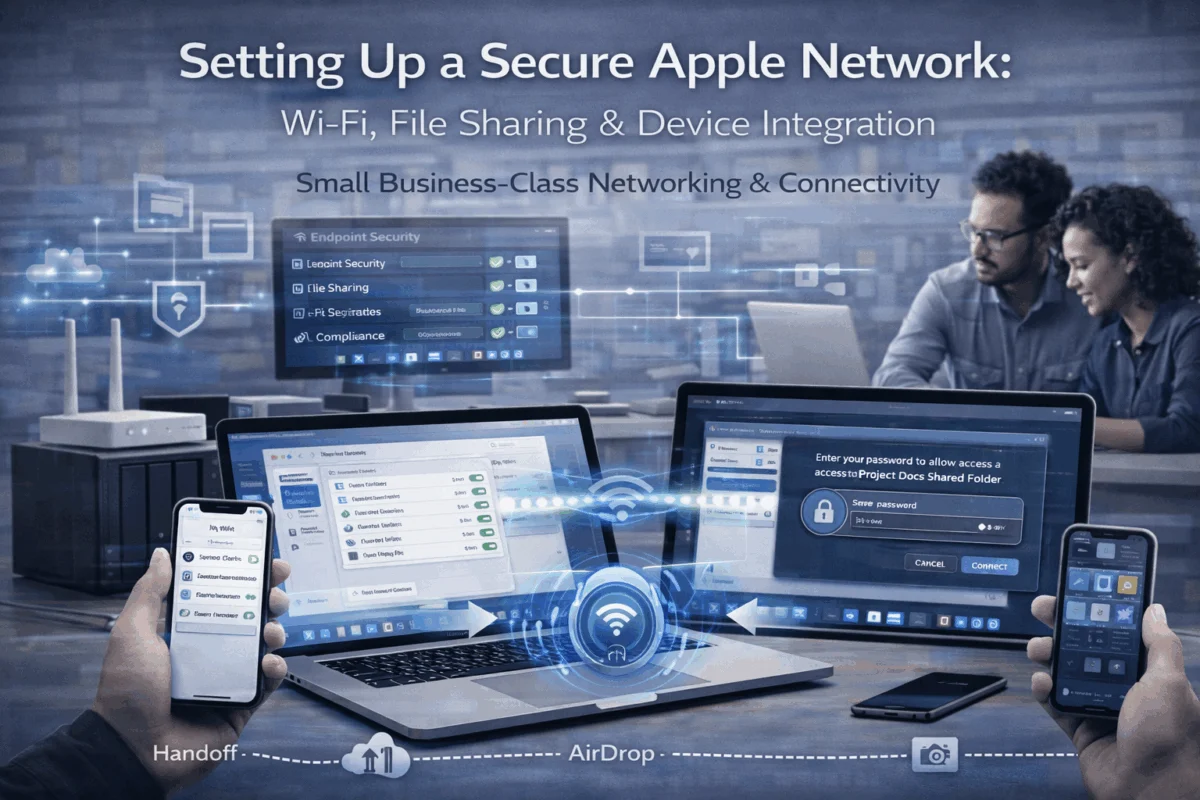
Security in Apple networks should be robust but invisible to users. Setting Up a Secure Apple Network: Wi-Fi, File Sharing & Device Integration – Small Business-Class Networking & Connectivity requires layered security that protects without hindering productivity.
Network-Level Security
Firewall Configuration
Configure firewalls to protect while enabling Apple services:
- Allow Bonjour traffic between trusted network segments
- Block unnecessary protocols like Telnet and FTP
- Enable intrusion detection for unusual traffic patterns
- Configure VPN access for remote workers
Certificate Management
Implement certificate-based authentication for enhanced security:
- Enterprise Wi-Fi certificates instead of shared passwords
- Code signing certificates for internal applications
- SSL certificates for internal web services
- Regular certificate renewal procedures
Device-Level Security Policies
Password and Authentication Policies
Implement consistent security policies across all devices:
- Complex passcode requirements balanced with usability
- Biometric authentication, where available (Touch ID, Face ID)
- Two-factor authentication for all critical services
- Automatic lock timers appropriate fora work environment
Data Protection Strategies
Protect sensitive information through multiple layers:
- FileVault encryption on all Mac devices
- iOS data protection is enabled by default, but verified
- Secure backup procedures with encryption
- Remote wipe capabilities for lost or stolen devices
Regular security audits help identify potential vulnerabilities before they become problems. Practical guidance for identifying phishing emails helps protect your network from social engineering attacks that bypass technical security measures.
Monitoring and Maintenance for Peak Performance
Proactive network management prevents issues before they impact productivity. Apple networks require specific monitoring approaches that account for the unique characteristics of Mac and iOS devices.
Performance Monitoring Tools
Network Analysis Software
Use professional tools to monitor network health:
- Wi-Fi Explorer Pro for detailed wireless analysis
- Network Radar for device discovery and monitoring
- iStat Menus for real-time system monitoring
- Console app for system log analysis
Automated Monitoring Setup
Configure automated monitoring for critical network functions:
- Bandwidth utilization tracking for capacity planning
- Device connectivity monitoring for early problem detection
- Security event logging for audit trails
- Performance baseline establishment for comparison
Preventive Maintenance Procedures
Regular Update Management
Keep all network components current with security updates:
- Router firmware updates on a scheduled basis
- macOS security updates are deployed consistently
- iOS updates managed through MDM policies
- Third-party software updates verified and tested
Backup and Recovery Planning
Implement comprehensive backup strategies:
- Time Machine for individual Mac devices
- Network-attached storage for centralized backups
- Cloud backup for off-site protection
- Recovery testing to verify backup integrity
Professional IT support becomes valuable when managing complex Apple networks. Apple’s latest operating system features often include network improvements that require configuration updates to maintain optimal performance.
Troubleshooting Common Apple Network Issues
Even well-designed networks encounter occasional issues. Understanding common Apple-specific problems and their solutions helps maintain smooth operations.
Connectivity Problems
Bonjour Service Issues
When devices can’t discover each other:
- Restart the mDNSResponder service on affected Macs
- Check firewall rules for Bonjour traffic blocking
- Verify network segmentation isn’t preventing discovery
- Reset network settings on iOS devices if necessary
AirDrop Failures
When file transfers fail between devices:
- Verify Bluetooth and Wi-Fi are both enabled
- Check device proximity (within 30 feet typically)
- Confirm firewall settings allow peer-to-peer connections
- Reset network settings if problems persist
Performance Issues
Slow File Transfers
When network performance doesn’t meet expectations:
- Check network utilization for bandwidth congestion
- Verify SMB protocol version compatibility
- Test with different file sizes to isolate issues
- Monitor for interference on wireless channels
Intermittent Disconnections
When devices randomly lose network connectivity:
- Update network drivers and firmware
- Check power management settings on wireless adapters
- Verify access point capacity and configuration
- Test with different devices to isolate problems
Solving call failures on iPhone often involves network connectivity issues that can affect other Apple services as well.
Conclusion
Setting Up a Secure Apple Network: Wi-Fi, File Sharing & Device Integration – Small Business-Class Networking & Connectivity requires understanding both Apple’s ecosystem strengths and the specific needs of creative professionals. Success comes from balancing security with usability, implementing professional-grade infrastructure while maintaining the seamless experience that makes Apple devices productive.
The key to long-term success lies in proactive planning and ongoing maintenance. Start with a solid foundation of properly configured network hardware, implement security measures that protect without hindering productivity, and establish monitoring procedures that catch issues early.
Next Steps for Implementation:
- Assess your current network infrastructure and identify Apple-specific optimization opportunities
- Plan your security strategy, balancing protection with user experience requirements
- Implement monitoring tools to establish performance baselines and detect issues early
- Develop maintenance procedures for keeping your network current and secure
- Consider professional consultation for complex environments or rapid scaling needs
Professional Apple network setup pays dividends in productivity, security, and user satisfaction. When creative professionals can focus on their work rather than fight technology, both individual and business success follow naturally.
References
[1] Apple Inc. “Bonjour, Protocol Specification.” Apple Developer Documentation, 2025.
[2] IEEE Standards Association. “802.11r Fast BSS Transition Standard.” IEEE, 2024.
[3] Apple Inc. “Apple Business Manager Administration Guide.” Apple Support, 2025.

Want this Mac Security implemented for you?
MacWorks 360 hardens, monitors, and backs up Mac fleets across New Jersey. We build policies, deploy tools, and prove restores—so your team stays safe and focused.
Contact us · Managed IT for Mac · Apple IT Support.
Based in Springfield, NJ—serving Summit, Millburn, Short Hills, Chatham, Montclair, and beyond.