Network Infrastructure for Mac, iPad, and iPhone with Unifi / Ubiquity networks | MacWorks 360
Network Infrastructure for Mac, iPad, and iPhone: The UniFi Deployment Guide for Small Business
You’ve just hired your eighth team member, and suddenly your office Wi-Fi feels like dial-up. AirDrop transfers stall mid-file. Your designer can’t find the network printer—again. Video calls drop when someone walks to the kitchen. And that “pro-grade” router from the big-box store? It’s blinking ominously in the corner, mocking your optimism.
Here’s the uncomfortable truth: most small-business networks aren’t designed for how Apple devices actually work. They’re cobbled together from consumer gear, configured with default settings, and expected to support a fleet of Macs, iPads, and iPhones that rely on protocols your network has never heard of—or actively blocks.
Building the proper network infrastructure for Mac, iPad, and iPhone environments isn’t about buying the most expensive router. It’s about understanding how Apple’s ecosystem communicates, designing for both today’s team and next year’s growth, and choosing gear that scales without requiring a networking degree to manage.
This guide walks you through exactly that: a practical, proven approach to deploying UniFi (Ubiquiti) networks in Mac-heavy workplaces—from the wired foundation most people skip, to the VLAN segmentation that keeps AirPrint working, to the troubleshooting checklist that saves your Saturday.
Key Takeaways
- Apple devices rely on Bonjour/mDNS for AirPrint, AirPlay, and device discovery—network segmentation can break these features if not configured correctly.
- A proper wired foundation (quality switches, PoE planning, structured cabling) is more important than expensive access points for long-term reliability.
- VLAN segmentation improves security and performance, but requires mDNS reflectors or Bonjour forwarding to maintain Apple ecosystem functionality across network segments
- Wi-Fi 6 (or 6E) with WPA3 provides the security and capacity modern Mac/iPad/iPhone fleets demand, especially in high-density creative environments.
- UniFi networks offer SMB-friendly management without enterprise complexity—but success depends on planning capacity, not just coverage.
Introduction: What “Apple-Friendly Network Infrastructure” Means (and Why Most SMB Networks Fail Here)
Walk into most small creative studios, and you’ll find a familiar scene: everyone’s on a Mac, iPhone, or iPad—the design team constantly AirDrops files. The photographer mirrors her iPad to an Apple TV for client reviews. The operations manager prints wirelessly from her MacBook without thinking about it.
Then someone decides to “upgrade” the network with VLANs for security—and suddenly, nothing works.
Printers vanish. AirPlay fails. AirDrop becomes unreliable. The well-intentioned IT consultant shrugs and says, “Apple devices don’t play well with enterprise networks.” But that’s not the whole story.
The Apple Reality: Zero-Configuration Networking Has Requirements
Apple built its ecosystem around Bonjour (also called mDNS, or multicast DNS)—a zero-configuration networking protocol that lets devices discover each other without manual setup [1]. When your MacBook “just finds” the network printer, or your iPhone sees your colleague’s AirDrop name, that’s Bonjour at work.
The problem? Bonjour uses multicast traffic that doesn’t cross traditional network boundaries. Segment your network into VLANs (a smart security move), and you’ve just built walls that block the very protocols Apple devices depend on.
Most SMB networks fail Mac/iPad/iPhone deployments for three reasons:
- Consumer gear pretending to be business-class – That $200 “mesh system” can’t handle 15 simultaneous devices, doesn’t support VLANs, and offers zero visibility into what’s actually happening on your network.
- Coverage-focused Wi-Fi design – Adding more access points doesn’t help if they’re all shouting over each other. Apple devices need capacity (bandwidth per device) and clean roaming, not just “more bars.”
- Security-through-isolation that breaks workflows – Locking down the network is smart. Doing it without understanding how your tools communicate with each other is expensive.
An “Apple-friendly” network infrastructure for Mac, iPad, and iPhone doesn’t mean compromising security or accepting chaos. It means designing with Apple’s protocols in mind from day one—choosing gear that can segment traffic and forward the multicast magic that makes your team productive.
Requirements Checklist (Before Buying Gear)
Before you click “buy” on that UniFi Dream Machine Pro, pause. The best network design starts with a requirements audit, not a shopping cart.
What You Need to Know First
1. Users & Devices (Current + 18-Month Projection)
- How many people work on-site daily?
- How many devices per person? (Most creative pros carry a MacBook + iPhone + iPad—that’s three simultaneous connections.)
- Do you support BYOD (bring your own device), or is everything company-issued?
- What’s your realistic growth plan? (Hiring three people next quarter changes your access point count.)
2. Floorplan & Physical Realities
- Square footage and construction materials (brick/concrete kill Wi-Fi; drywall is forgiving)
- Ceiling height and mounting options for access points
- Existing structured cabling, or will you need to run new Cat6a?
- Power availability (PoE switches eliminate outlet hunting, but require planning)
3. ISP Realities & Internet Dependency
- Current internet speed (download and upload—video calls are symmetrical)
- SLA (service-level agreement) and support quality
- Feasibility of a backup ISP for failover (even LTE/5G is better than dead-in-the-water)
- Bandwidth-heavy workflows (4K video uploads, large file transfers, cloud rendering)
4. SaaS & Cloud Reliance
- What breaks if the internet goes down? (Most creative tools are cloud-first now.)
- Do you run on-prem servers, or is everything in Google Workspace / Microsoft 365 / Adobe Creative Cloud?
- VPN requirements for remote team members
5. Printers, Apple TVs & IoT Devices
- How many network printers are there, and where? (AirPrint compatibility matters.)
- Apple TVs for conference rooms or client presentations?
- Security cameras, smart door locks, or other IoT gear that shouldn’t share the staff VLAN
6. VoIP & Video Conferencing Quality Expectations
- Are you using Zoom, Teams, or Google Meet daily?
- Do dropped calls cost you client relationships?
- QoS (Quality of Service) requirements to prioritize real-time traffic
The “Go/No-Go” Decision Point
If your answers reveal:
- Fewer than 10 devices, single room, no growth plan → A quality consumer mesh system might suffice (but you’re reading the wrong guide).
- 10–50 devices, multi-room office, professional workflows → UniFi is the sweet spot—scalable, manageable, cost-effective.
- 50+ devices, multi-site, compliance requirements → You’re entering enterprise territory; this guide still applies, but budget for professional deployment help.
Reference Architecture (Simple but Scalable)
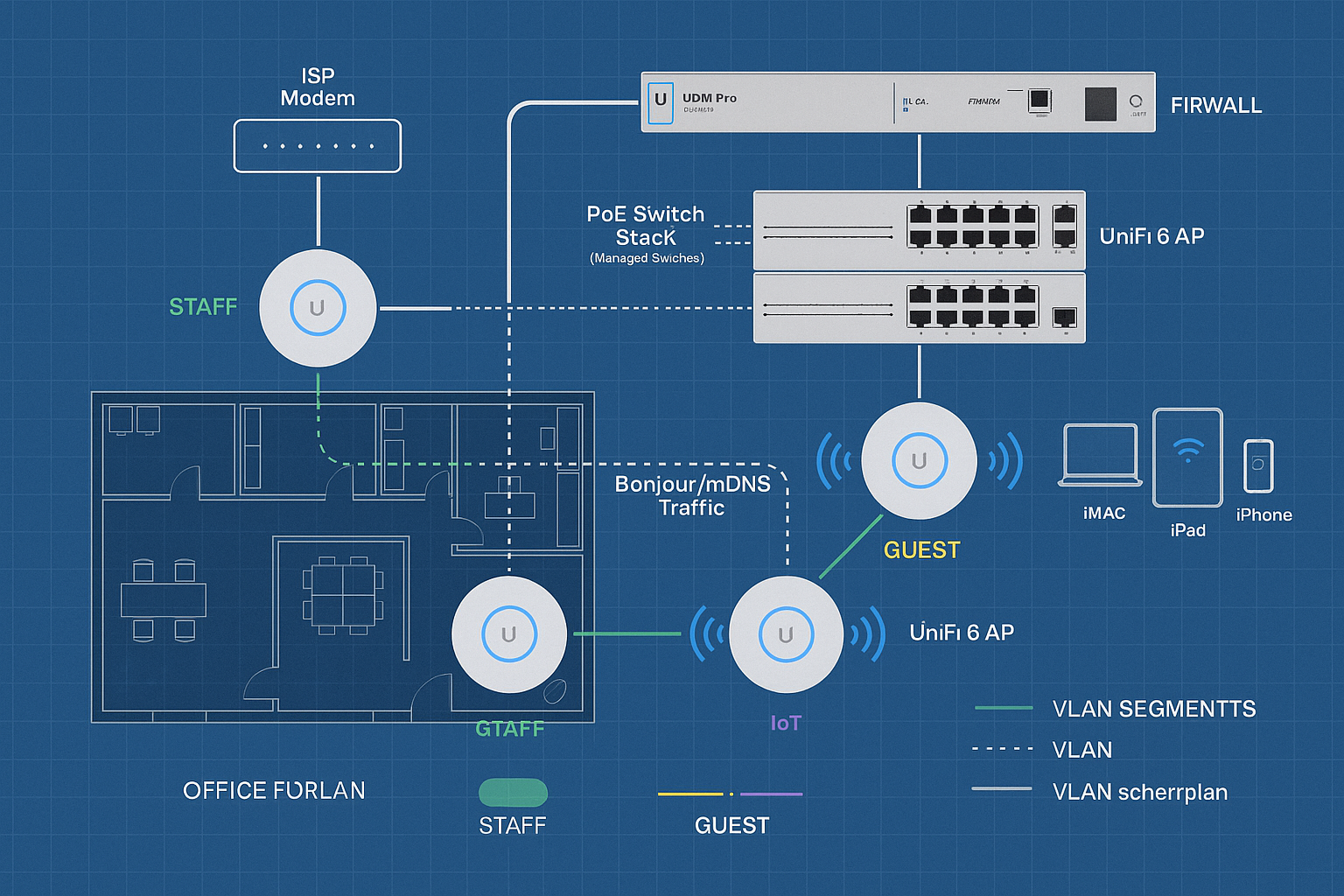
Here’s the mental model that prevents expensive mistakes: your network is a stack, not a single box.
The Logical Flow (What Talks to What)
Internet (ISP)
    ↓
Modem/ONT (converts ISP signal)
    ↓
Firewall/Router (UniFi Dream Machine, UXG-Pro, etc.)
    ↓
Core Switch (PoE-capable, manages VLANs)
    ↓  ↓  ↓
Access Points + Wired Devices + Additional Switches
Why this matters for Mac/iPad/iPhone deployments:
Each layer has a job. Conflating them (like using your ISP’s modem/router combo as your firewall) creates single points of failure and limits your ability to segment traffic, prioritize Apple protocols, or troubleshoot when AirPrint mysteriously stops working.
Minimum Viable Setup (10–20 Devices, Single Office)
| Component | Example Model | Purpose |
|---|---|---|
| Gateway/Firewall | UniFi Dream Machine (UDM) | Routing, firewall, basic switching, single AP built-in |
| PoE Switch | UniFi Switch Lite 8 PoE | Powers additional APs, connects wired devices |
| Access Points | 1–2× UniFi U6 Lite or U6+ | Wi-Fi 6 covers ~1,500–2,500 sq ft per AP (capacity-dependent) |
| Controller | Built into UDM | Centralized management, no separate hardware needed |
Cost: ~$600–$900 (excluding cabling/installation)
Best-Practice Setup (20–50 Devices, Multi-Room, Growth-Ready)
| Component | Example Model | Purpose |
|---|---|---|
| Gateway/Firewall | UniFi Dream Machine Pro (UDM-Pro) or UXG-Pro | Dual-WAN failover, IDS/IPS, more throughput |
| Core Switch | UniFi Switch Pro 24 PoE (250W) | Centralized PoE budget, 10G uplinks, full VLAN support |
| Access Points | 3–5× UniFi U6 Pro or U6 Enterprise | Higher capacity, better roaming, 6 GHz support (U6E) |
| Controller | Built into UDM-Pro or Cloud Key Gen2+ | Advanced features, remote management, and historical data |
| Backup Power | UPS (1500VA+) for gateway + core switch | Keeps the network alive during brief outages |
Cost: ~$2,000–$3,500 (scales with AP count and switch size)
The Part Everyone Forgets: Uplinks
Your access points can push gigabit speeds, but if they’re all connected to a switch with a single 1 Gbps uplink to your router, you’ve created a bottleneck. Plan your uplinks:
- Core switch to gateway: 10 Gbps SFP+ (if supported)
- Access switches to core: 2.5 Gbps or better
- Desktop Macs with 10 GbE NICs: Direct 10 Gbps connections for video editors
Wired Foundation (The Part Everyone Underestimates)
Let’s get one thing straight: Wi-Fi is a convenience, not a foundation.
Your network’s reliability lives in the wires—the Cat6a cables in the walls, the PoE switch humming in the closet, the UPS keeping everything alive when the power flickers. Skimp here, and no amount of expensive access points will save you.
Why Wired Matters for Wireless (Yes, Really)
Every UniFi access point is only as good as the cable feeding it. A flaky connection, insufficient PoE power, or a saturated uplink turns your $180 U6 Pro into a $180 paperweight.
The wired checklist:
Structured cabling – Cat6a (not Cat5e) to every AP location, plus key desk positions
PoE planning – Calculate total wattage (each U6 Pro draws ~13W; add cameras, phones, etc.)
Switch uplinks – 2.5 Gbps minimum from access switches to core; 10 Gbps if your budget allows
Cable management – Labeled, documented, accessible (future-you will thank present-you)
UPS backup – At least gateway + core switch on battery; ideally, all network gear
PoE: The Hidden Superpower
Power over Ethernet means your access points, cameras, and VoIP phones draw power through the network cable. No outlet hunting. No power bricks. No “oops, the cleaning crew unplugged the AP.”
PoE standards you’ll encounter:
- 802.3af (PoE): 15.4W per port—fine for basic APs, too weak for U6 Pro or cameras with heaters
- 802.3at (PoE+): 30W per port—the sweet spot for most UniFi APs
- 802.3bt (PoE++): 60–100W per port—overkill unless you’re powering PTZ cameras or outdoor APs in Alaska
Pro tip: Buy a switch with 20–30% more PoE budget than you need today. Adding a camera or second AP shouldn’t require a forklift upgrade.
Switching Basics (Without the CCNA)
Your switch is a traffic cop, a power plant, and a VLAN enforcer all in one. Here’s what matters:
Port count: Count every wired device (desktop Macs, printers, APs, NAS) + 30% growth buffer
PoE budget: Total watts available (e.g., 250W switch ÷ 13W per AP = ~19 APs max, minus other PoE devices)
Uplink speed: How fast the switch talks to your router—1 Gbps is minimum, 10 Gbps is future-proof
VLAN support: Non-negotiable for segmentation (more on this shortly)
Cabling: The Unglamorous MVP
Cat6a supports 10 Gbps up to 100 meters and handles PoE++ without breaking a sweat. Cat5e is technically gigabit-capable but chokes on 2.5+ Gbps and higher PoE standards.
Installation reality check:
- DIY-friendly: Small office, drop ceiling, short runs, you’re handy with a crimper
- Hire a pro: Anything involving walls, conduit, outdoor runs, or more than 10 drops
Poorly terminated cables are the #1 cause of “the network is slow, but we don’t know why” support tickets.
Wi-Fi Design for Apple-Heavy Offices
Here’s where most SMB network projects go sideways: someone Googles “how far does a UniFi AP reach,” sees “300 feet,” and buys one access point for a 5,000-square-foot office.
Three months later, they’re troubleshooting why AirDrop fails in the conference room.
Coverage vs. Capacity: The Distinction That Matters
Coverage = “Can my device see the Wi-Fi signal?”
Capacity = “Can my device actually use the Wi-Fi at full speed alongside everyone else’s devices?”
A single U6 Lite can cover 2,500 square feet. But if 20 people are trying to use it simultaneously—video calls, file uploads, software updates—everyone gets a fraction of the available bandwidth. Apple devices are chatty; they update iCloud, sync Photos, download app updates, and stream music—all in the background.
The One-AP-Per-Classroom Rule (Adapted for Offices)
Apple’s own deployment guidance for schools recommends one access point per classroom to ensure sufficient capacity during peak usage [2]. Translate that to your office:
- Conference rooms: Dedicated AP (video calls spike bandwidth)
- Open workspaces: One AP per 8–12 active users (not square footage)
- Private offices: Can share an AP if usage is light
- High-density areas: (Lunch room, lobby) Dedicated AP with higher capacity (U6 Pro, not Lite)
Channel Planning (or: Why Your Neighbor’s Wi-Fi Isn’t Your Problem, But Your Own APs Are)
Wi-Fi channels are like highway lanes. Too many devices on the same channel = traffic jam. But here’s the twist: your own access points interfere with each other more than your neighbor’s network does.
Best practices for UniFi + Apple devices:
5 GHz is your workhorse – More channels, less interference, faster speeds
6 GHz (Wi-Fi 6E/7) is the future – If your Macs/iPads support it (2021+ models), it’s wide open
2.4 GHz for IoT only – Printers, smart locks, older devices; disable it on your main SSID if possible
Channel width: 40 MHz on 5 GHz (80 MHz if you have spectrum to spare and low AP density)
Auto-channel is fine – UniFi’s RF AI works well; manual tuning rarely helps SMBs
Roaming: The Invisible Feature That Makes or Breaks Mobility
Your designer walks from her desk to the conference room, MacBook in hand, Zoom call active. Ideally, her laptop seamlessly switches from AP #1 to AP #2 without dropping the call.
What makes roaming work:
Same SSID across all APs (obvious, but worth stating)
Consistent security settings (WPA2/WPA3 mode must match)
Overlapping coverage (but not too much—see next point)
Proper power levels (lower is often better; prevents devices from “sticky” connections)
UniFi’s secret weapon: Fast roaming (802.11r) is enabled by default on newer firmware. It works transparently with modern Macs/iPhones/iPads.
Power Output: Why Louder Isn’t Better
Cranking your AP’s transmit power to “High” sounds smart—more signal. Wrong.
The problem: Your AP can shout at your iPhone from across the office, but your iPhone can’t shout back. The connection looks strong (full bars), but upload speeds crawl because the return path is weak.
The fix: UniFi’s default “Auto” power setting works well. If you manually tune, aim for:
- Medium or Low in dense deployments (multiple APs, overlapping coverage)
- High only for isolated APs covering large, open areas
This also reduces co-channel interference between your own access points.
Guest SSID Strategy (Without Compromising Security)
You need guest Wi-Fi. Clients, vendors, the UPS driver—everyone expects it. But you don’t want them on the same network as your file server.
The right way:
- Separate SSID (e.g., “StudioGuest”) on its own VLAN
- Client isolation enabled (guests can’t see each other’s devices)
- Bandwidth limit (optional, but prevents one guest from saturating your connection)
- Captive portal (optional, for terms-of-service or password rotation)
- Firewall rule: Guest VLAN → Internet only (no access to internal resources)
Minimum Recommended Wi-Fi Settings (What to Turn On/Off)
UniFi’s default settings are decent, but optimizing for a Mac/iPad/iPhone fleet requires a few tweaks.
Enable These
| Setting | Why It Matters for Apple Devices |
|---|---|
| WPA3 (or WPA2/WPA3 mixed mode) | Modern security; all 2020+ Apple devices support WPA3 |
| Fast Roaming (802.11r) | Seamless handoff between APs during calls/AirDrop |
| Band Steering | Pushes dual-band devices to 5 GHz (less congestion) |
| Minimum RSSI | Kicks weak clients to closer APs (prevents sticky connections) |
| BSS Transition (802.11v) | Helps clients roam proactively, not reactively |
Disable or Limit These
| Setting | Why |
|---|---|
| 2.4 GHz on main SSID | If all your devices support 5 GHz, disable 2.4 to reclaim airtime |
| Legacy data rates (1, 2, 6 Mbps) | Disabling these speeds up the network for everyone [3] |
| SSID proliferation | Limit to 3 SSIDs max; each one adds overhead and reduces usable airtime |
| Auto-optimize (if you have VLANs) | Can break mDNS forwarding; test carefully |
The “Just Make It Work” Profile
If you’re overwhelmed, start here:
- SSID: YourCompanyName
- Security: WPA2/WPA3 mixed mode
- Band: 5 GHz only (separate 2.4 GHz SSID for IoT if needed)
- Channel width: 40 MHz
- Fast roaming: Enabled
- Minimum RSSI: -70 dBm
Test for a week. Adjust only if you see specific problems.
Segmentation That Doesn’t Break Apple Workflows
VLANs (Virtual Local Area Networks) are how you divide one physical network into multiple logical networks. Think of them as invisible walls that keep traffic separated—your staff devices can’t see guest devices, IoT gadgets can’t reach your file server, etc.
The promise: Better security, easier management, cleaner troubleshooting.
The trap: Break Bonjour, and your team loses AirPrint, AirPlay, AirDrop across VLANs, and device discovery.
A Practical VLAN Scheme for Creative SMBs
| VLAN ID | Name | Purpose | Devices |
|---|---|---|---|
| 10 | Staff | Trusted employee devices | MacBooks, iMacs, company iPhones/iPads |
| 20 | Guest | Untrusted visitors | Client devices, contractor laptops |
| 30 | IoT/Printers | Devices that need discovery but have limited access | AirPrint printers, Apple TVs, and cameras |
| 40 | Servers/Mgmt | Backend infrastructure | NAS, UniFi controller, backup server |
Firewall rules (simplified):
- Staff → Internet, IoT/Printers, Servers
- Guest → Internet only
- IoT/Printers → Internet (for firmware updates), deny all other VLANs
- Servers/Mgmt → All VLANs (for management), deny inbound from Guest/IoT
The Bonjour Problem (and Solution)
Scenario: Your MacBook is on VLAN 10 (Staff). Your AirPrint printer is on VLAN 30 (IoT). By default, multicast traffic doesn’t cross VLANs, so your Mac can’t discover the printer.
Solution: mDNS Reflector / Bonjour Forwarding
UniFi gear supports mDNS reflection (also known as IGMP snooping and multicast forwarding). This lets Bonjour discovery packets cross VLAN boundaries in a controlled way.
How to enable in UniFi:
- Settings → Networks → [Your Staff VLAN] → Advanced
- Enable Multicast DNS
- Repeat for IoT/Printers VLAN
- (Optional) Create firewall rule: Allow UDP 5353 (mDNS) between Staff and IoT VLANs
What this does: Your Mac on VLAN 10 can discover the printer on VLAN 30 via mDNS, then establish a direct connection. The printer can’t initiate connections back to your Mac (security win), but your Mac can find and use it (productivity win).
AirPlay Across VLANs
Same principle: enable mDNS reflection, ensure UDP 5353 is allowed between the Staff VLAN and the VLAN where your Apple TV lives.
Advanced: If you have multiple Apple TVs and want to restrict which VLANs can AirPlay to which devices, you’ll need per-device firewall rules or a more granular mDNS policy (consult UniFi’s documentation or a network pro).
AirDrop: The Special Case
AirDrop uses peer-to-peer Wi-Fi (Apple Wireless Direct Link, or AWDL), not your network infrastructure. It works between devices on the same VLAN or on the same physical Wi-Fi channel, even if they’re on different VLANs—but reliability drops.
Best practice: Keep devices that need frequent AirDrop (design team, photography team) on the same VLAN. Cross-VLAN AirDrop is flaky and not worth troubleshooting.
Bonjour / mDNS: The Apple “Magic” That Can Also Become Chaos
Let’s demystify the protocol that makes your Apple ecosystem “just work”—until it doesn’t.
What is Bonjour / mDNS?
Bonjour is Apple’s branding for mDNS (multicast DNS), a zero-configuration networking protocol [4]. Instead of manually typing a printer’s IP address, your Mac sends a multicast query: “Hey, any printers out there?” The printer responds, “Yep, I’m here, here’s my IP and capabilities.”
Where it’s used:
- AirPrint (printer discovery)
- AirPlay (Apple TV, HomePod, smart TVs)
- iTunes/Music sharing (remember Home Sharing?)
- File sharing (AFP/SMB server discovery)
- Screen Sharing (finding other Macs on the network)
What Breaks It
- VLAN segmentation without mDNS reflection (covered above)
- Aggressive firewall rules blocking UDP 5353
- IGMP snooping is disabled (multicast traffic floods the network)
- Too many devices spamming mDNS queries (poorly designed IoT gear)
- Wireless isolation/client isolation on the wrong SSID
How to Control It (Without Breaking Workflows)
The chaos scenario: 50 devices all broadcasting Bonjour services—printers, Apple TVs, Macs with screen sharing enabled, smart speakers. Your network is drowning in multicast traffic.
The fix:
Limit Bonjour-enabled devices – Disable services you don’t use (System Settings → Sharing on Macs)
IGMP snooping – Ensures multicast traffic only goes to devices that requested it (enabled by default on UniFi)
mDNS reflection only where needed – Don’t enable it on Guest VLAN
Firewall rules – Allow mDNS between specific VLANs, deny it elsewhere
When to Restrict It
Guest VLAN: No mDNS. Guests don’t need to discover your printers or Apple TVs.
IoT VLAN: Allow mDNS from Staff VLAN to IoT, but not IoT-to-IoT (prevents smart speakers from finding each other and forming a robot uprising).
Servers/Mgmt VLAN: Probably don’t need mDNS at all unless you’re running a Mac mini server.
Security Baseline (SMB Practical, Not Fantasy)
Let’s talk security without the FUD (fear, uncertainty, doubt) or the fantasy “air-gapped bunker” advice that doesn’t apply to a 12-person creative studio.
Wi-Fi Security: WPA3 Is Here, Use It
WPA2 (2004) is still common, but it’s vulnerable to offline brute-force attacks if someone captures your handshake packets. WPA3 (2018) fixes this with forward secrecy and stronger encryption [5].
Your options:
- WPA3-only: Most secure, but older devices (pre-2019) can’t connect
- WPA2/WPA3 mixed mode: Compatibility + security (this is the sweet spot for 2025)
- WPA2-only: Only if you have legacy devices that you can’t replace
UniFi default: WPA2/WPA3 mixed. Leave it unless you have a reason to change.
802.1X / RADIUS: When Shared Passwords Aren’t Enough
The problem with WPA2/WPA3 Personal is that everyone uses the same Wi-Fi password. If an employee leaves (or a contractor’s laptop is stolen), you have to change the password and reconfigure every device.
The solution: 802.1X (WPA2/WPA3 Enterprise)
Each user authenticates with their own credentials (username/password or certificate). Revoke one user’s access without touching anyone else’s.
Requirements:
- RADIUS server (can be hosted on UniFi Dream Machine Pro, or use a cloud service like JumpCloud)
- Digital certificates (for the RADIUS server and optionally for clients)
- MDM (to push Wi-Fi profiles to Macs/iPhones/iPads with certificates pre-installed)
When it’s worth it:
- 20+ employees
- High turnover or contractor churn
- Compliance requirements (HIPAA, SOC 2, etc.)
When it’s overkill:
- Fewer than 10 people
- Everyone’s on company-owned devices managed by MDM
- You rotate the WPA2 password quarterly, and it’s stored in a password manager
Firewall Rules: The “Least Privilege” Starter Pack
Your UniFi gateway’s firewall should enforce least privilege: only allow the traffic you need, deny everything else.
Default rules to implement:
- Guest VLAN → Internet only (deny all RFC1918 private IPs)
- IoT VLAN → Deny all other VLANs (except mDNS from Staff, if needed)
- Staff VLAN → Allow Internet, IoT (for printers), Servers
- Block inbound from WAN (except specific port forwards, if any)
Advanced: Geo-blocking (block traffic from countries you don’t do business with), IDS/IPS (intrusion detection/prevention—available on UDM-Pro), DNS filtering (block malware/phishing domains at the DNS level).
DNS Filtering: The Low-Effort Security Win
Most malware and phishing attacks start with a DNS lookup. Block malicious domains at the DNS layer, and the attack fails before it reaches your devices.
Options:
- Cloudflare for Teams (free tier includes malware blocking)
- Quad9 (free, privacy-focused, blocks known threats)
- NextDNS (paid, highly customizable)
UniFi setup: Settings → Networks → [Your VLAN] → DHCP Name Server → Custom → Enter DNS IPs
Patching & Updates: The Boring Stuff That Matters
UniFi gear: Enable firmware auto-updates (Settings → System → Auto Update). Yes, there’s a tiny risk of a bad update, but the risk of running months-old firmware with known vulnerabilities is worse.
Apple devices: If you’re using MDM, push software updates on a schedule. If not, nag your team monthly.
Least Privilege for Admin Access
Who should have access to your UniFi controller?
- You (the owner/ops manager)
- Your IT consultant (if you have one)
- Maybe one technical team member as backup
Not: Every employee. Not the intern. Not “just in case.”
Enable MFA (multi-factor authentication) on your Ubiquiti account. If someone compromises your password, they still can’t access your network remotely.
Apple Management Tie-In (So Wi-Fi “Just Works”)
Here’s where network infrastructure and device management converge: MDM-delivered Wi-Fi profiles.
The Manual Way (That Doesn’t Scale)
- Employee gets a new MacBook
- You tell them the Wi-Fi password
- They type it in (and probably save it insecurely)
- They leave the company
- You change the Wi-Fi password
- You reconfigure 47 devices
The MDM Way (That Actually Scales)
- Enroll device in MDM (Jamf, Kandji, Mosyle, etc.)
- MDM pushes Wi-Fi profile with password or certificate
- The device connects automatically
- Employee leaves
- MDM un-enrolls the device, and the Wi-Fi profile is removed
- No one else is affected
Bonus: You can push different Wi-Fi profiles to various groups (executives get the Staff VLAN, contractors get the Guest VLAN).
Certificate-Based Wi-Fi (The Gold Standard)
Instead of a shared password, each device gets a unique certificate issued by your MDM.
Benefits:
- No shared password to leak
- Per-device revocation (lost laptop? Revoke its cert, not the whole network)
- Works seamlessly with 802.1X / RADIUS
How it works:
- MDM generates or imports a certificate authority (CA)
- MDM issues a certificate to each enrolled device
- MDM pushes a Wi-Fi profile that uses the certificate for authentication
- The RADIUS server validates the certificate
Effort: Medium (initial setup), low (ongoing). Worth it if you’re already using MDM.
Device Posture Basics (Future-Proofing)
Posture = “Is this device compliant with our security policies before we let it on the network?”
Examples:
- Is FileVault (disk encryption) enabled?
- Is the OS up-to-date?
- Is the firewall turned on?
Advanced UniFi + MDM integration: Some MDMs can report device posture to your firewall, which can then assign the device to a restricted VLAN until it’s compliant.
Reality check: This is overkill for most SMBs in 2025, but it’s where the industry is heading. If you’re building a network today, design it with VLANs so you can implement posture-based access later.
Resilience & Performance
A great network isn’t just fast—it’s reliable. Here’s how to build resilience without a seven-figure budget.
Dual WAN / Failover (Because Comcast Goes Down)
Scenario: Your primary ISP has an outage. Your team can’t access Google Workspace, can’t join Zoom calls, can’t do their jobs.
Solution: Dual WAN with automatic failover.
How it works:
- Primary ISP (cable, fiber, whatever’s fastest)
- Secondary ISP (different technology—if primary is cable, use DSL, LTE, or 5G)
- The UniFi gateway monitors both connections
- If the primary fails, traffic switches to the secondary automatically
Cost: ~$50–$150/month for a backup connection (LTE/5G business plan)
Value: Priceless when your primary ISP is down for six hours
UniFi setup: Settings → Internet → Add another WAN → Configure failover or load-balancing
QoS / SQM (Quality of Service / Smart Queue Management)
The problem: Someone uploads a 10 GB video file to Dropbox, saturating your upload bandwidth. Everyone else’s Zoom calls turn into slideshows.
The solution: QoS prioritizes real-time traffic (VoIP, video calls) over bulk transfers (file uploads, software updates).
UniFi’s approach: Smart Queues (SQM) under Settings → Internet → WAN → Smart Queues. Enable it, set your actual ISP speeds (not the advertised speeds—run a speed test), and let the gateway manage traffic.
Does it work? Yes, especially for upload-constrained connections (familiar with cable ISPs). It won’t make your internet faster, but it’ll make it feel faster during congestion.
Monitoring & Alerting (So You Know Before Your Team Does)
What to monitor:
- Gateway uptime (is the internet up?)
- Access point status (did an AP reboot? lose connection?)
- Switch port status (did someone unplug the core switch?)
- Bandwidth usage (are you hitting your ISP cap?)
UniFi’s built-in tools:
- Dashboard: Real-time overview of clients, traffic, and alerts
- Insights: Historical data, top talkers, anomaly detection
- Notifications: Email or push alerts for critical events
Third-party: PRTG, Zabbix, or Datadog if you want deeper monitoring (overkill for most SMBs).
The goal: Get an alert before your team Slacks you, “Is the Wi-Fi down?”
Spare AP Strategy (The $150 Insurance Policy)
Murphy’s Law: Your access point will fail at 4:55 PM on Friday before a three-day weekend.
The fix: Keep a spare AP in the box. When one dies, swap it in, adapt it to your controller, and you’re back online in 10 minutes.
Cost: ~$150–$200 (one U6 Lite or U6+)
Alternative cost: Overnighting a replacement AP on Saturday for $75 + losing a day of productivity
Change Control (Or: Don’t Update Production on Friday)
The rule: Never make network changes on Friday afternoon, before a major deadline, or right before you leave for vacation.
The process:
- Test in off-hours (Sunday morning, late evening)
- One change at a time (firmware update or VLAN change, not both)
- Document what you did (so you can roll back)
- Have a rollback plan (keep old firmware, know how to revert)
UniFi makes this easy: Firmware updates can be scheduled, and you can roll back to the previous version in one click.
Troubleshooting Playbook (Quick Wins)
Here’s your “network is broken” cheat sheet for the most common issues in UniFi environments on Mac, iPad, and iPhone.
“Connected but No Internet.”
Symptoms: The device shows Wi-Fi connected, but Safari says “No Internet Connection.”
Likely causes:
- DNS failure – DHCP didn’t hand out DNS servers, or the DNS server is down
- DHCP exhaustion – Your VLAN ran out of IP addresses
- Firewall rule blocking traffic – Guest VLAN can’t reach the internet
Quick fixes:
Check DNS: System Settings → Network → Wi-Fi → Details → DNS (should show valid IPs, not empty)
Renew DHCP: Terminal → sudo ipconfig set en0 DHCP (replace en0 with your interface)
Check UniFi: Settings → Networks → [Your VLAN] → DHCP Range (is it full?)
Test with 8.8.8.8: ping 8.8.8.8 works but ping google.com doesn’t = DNS issue
Captive Portal Surprises
Symptoms: Device connects to Wi-Fi, but immediately opens a browser window asking for login (even on your private network).
Cause: UniFi’s captive portal is enabled on the wrong SSID, or a device is “remembering” a captive portal from a previous network with the same SSID.
Fixes:
Forget network on device: Settings → Wi-Fi → [SSID] → Forget This Network
Disable captive portal: UniFi Settings → WiFi → [SSID] → Advanced → Guest Policy (set to None)
Check for SSID collisions: Is your “Office” SSID the same as the one at a coffee shop your team visits?
Roaming Drops (Calls Cut Out When Walking)
Symptoms: FaceTime or Zoom call drops when moving between rooms.
Likely causes:
- Overlapping APs with the same power – Device “sticks” to the weak AP instead of roaming
- Fast roaming disabled – Device has to fully re-authenticate when switching APs
- Minimum RSSI too low – Device stays connected to distant AP instead of switching
Fixes:
Enable Fast Roaming: Settings → WiFi → [SSID] → Advanced → Fast Roaming (enable)
Set Minimum RSSI: Settings → WiFi → [SSID] → Advanced → Minimum RSSI (-70 dBm is a good start)
Lower AP power: Settings → Devices → [AP] → Config → Transmit Power (try Medium or Low)
AirPrint / AirPlay Not Working
Symptoms: Printer or Apple TV doesn’t appear in the list, or appears, but the connection fails.
Likely causes:
- mDNS blocked by VLAN – Printer is on VLAN 30, Mac is on VLAN 10, no mDNS reflection
- Firewall rule blocking traffic – mDNS discovery works, but the actual print job is blocked
- Client isolation enabled – Devices on the same VLAN can’t see each other
Fixes:
Enable mDNS: Settings → Networks → [VLAN] → Advanced → Multicast DNS (enable on both VLANs)
Check firewall: Settings → Firewall → Rules (allow UDP 5353 between VLANs)
Disable client isolation: Settings → WiFi → [SSID] → Advanced → Client Isolation (disable, unless it’s a Guest SSID)
Reboot printer: Seriously, sometimes it’s just the printer being a printer
DNS Problems (Slow Page Loads, Intermittent Failures)
Symptoms: Websites load slowly, or some sites work while others don’t.
Likely causes:
- ISP’s DNS is flaky – Common with smaller ISPs
- DNS server is on the wrong VLAN – DHCP is handing out a DNS IP that’s not routable
- The DNS filtering service is down – If you’re using a third-party DNS filter
Fixes:
Switch to public DNS: Settings → Networks → [VLAN] → DHCP Name Server → 1.1.1.1, 1.0.0.1 (Cloudflare) or 8.8.8.8, 8.8.4.4 (Google)
Test DNS: Terminal → nslookup google.com (should return an IP quickly)
Flush DNS cache on Mac: sudo dscacheutil -flushcache; sudo killall -HUP mDNSResponder
Conclusion: A 10-Point Implementation Checklist + “When to Bring in a Pro”
You’ve made it through the technical weeds. Here’s your actionable roadmap for deploying network infrastructure for Mac, iPad, and iPhone fleets on UniFi gear—from planning to production.
Your 10-Point Implementation Checklist
- Audit your requirements: device count (current + 18 months), floor plan, ISP speed, critical workflows.
- Design your VLAN scheme – Staff, Guest, IoT/Printers, Servers (minimum); document firewall rules.
- Plan your wired foundation – Cat6a runs, PoE budget, switch uplinks, UPS for critical gear.
- Choose your UniFi stack – Gateway (UDM or UDM-Pro), PoE switch, access points (U6 Lite/Pro/Enterprise)
- Deploy access points – One per 8–12 active users, not per square footage; test coverage and capacity.
- Configure Wi-Fi settings – WPA2/WPA3 mixed, fast roaming, minimum RSSI, limit SSIDs to 3 max
- Enable mDNS reflection – Between Staff and IoT VLANs so AirPrint/AirPlay work across segments.
- Set firewall rules – Least privilege: Guest → Internet only, IoT → deny all except mDNS from Staff.
- Integrate with MDM – Push Wi-Fi profiles (password or certificate-based) to company devices.
- Monitor and iterate – Set up alerts, keep a spare AP, test failover, and document changes.
When to Bring in a Pro
You can DIY this if you’re technical and have time. But call a professional if:
- You’re running structured cabling through walls or conduit
- You have more than 50 devices or multiple office locations
- You need 802.1X / RADIUS and don’t have experience with certificate authorities
- Your business has compliance requirements (HIPAA, PCI-DSS, SOC 2)
- You’ve implemented the basics and still have performance or security issues
What to look for: An IT consultant with Apple ecosystem experience and UniFi deployment experience. Generic “enterprise network” consultants often over-engineer SMB networks or don’t understand Bonjour’s quirks.
The Bottom Line
Building the proper network infrastructure for Mac, iPad, and iPhone environments isn’t about buying the most expensive gear. It’s about understanding how Apple devices communicate, designing for both security and usability, and choosing scalable gear that grows with your business.
UniFi hits the sweet spot for creative SMBs: enterprise-class features without enterprise complexity or pricing. But the gear is only as good as the design behind it.
Start with the wired foundation. Plan your VLANs. Enable mDNS reflection. Test thoroughly. Document everything. And when your team says, “Wow, the network just works now,” you’ll know you got it right.
Your next step: Audit your current network against the requirements checklist above. Identify the most significant gap (typically the wired infrastructure or VLAN segmentation) and start there. One improvement at a time beats a forklift upgrade that breaks everything for a week.
Frequently Asked Questions
Do I need VLANs?
Short answer: Not if you have fewer than 10 devices and no guests/contractors. But if you’re asking, you probably do.
Longer answer: VLANs improve security (isolate guest/IoT traffic), simplify troubleshooting (separate broadcast domains), and enable better firewall policies. The tradeoff is complexity—you need to configure mDNS reflection for AirPrint/AirPlay to work across VLANs. For a 15+ person office with printers, Apple TVs, and occasional guests, VLANs are worth the effort.
Why does AirPrint fail after segmentation?
Because multicast DNS (Bonjour) doesn’t cross VLAN boundaries by default, when you put your printer on VLAN 30 (IoT) and your Mac on VLAN 10 (Staff), the Mac’s mDNS query (“Any printers out there?”) stays in VLAN 10. The printer never hears it.
The fix: Enable Multicast DNS in UniFi Settings → Networks → [VLAN] → Advanced for both the Staff and IoT VLANs. This tells your UniFi switch to reflect mDNS queries between VLANs. Also, ensure your firewall allows UDP 5353 between those VLANs.
Is Wi-Fi 7 worth it yet?
In 2025? Only if you’re future-proofing a new build-out. Wi-Fi 7 (802.11be) offers higher throughput and lower latency than Wi-Fi 6E, but:
- Client support is limited – Only the newest Macs/iPads (2024+) support Wi-Fi 7
- UniFi Wi-Fi 7 APs are just hitting the market and command a premium
- Wi-Fi 6 or 6E is still excellent for 99% of SMB use cases
Recommendation: If you’re buying APs today, get Wi-Fi 6 (U6 Lite/Pro) or 6E (U6 Enterprise) for the best price/performance. Upgrade to Wi-Fi 7 in 2–3 years when your current APs age out, and client support is universal.
How many SSIDs are too many?
Three is the practical limit. Each SSID (Service Set Identifier) adds management overhead—beacon frames and probe responses—that consumes airtime and reduces available bandwidth for actual data [6].
Typical SMB setup:
- Main SSID (Staff, WPA2/WPA3, VLAN 10)
- Guest SSID (Visitors, WPA2, VLAN 20, client isolation enabled)
- IoT SSID (Optional, 2.4 GHz only, VLAN 30, for legacy devices)
What to avoid: Separate SSIDs for “5 GHz” and “2.4 GHz” (use band steering instead), separate SSIDs per department (use VLANs + same SSID), or vanity SSIDs (“CEO’s MacBook”).
What’s the simplest secure guest network?
Configuration:
- SSID: [YourCompany]-Guest
- Security: WPA2 (or WPA2/WPA3 if all guest devices are modern)
- VLAN: Dedicated (e.g., VLAN 20)
- Client isolation: Enabled (guests can’t see each other)
- Firewall rule: Guest VLAN → Internet only (block RFC1918 private IPs)
- Bandwidth limit: (Optional) 10–20 Mbps per client to prevent abuse
- Captive portal: (Optional) Simple password or terms-of-service splash page
What this does: Guests get internet access, can’t reach your internal network, can’t attack each other’s devices, and can’t saturate your bandwidth. Takes 10 minutes to set up in UniFi.
References
[1] Apple Inc. (2024). “Bonjour Overview.” Apple Developer Documentation. Retrieved from developer.apple.com
[2] Apple Inc. (2023). “Apple School Manager Deployment Guide.” Apple Education Support. Retrieved from support.apple.com
[3] Ubiquiti Inc. (2024). “UniFi Best Practices: Wireless Optimization.” UniFi Support Documentation. Retrieved from help.ui.com
[4] IETF. (2013). “RFC 6762: Multicast DNS.” Internet Engineering Task Force. Retrieved from ietf.org
[5] Wi-Fi Alliance. (2023). “WPA3 Security Considerations.” Wi-Fi Alliance Technical Documents. Retrieved from wi-fi.org
[6] Cisco Systems. (2024). “Wireless LAN Design Guide: SSID Best Practices.” Cisco Networking Documentation. Retrieved from cisco.com