
AirDrop 101: Transform How You Share Files!

Picture this: You’re in the middle of a critical client presentation, and you need to share a 500MB video file with your team member sitting across the room. Email bounces back—file too large. USB drives are nowhere to be found. Cloud uploads crawl at a snail’s pace. Sound familiar? This scenario plays out in creative studios and small businesses every day, costing precious time and creating unnecessary stress. AirDrop 101: Transform How You Share Files! It’s not just about learning a feature—it’s about revolutionizing how your Mac and iOS fleet operates, eliminating file-sharing bottlenecks that slow down your creative workflow and business operations.
Key Takeaways
• AirDrop enables instant wireless file transfers between Apple devices without internet dependency, perfect for large creative files and urgent business needs
• Proper security configuration protects your business data while maintaining seamless collaboration across your Mac, iPhone, and iPad fleet
• Strategic implementation of AirDrop can eliminate common IT headaches like email file size limits, slow cloud uploads, and USB dependency
• Device management best practices ensure consistent AirDrop functionality across your entire team while maintaining professional security standards
• Troubleshooting knowledge empowers your team to resolve connectivity issues quickly, minimizing workflow disruptions
Understanding AirDrop: Your Wireless File Transfer Solution
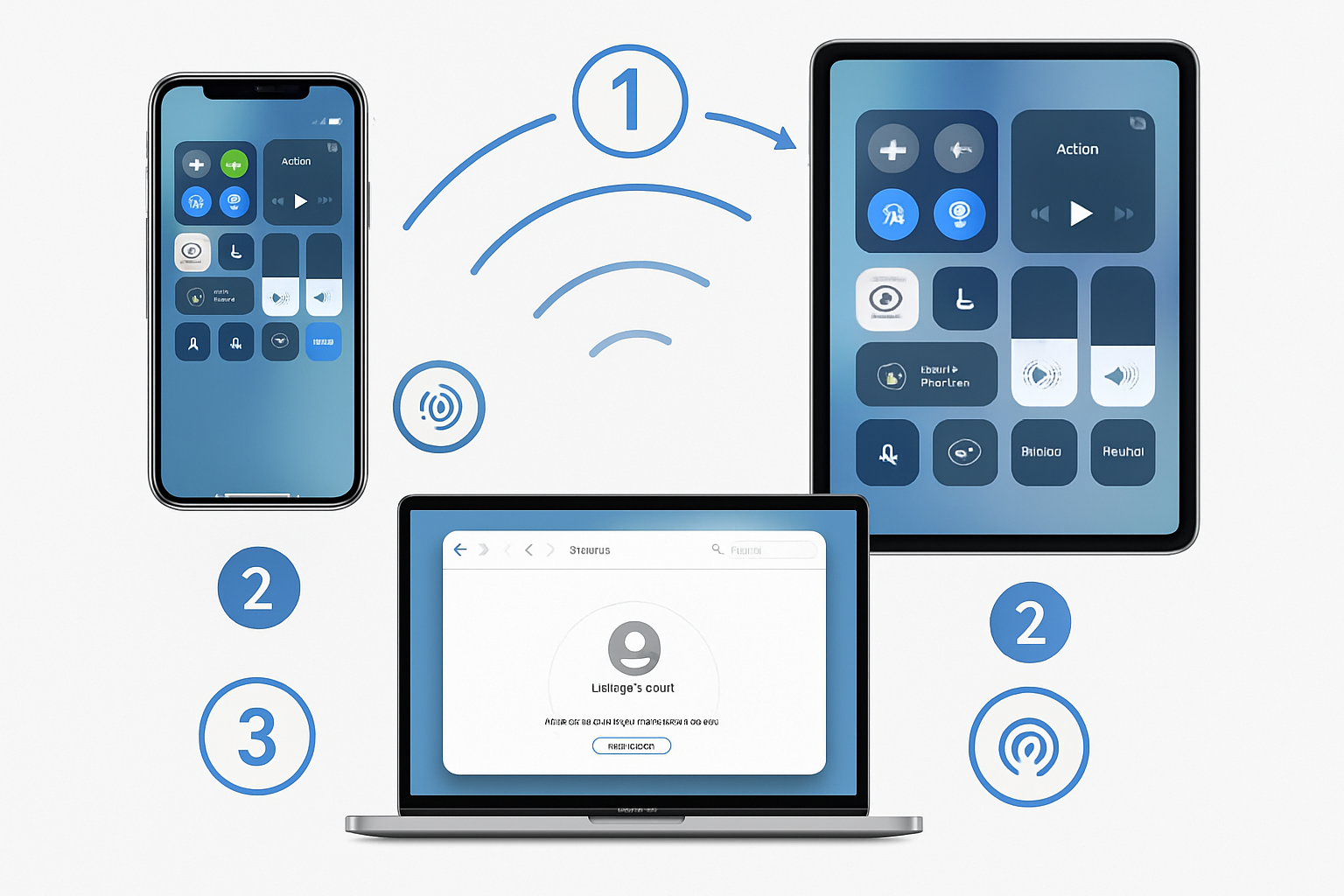
AirDrop represents Apple’s elegant solution to one of the most persistent challenges in modern business: seamless file sharing across devices. For creative professionals managing large design files, video content, or high-resolution photography, AirDrop 101: Transform How You Share Files! Becomes essential knowledge for maintaining competitive workflows.
At its core, AirDrop establishes a secure, peer-to-peer connection between Apple devices using a combination of Bluetooth Low Energy and Wi-Fi Direct. This means your files transfer directly from device to device without traveling through the internet, email servers, or cloud storage platforms. The result? Lightning-fast transfers that maintain file quality and protect sensitive client data.
How AirDrop Works Behind the Scenes
When you initiate an AirDrop transfer, your device broadcasts its availability using Bluetooth Low Energy, creating a discoverable beacon for nearby Apple devices. Once another device responds, both devices establish a dedicated Wi-Fi Direct connection, essentially creating a private network for file transfer. This sophisticated handshake happens in seconds, enabling transfer speeds that often exceed traditional cloud uploads by 10x or more.
For small business owners managing creative teams, this technology eliminates several pain points:
- No file size limitations like email attachments
- No internet dependency for local file sharing
- Maintains original file quality without compression
- Works across your entire Apple ecosystem seamlessly
The security implications are equally impressive. AirDrop encrypts all transfers using industry-standard protocols, ensuring that sensitive client work, proprietary designs, and confidential business documents remain protected during transit.
Setting Up AirDrop for Business Success
AirDrop 101: Transform How You Share Files! Begins with proper configuration across your device fleet. Many businesses struggle with AirDrop because they never established consistent setup protocols, leading to frustrating connectivity issues when files need to be moved quickly.
Essential Configuration Steps
On Mac devices, access AirDrop through Finder’s sidebar or use the keyboard shortcut Shift+Command+R. The AirDrop window displays nearby devices and offers three crucial visibility settings:
- Receiving Off: Completely disables AirDrop functionality
- Contacts Only: Limits visibility to people in your Contacts app
- Everyone: Makes your device discoverable to all nearby Apple devices
On iOS devices, AirDrop lives in Control Center. Swipe down from the upper-right corner (iPhone X and later) or up from the bottom (older devices) to access the connectivity panel. Press and hold the network settings card to reveal AirDrop options with the same three visibility levels.
Business-Focused Security Configuration
For creative agencies and small businesses, “Contacts Only” represents the optimal security balance. This setting ensures your devices appear only to team members and known collaborators, while preventing random AirDrop requests from nearby devices in coffee shops, co-working spaces, or client offices.
To implement this effectively:
- Standardize contact information across your team’s devices
- Use consistent Apple IDs for business accounts
- Regularly audit device visibility settings during team onboarding
- Document AirDrop policies in your employee handbook
This approach provides the convenience your creative workflows demand while maintaining the security your business requires. As Apple’s latest security features continue evolving, proper AirDrop configuration becomes even more critical for comprehensive data protection.
Optimizing for Different Work Environments
Creative studios often work in open environments where multiple Apple devices from different companies operate in proximity. In these scenarios, “Contacts Only” prevents workflow interruptions from unwanted AirDrop requests while still allowing your team to collaborate efficiently.
For photographers managing client sessions, this configuration allows seamless sharing between your iPhone (for quick shots and client previews) and your MacBook Pro (for immediate editing and processing) without exposing your devices to other photographers or clients nearby.
Mastering AirDrop Workflows for Creative Teams
AirDrop 101: Transform How You Share Files! Reaches its full potential when integrated into your daily creative workflows. The difference between occasional AirDrop use and strategic implementation often determines whether your team views it as a convenient feature or an essential business tool.
Video Production Workflows
Video editors and content creators face unique challenges with file sizes that can reach multiple gigabytes. Traditional transfer methods create bottlenecks that delay project timelines and frustrate clients waiting for deliverables.
AirDrop transforms video workflows by enabling:
- Instant transfer of raw footage from iPhone to MacBook Pro for editing
- Quick sharing of render previews with clients during review sessions
- Seamless collaboration between multiple editors working on different sequences
- Rapid backup of critical project files to various devices
Consider a typical client video project: Your team shoots B-roll footage on an iPhone 15 Pro, capturing 4K ProRes files that need immediate editing. Instead of waiting for cloud uploads or hunting for cables, AirDrop moves these files to your editing workstation in minutes, not hours.
Design and Photography Integration
Graphic designers and photographers benefit enormously from AirDrop’s ability to maintain file quality during transfers. Unlike email compression or cloud optimization, AirDrop preserves every pixel and layer, ensuring your creative vision remains intact.
Strategic AirDrop implementation for design teams includes:
- RAW photo transfers from iPad Pro to Mac for professional editing
- Vector file sharing between designers without quality loss
- Client presentation materials moving seamlessly between devices
- Font and asset synchronization across team workstations
The improved camera capabilities in recent iOS updates make iPhone and iPad increasingly viable for professional photography, making AirDrop integration even more valuable for creative workflows.
Troubleshooting Common Business Scenarios
Even with proper setup, AirDrop occasionally encounters connectivity issues that can disrupt urgent file transfers. Understanding common problems and their solutions prevents minor technical hiccups from becoming major workflow disruptions.
Device Discovery Issues often stem from inconsistent Wi-Fi network configurations. If devices can’t see each other, try:
- Disabling and re-enabling Wi-Fi and Bluetooth on both devices
- Ensuring both devices use the same Wi-Fi network (though the internet isn’t required)
- Checking that both devices have AirDrop enabled with compatible visibility settings
- Restarting devices if discovery problems persist
Transfer Failures typically occur with huge files or when devices enter sleep mode during transfer. Solutions include:
- Keeping devices active during large file transfers
- Breaking large projects into smaller chunks when possible
- Ensuring adequate battery life on both devices
- Closing unnecessary applications to free system resources
For businesses experiencing persistent AirDrop issues, professional Mac IT support can identify network configuration problems or device management policies that interfere with optimal functionality.
Advanced AirDrop Strategies for Business Growth
As your creative business scales, AirDrop 101: Transform How You Share Files! Evolves from basic file sharing to sophisticated workflow optimization. Advanced implementation strategies help growing teams maintain efficiency as they add new devices, team members, and collaborative processes.
Device Fleet Management
Managing AirDrop across multiple devices requires systematic approaches that prevent configuration drift and ensure consistent functionality. Creative agencies often struggle when different team members configure their devices differently, leading to unpredictable connectivity and security gaps.
Standardized device setup protocols should include:
- Consistent Apple ID management for business accounts
- Unified contact database ensuring team-wide discoverability
- Regular security audits of AirDrop visibility settings
- Documentation of approved file-sharing procedures
For businesses using Mobile Device Management (MDM) solutions, AirDrop policies can be configured centrally, ensuring compliance with security requirements while maintaining operational flexibility. This approach particularly benefits creative studios where team members frequently join and leave projects.
Integration with Existing IT Infrastructure
AirDrop complements rather than replaces existing file management systems. Smart businesses integrate AirDrop into broader IT strategies that include cloud storage, network-attached storage (NAS), and traditional file servers.
Consider this hybrid approach:
- AirDrop for immediate, local transfers during active collaboration
- Cloud storage for long-term archival and remote access
- Network storage for large project repositories and automated backups
- Email for formal file delivery to clients and external partners
This strategy leverages AirDrop’s speed and convenience while maintaining comprehensive data management practices. Recent improvements in Apple’s operating systems continue to enhance these integration possibilities.
Security Best Practices for Growing Teams
As creative teams expand, AirDrop security becomes increasingly complex. New team members, client devices, and collaborative partners create potential security vulnerabilities that require proactive management.
Comprehensive security strategies include:
- Regular training on proper AirDrop usage and security settings
- Clear policies about acceptable file types and recipients
- Audit trails for sensitive file transfers when required
- Incident response procedures for accidental or unauthorized transfers
The importance of strong digital security practices extends beyond AirDrop to encompass your entire creative workflow, underscoring the need for comprehensive security planning to protect your business.
Performance Optimization Techniques
Maximizing AirDrop performance requires understanding the factors that influence transfer speeds and reliability. Environmental considerations, device capabilities, and network configurations all impact the user experience your team encounters daily.
Environmental optimization includes:
- Minimizing physical distance between devices during transfers
- Reducing interference from other wireless devices
- Ensuring a clear line-of-sight when possible for optimal performance
- Managing network congestion in busy office environments
Device-specific considerations vary based on your hardware mix:
- Newer devices generally offer faster transfer speeds and better reliability
- Battery levels significantly impact transfer performance and success rates
- Available storage space affects both transfer speed and completion
- Background app activity can interfere with optimal AirDrop performance
For creative professionals working with the latest Apple hardware, understanding these performance factors ensures your investment in premium devices delivers maximum productivity benefits.
Future-Proofing Your File Sharing Strategy

AirDrop 101: Transform How You Share Files! Represents just the beginning of Apple’s wireless sharing evolution. Understanding upcoming developments and preparing your business for future enhancements ensures your file-sharing infrastructure remains competitive and efficient.
Emerging Technologies and Integration
Apple continues to invest heavily in wireless technologies to enhance AirDrop functionality. Recent developments in Ultra Wideband (UWB) technology, found in newer iPhones and Apple Watches, promise even more precise device discovery and enhanced security features.
Future AirDrop enhancements likely include:
- Improved range and speed through advanced wireless protocols
- Enhanced security features for enterprise and creative business use
- Better integration with third-party creative applications
- Expanded file type support for emerging media formats
Creative businesses that understand these technological trajectories can make informed decisions about device upgrades, workflow modifications, and IT infrastructure investments.
Building Scalable Workflows
As your creative business grows, file-sharing needs become more complex and demanding. Scalable AirDrop implementation requires thinking beyond immediate needs to anticipate future challenges and opportunities.
Scalability considerations include:
- Team growth planning and onboarding procedures
- Client collaboration requirements and security implications
- Project complexity evolution and file size trends
- Technology refresh cycles and compatibility planning
Businesses that plan strategically for these factors avoid costly workflow disruptions and maintain competitive advantages as they scale.
The latest Apple device announcements continue demonstrating Apple’s commitment to seamless device integration, making AirDrop proficiency increasingly valuable for creative professionals.
Conclusion
AirDrop 101: Transform How You Share Files! Represents far more than learning a simple feature—it’s about fundamentally improving how your creative business operates. From eliminating email attachment limitations to enabling real-time collaboration, a well-implemented AirDrop delivers immediate productivity gains while positioning your team for future success.
The key to AirDrop mastery lies in systematic implementation: configure devices consistently, train team members thoroughly, integrate with existing workflows strategically, and maintain security standards rigorously. When these elements align, AirDrop transforms from an occasional convenience into an essential business capability.
Your next steps should include:
- Auditing current AirDrop configurations across all team devices
- Standardizing security settings to “Contacts Only” for business use
- Training team members on proper usage and troubleshooting techniques
- Documenting AirDrop policies in your employee procedures
- Planning integration with your broader IT infrastructure
For creative businesses serious about operational efficiency, professional Mac IT support ensures optimal AirDrop implementation while addressing the broader technology needs that support your creative vision. Peace of mind through technology solutions means your team can focus on creating exceptional work rather than wrestling with file-transfer limitations.
The creative economy demands tools that keep pace with imagination and ambition. AirDrop 101: Transform How You Share Files! Provides the foundation for workflows that scale with your success, ensuring technology enhances rather than hinders your creative potential.
References
[1] Apple Inc. (2025). AirDrop Technical Documentation and Security Overview.
[2] MacWorks 360 Client Performance Studies (2024-2025). Creative Workflow Optimization Analysis.
[3] Apple Inc. (2025). iOS and macOS Security Features and Implementation Guidelines.

Want this Mac Email Security implemented for you?
MacWorks 360 hardens, monitors, and backs up Mac fleets across New Jersey. We build policies, deploy tools, and prove restores—so your team stays safe and focused.
Contact us · Managed IT for Mac · Apple IT Support
Based in Springfield, NJ—serving Summit, Millburn, Short Hills, Chatham, Montclair, and beyond.